LartAI Download Step Tutorial
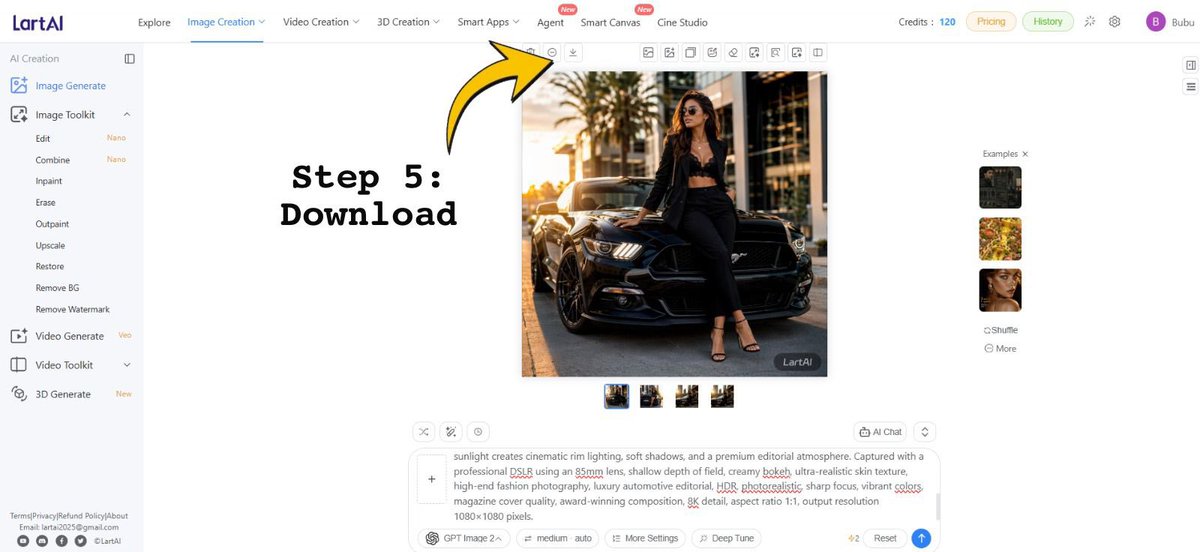
LartAI Download Step Tutorial

prompt

Goal: Create a wide tutorial-style screenshot graphic showing the LartAI image generation web app interface with an instructional overlay for downloading a generated image. Canvas: 1200×552 horizontal screen capture composition, bright white UI, clean SaaS dashboard look, thin gray dividers, small icons, and lots of empty white space. Layout: Full browser-app interface. A left sidebar occupies about 12% of the width, a top navigation bar spans the full width, the central workspace contains one large generated square image, and a right examples strip contains small thumbnails. Add a bold annotation on the left-center reading “Step 5: Download” in a black typewriter/monospace font, with a large curved yellow arrow outlined in black pointing upward toward the small download icon in the top toolbar above the generated image. Top navigation: Show the LartAI logo at top left. Include exactly 7 main navigation items across the top: “Explore”, “Image Creation” highlighted/underlined in blue, “Video Creation”, “3D Creation”, “Smart Apps”, “Agent”, “Smart Canvas”, and “Cine Studio”; place small red “New” badges near Agent and Smart Canvas. On the right, show “Credits: 120”, pill buttons “Pricing” and “History”, small utility icons, and a purple circular avatar with the letter “B” followed by the username Bubu. Left sidebar: Under the “AI Creation” heading, show exactly 14 visible tool entries: “Image Generate” selected in blue, “Image Toolkit”, “Edit” with a small “Nano” tag, “Combine” with a small “Nano” tag, “Inpaint”, “Erase”, “Outpaint”, “Upscale”, “Restore”, “Remove BG”, “Remove Watermark”, “Video Generate” with a small “Veo” tag, “Video Toolkit”, and “3D Generate” with a small “New” tag. At the bottom, include tiny footer text links and social icons, resembling Terms/Privacy/Refund Policy/About and contact details. Central generated image: Display a square fashion editorial photo of a stylish woman wearing sunglasses, a black blazer, black crop top, black trousers, and strappy heels leaning against the front of a glossy black Ford Mustang on a city street at golden hour. The subject sits on the car hood/front corner with one leg bent, palm trees and modern buildings in the background, warm cinematic sunlight, realistic shadows, high-end fashion and luxury automotive photography. Add a small dark “LartAI” watermark in the lower-right corner of this generated image. Toolbar and controls: Above the square image, show a row of small square action icons, with the yellow arrow specifically pointing at the download icon. Beneath the large image, show exactly 4 small square result thumbnails in a row, with the first thumbnail selected using a blue border. Right examples panel: Show the heading “Examples ×” and exactly 3 stacked example thumbnails: a dark car/fashion image, a yellow floral image, and a woman’s face portrait. Below them show exactly 2 small text controls: “Shuffle” and “More”. Bottom prompt area: Include a large prompt input box with a plus button at its left and a visible text prompt beginning with “sunlight creates cinematic rim lighting, soft shadows, and a premium editorial atmosphere...” and containing underlined red spellcheck marks on some words. Below it, show controls including “GPT Image 2”, “medium auto”, “More Settings”, “Deep Tune”, a “4/2” indicator, “Reset”, and a blue circular send button. Text overlay: The annotation text must read exactly Step 5: Download. Use very large black bold typewriter lettering. The arrow should be bright yellow with a thick black outline, curved, and point from the text region toward the top toolbar download button. Constraints: Preserve the clean web-app screenshot style, keep all UI text in English, use crisp small interface typography, no browser chrome, no extra popups, and no additional instructional steps.

Funciona em 21 modelos

  • Flux
  • Flux 2
  • Flux Kontext
  • GPT-4o Image
  • GPT Image
  • GPT Image 2
  • GPT Image 2.5
  • GPT Image 2.6
  • Grok Imagine
  • Ideogram V3
  • Imagen 4
  • Kling
  • +9 Mais

O que este prompt produz

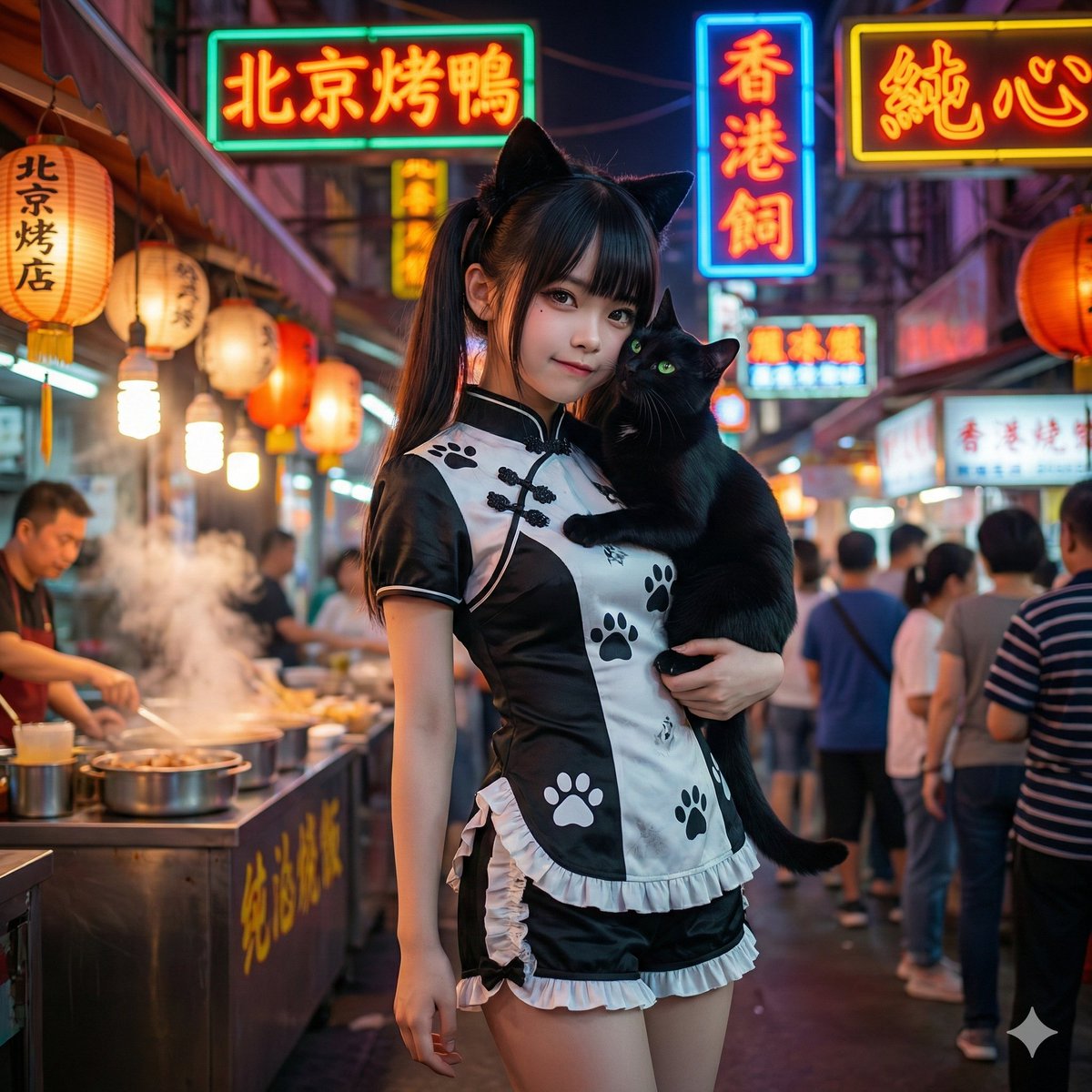
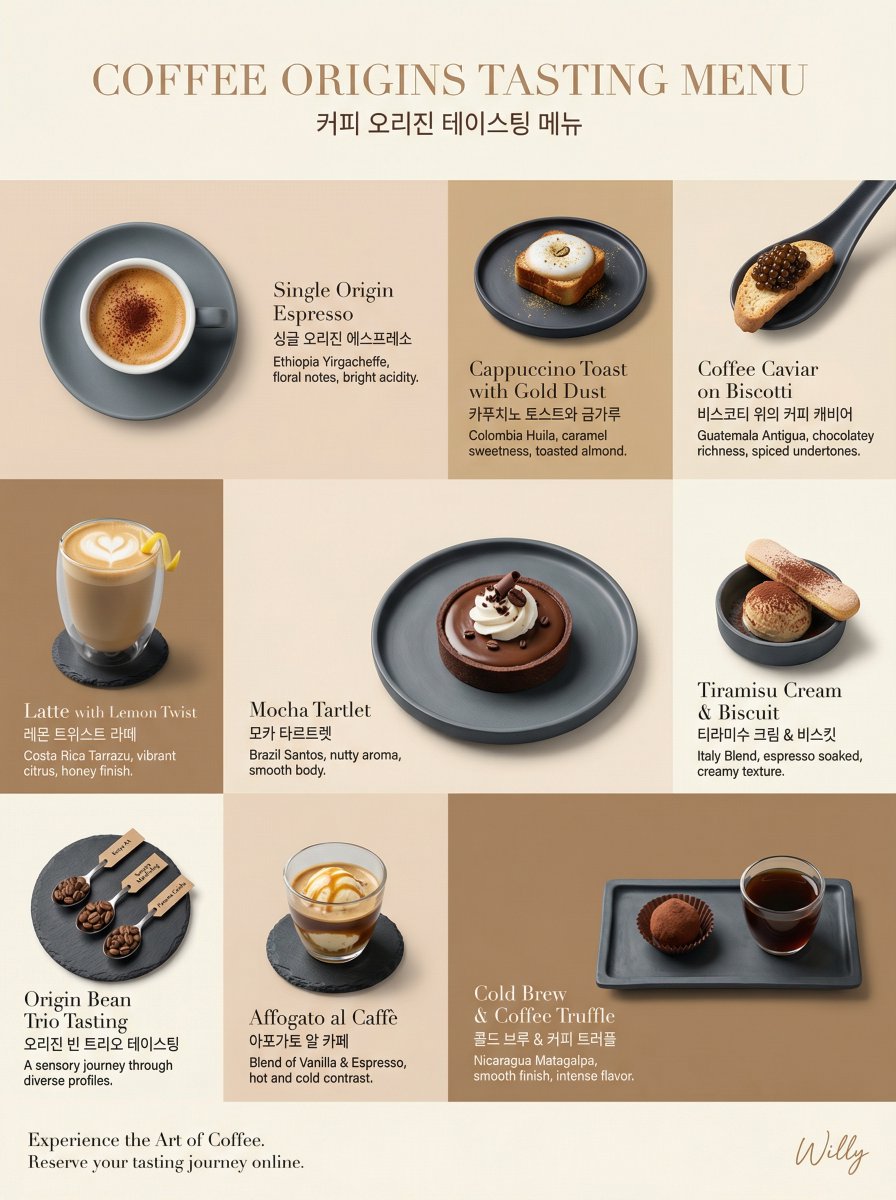
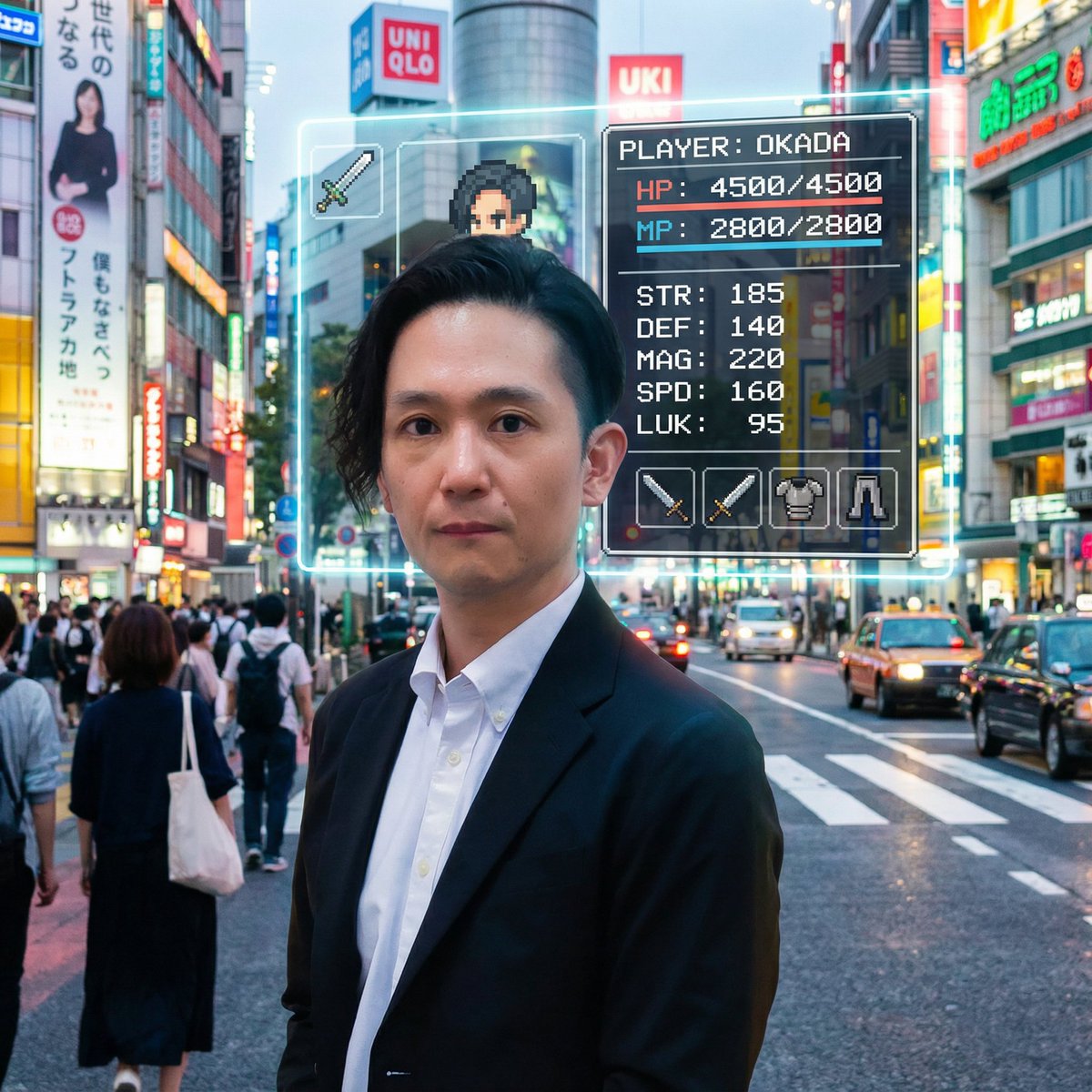
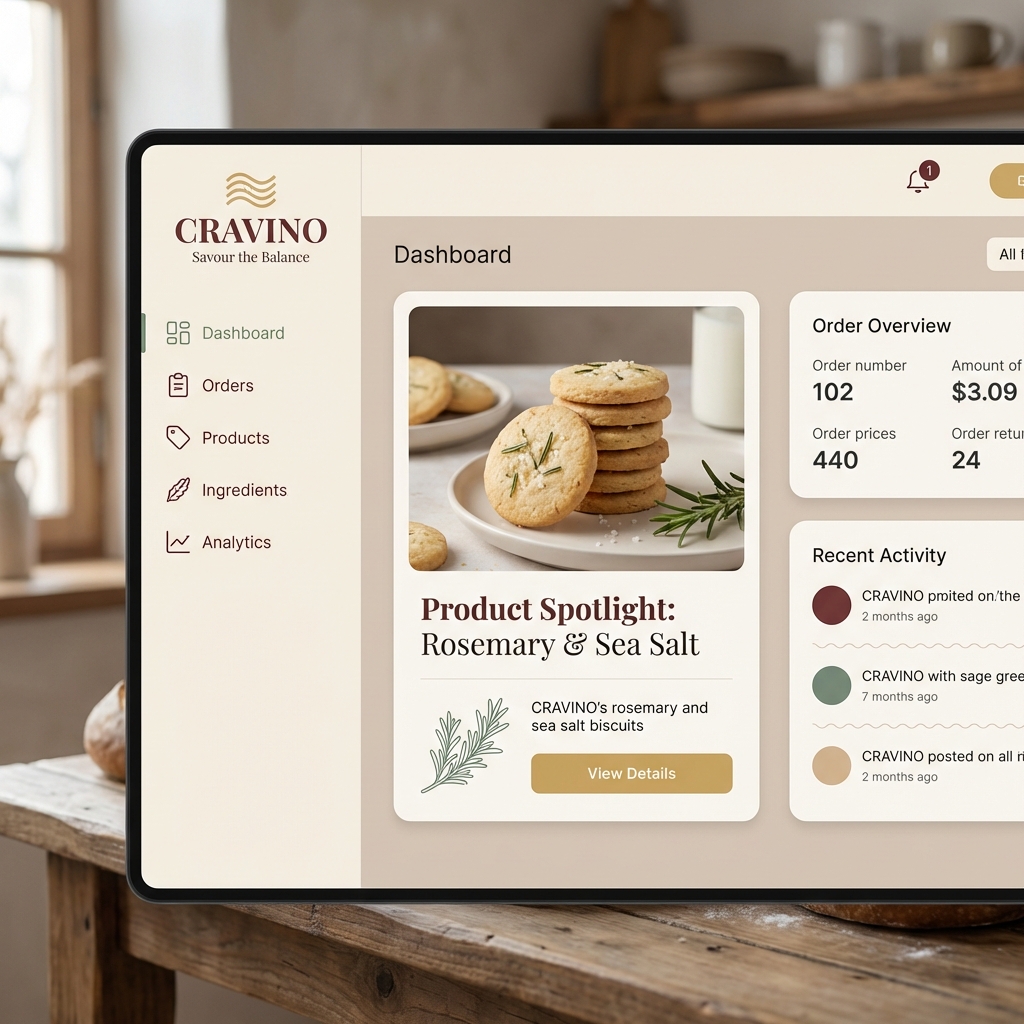
Seedream 5 prompt: Je veut une photo de moi prise par quelqu’un d’aut... Não especificado v2
Hero prompt: es domāju par zēnu  no skolas. Não especificado 1.0
Hunyuan  prompt: birthday Não especificado hunyuan-3
Seedream 5 prompt: secretary Não especificado v2
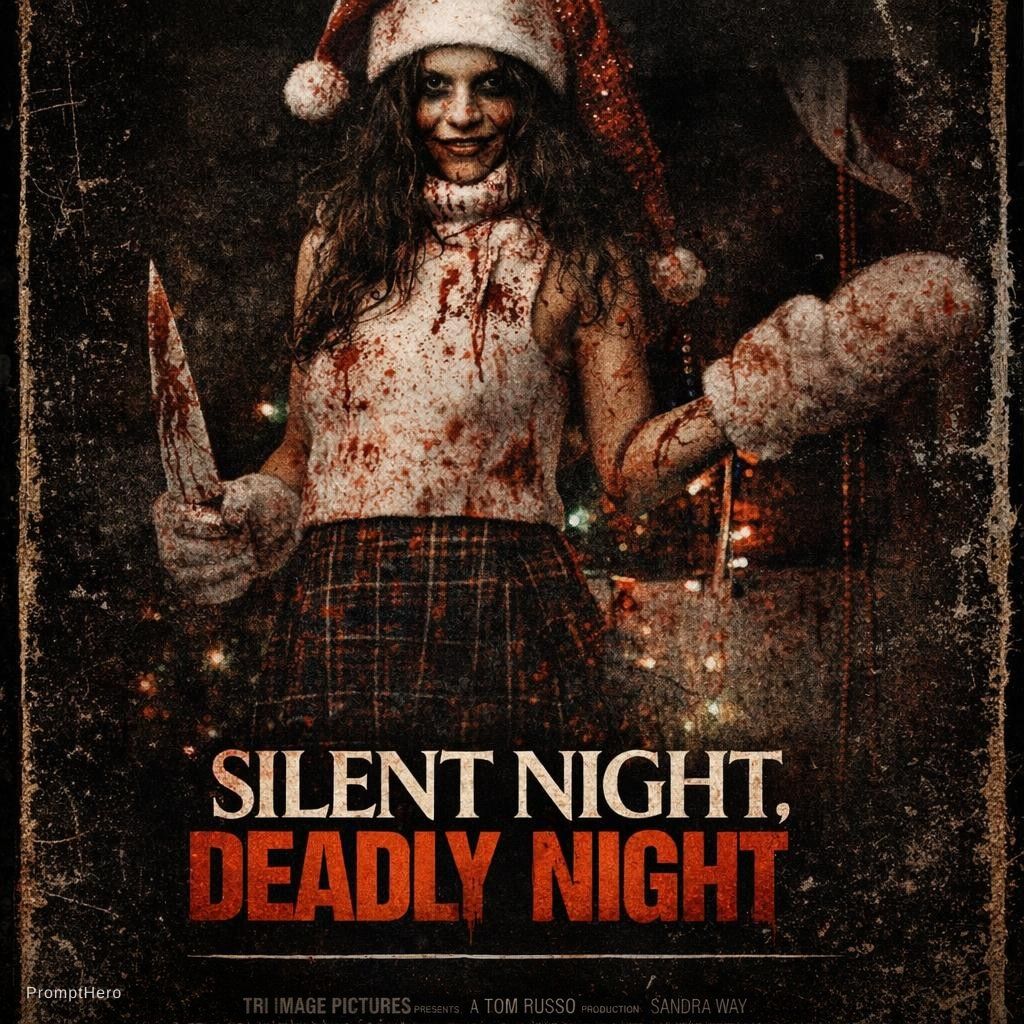
ChatGPT Image prompt: Made horror movie poster. Silent Night, Deadly Nig... Não especificado v1
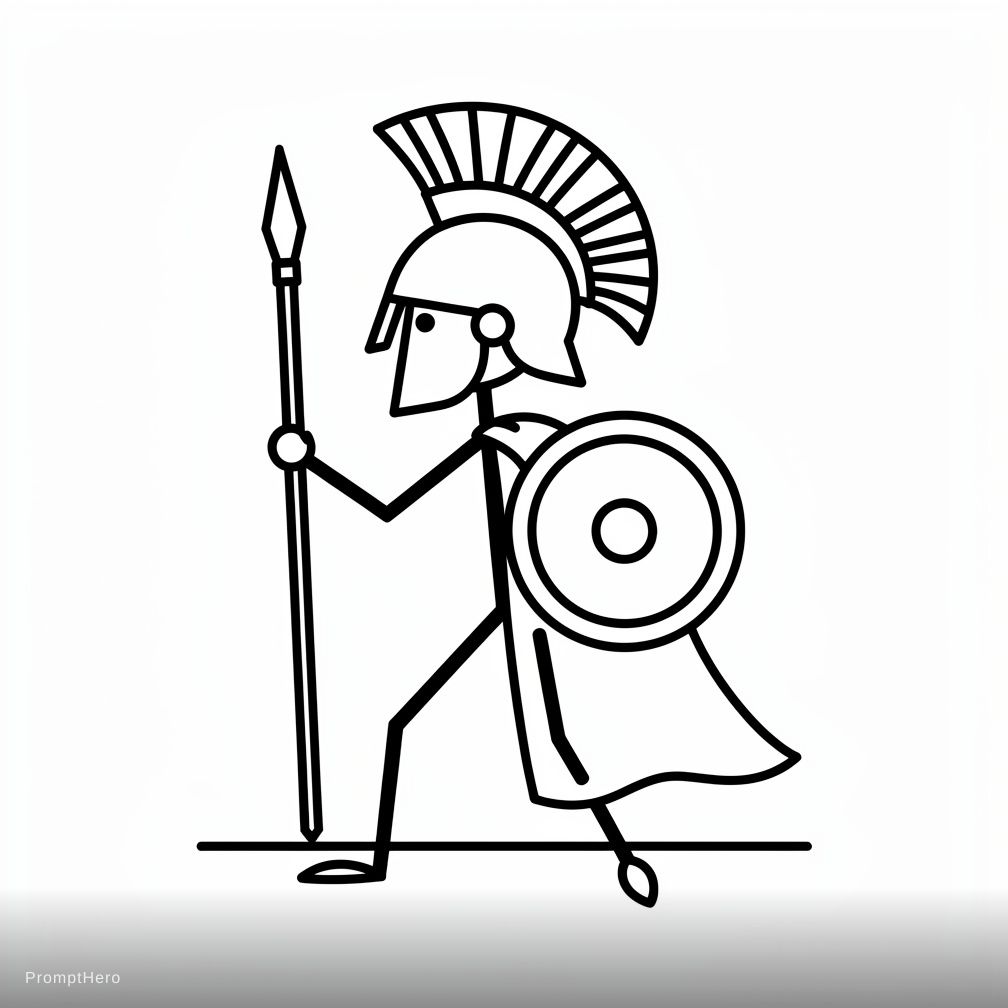
FLUX prompt: spartan stick man Não especificado flux-2-pro

Run este prompt com o API

A solicitação abaixo envia esse prompt, com seus valores padrão preenchidos, para o primeiro modelo em que é executado. Troque o nome do modelo por qualquer outro modelo listado acima.

Documentação da prompt API
/api/v1/gpt_image_2/text_to_image
curl -X POST https://runapi.ai/api/v1/gpt_image_2/text_to_image \
  -H "Authorization: Bearer $RUNAPI_API_KEY" \
  -H "Content-Type: application/json" \
  --data-binary @- <<'JSON'
{
  "model": "gpt-image-2",
  "prompt": "Goal: Create a wide tutorial-style screenshot graphic showing the LartAI image generation web app interface with an instructional overlay for downloading a generated image.\n\nCanvas: 1200×552 horizontal screen capture composition, bright white UI, clean SaaS dashboard look, thin gray dividers, small icons, and lots of empty white space.\n\nLayout: Full browser-app interface. A left sidebar occupies about 12% of the width, a top navigation bar spans the full width, the central workspace contains one large generated square image, and a right examples strip contains small thumbnails. Add a bold annotation on the left-center reading “Step 5: Download” in a black typewriter/monospace font, with a large curved yellow arrow outlined in black pointing upward toward the small download icon in the top toolbar above the generated image.\n\nTop navigation: Show the LartAI logo at top left. Include exactly 7 main navigation items across the top: “Explore”, “Image Creation” highlighted/underlined in blue, “Video Creation”, “3D Creation”, “Smart Apps”, “Agent”, “Smart Canvas”, and “Cine Studio”; place small red “New” badges near Agent and Smart Canvas. On the right, show “Credits: 120”, pill buttons “Pricing” and “History”, small utility icons, and a purple circular avatar with the letter “B” followed by the username Bubu.\n\nLeft sidebar: Under the “AI Creation” heading, show exactly 14 visible tool entries: “Image Generate” selected in blue, “Image Toolkit”, “Edit” with a small “Nano” tag, “Combine” with a small “Nano” tag, “Inpaint”, “Erase”, “Outpaint”, “Upscale”, “Restore”, “Remove BG”, “Remove Watermark”, “Video Generate” with a small “Veo” tag, “Video Toolkit”, and “3D Generate” with a small “New” tag. At the bottom, include tiny footer text links and social icons, resembling Terms/Privacy/Refund Policy/About and contact details.\n\nCentral generated image: Display a square fashion editorial photo of a stylish woman wearing sunglasses, a black blazer, black crop top, black trousers, and strappy heels leaning against the front of a glossy black Ford Mustang on a city street at golden hour. The subject sits on the car hood/front corner with one leg bent, palm trees and modern buildings in the background, warm cinematic sunlight, realistic shadows, high-end fashion and luxury automotive photography. Add a small dark “LartAI” watermark in the lower-right corner of this generated image.\n\nToolbar and controls: Above the square image, show a row of small square action icons, with the yellow arrow specifically pointing at the download icon. Beneath the large image, show exactly 4 small square result thumbnails in a row, with the first thumbnail selected using a blue border.\n\nRight examples panel: Show the heading “Examples ×” and exactly 3 stacked example thumbnails: a dark car/fashion image, a yellow floral image, and a woman’s face portrait. Below them show exactly 2 small text controls: “Shuffle” and “More”.\n\nBottom prompt area: Include a large prompt input box with a plus button at its left and a visible text prompt beginning with “sunlight creates cinematic rim lighting, soft shadows, and a premium editorial atmosphere...” and containing underlined red spellcheck marks on some words. Below it, show controls including “GPT Image 2”, “medium auto”, “More Settings”, “Deep Tune”, a “4/2” indicator, “Reset”, and a blue circular send button.\n\nText overlay: The annotation text must read exactly Step 5:\nDownload. Use very large black bold typewriter lettering. The arrow should be bright yellow with a thick black outline, curved, and point from the text region toward the top toolbar download button.\n\nConstraints: Preserve the clean web-app screenshot style, keep all UI text in English, use crisp small interface typography, no browser chrome, no extra popups, and no additional instructional steps."
}
JSON

Experimentar a prompt