7-Eleven Net Print Instruction Sheet
7-Eleven Net Print Instruction Sheet

즉각적인

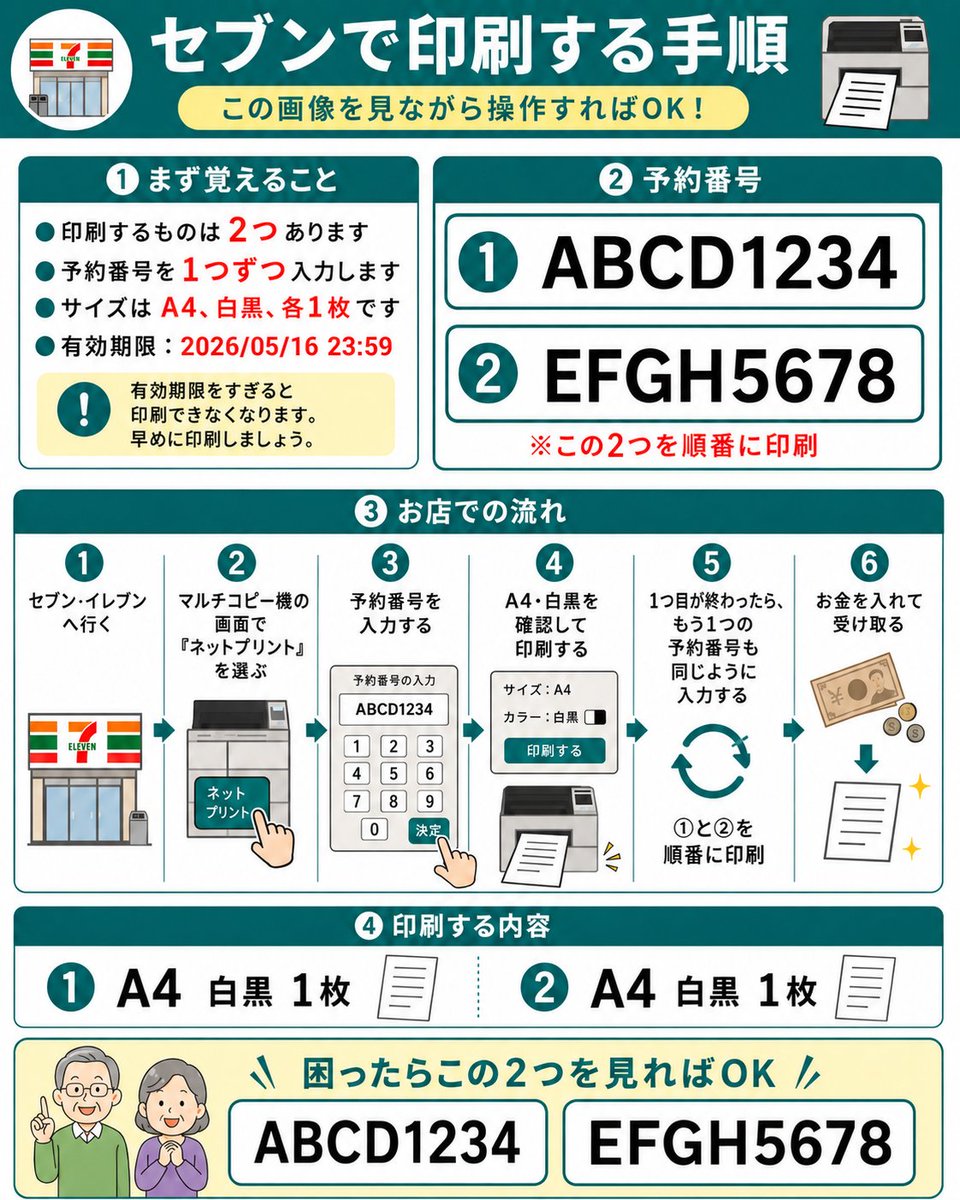
Goal: Create a friendly Japanese step-by-step instruction sheet for printing two reserved net-print documents at a 7-Eleven multifunction copier, designed so an elderly parent can understand it just by looking. Canvas: Square 1:1 infographic, white background with teal borders and rounded cards, bold teal section headers, red emphasis text, simple flat vector icons. Overall style is clean, high-contrast, large readable Japanese typography, like a laminated how-to guide. Main header: At the top, a dark teal banner with a circular 7-Eleven storefront icon on the left and a printer icon on the right. Center the large white headline セブンで印刷する手順. Under it place a pale yellow rounded pill subtitle この画像を見ながら操作すればOK!. Section 1, top left card, title ① まず覚えること: Include exactly 4 teal bullet points and 1 yellow warning box. The bullets say, in Japanese, that there are 2 things to print, enter reservation numbers one at a time, the size is A4 black-and-white one copy each, and the expiration deadline is 2026/05/16 23:59. Emphasize the numbers 2, 1, A4, black-and-white, one copy each, and the date in red. The warning box contains a teal exclamation icon and text warning that printing becomes unavailable after the expiration date, so print early. Section 2, top right card, title ② 予約番号: Show exactly 2 large reservation-number rows with teal circled numbers: row 1 is ABCD1234, row 2 is EFGH5678. Each row is inside a white rounded rectangle with teal outline. Add a red note below: print these two in order. Section 3, middle full-width card, title in Japanese meaning store workflow: Show exactly 6 numbered vertical steps separated by thin teal lines, each with a teal circle number at the top. Step 1: go to 7-Eleven, with storefront icon. Step 2: on the multifunction copier screen choose “Net Print,” with copier touchscreen icon and pointing hand. Step 3: enter the reservation number, with keypad screen showing ABCD1234 and a pointing hand pressing confirm. Step 4: confirm A4 black-and-white and print, with settings panel and printer output icon. Step 5: after the first one finishes, enter the second reservation number the same way, with circular repeat arrows and text indicating print 1 then 2 in order. Step 6: insert money and receive the printout, with banknote, coins, downward arrow, paper sheet, and sparkle icons. Section 4, lower card, title in Japanese meaning print contents: Show exactly 2 contents items. Item 1: teal circled 1, large text “A4 black-and-white 1 copy,” small paper icon. Item 2: teal circled 2, large text “A4 black-and-white 1 copy,” small paper icon. Separate the two items with a dotted teal divider. Bottom help strip: Pale yellow rounded rectangle with two friendly elderly people icons on the left, faces intentionally blurred or simplified. Add a teal headline saying that if they are confused, they only need to look at these two numbers. Show exactly 2 large bordered boxes containing ABCD1234 and EFGH5678. Constraints: Use exactly 4 major numbered sections plus the bottom help strip, exactly 2 reservation numbers, exactly 6 workflow steps, exactly 2 print-content items, exactly 4 bullet points in Section 1, and no extra logos except the simplified 7-Eleven storefront motif. Keep all Japanese text large, readable, and neatly aligned.

20 모델에서 실행됩니다.

  • Flux
  • Flux 2
  • Flux Kontext
  • GPT-4o Image
  • GPT Image
  • GPT Image 2
  • GPT Image 2.5
  • GPT Image 2.6
  • Grok Imagine
  • Ideogram V3
  • Imagen 4
  • Kling
  • +8 이상

이 프롬프트의 출력

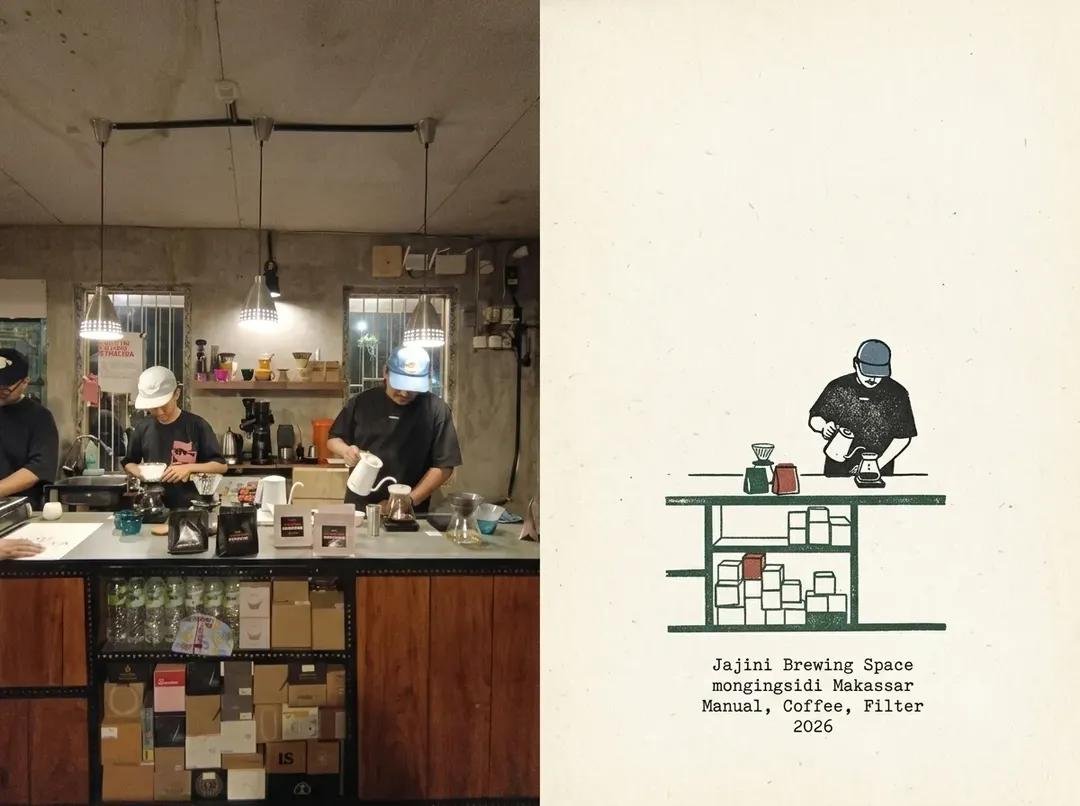
Split-Page Coffee Shop Travel Journal 지정되지 않음 gpt-image-2
Cute Chibi Characters in a Sweet Playful Moment 지정되지 않음 gpt-image-2
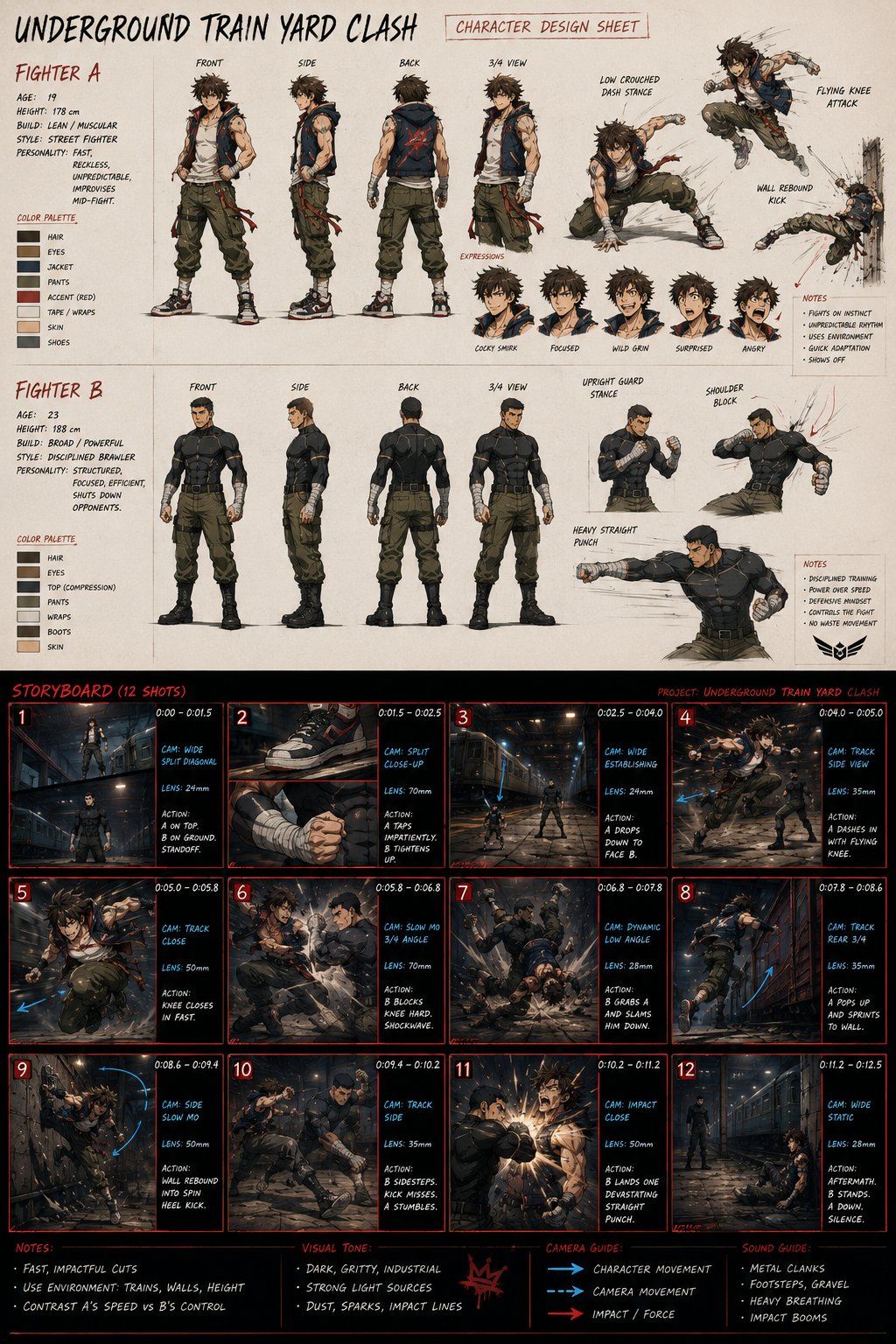
Underground Train Yard Clash Anime Development Board 지정되지 않음 gpt-image-2
Realistic Group Selfie with Smartphone Flash Effect 지정되지 않음 nano-banana-pro
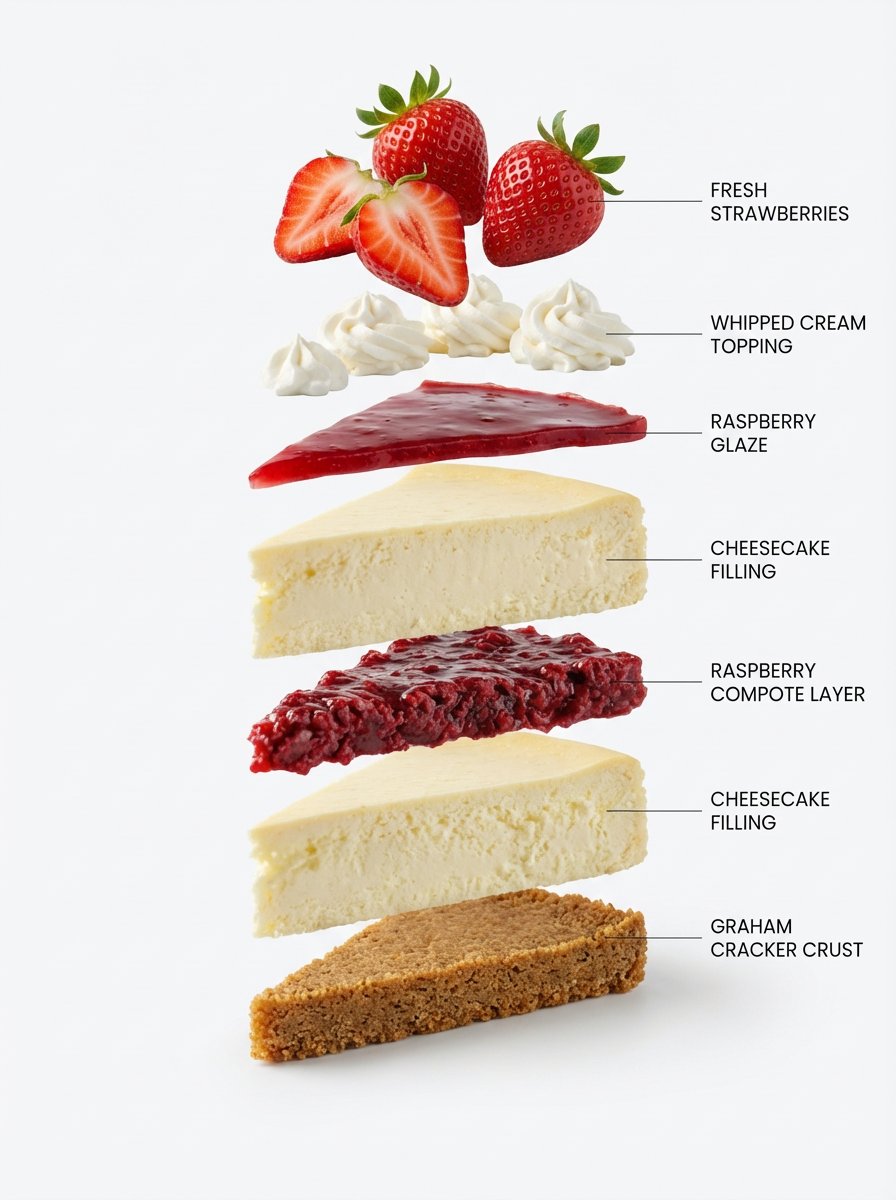
Exploded-View Structural Cutaway for Food Photography 지정되지 않음 nano-banana-pro
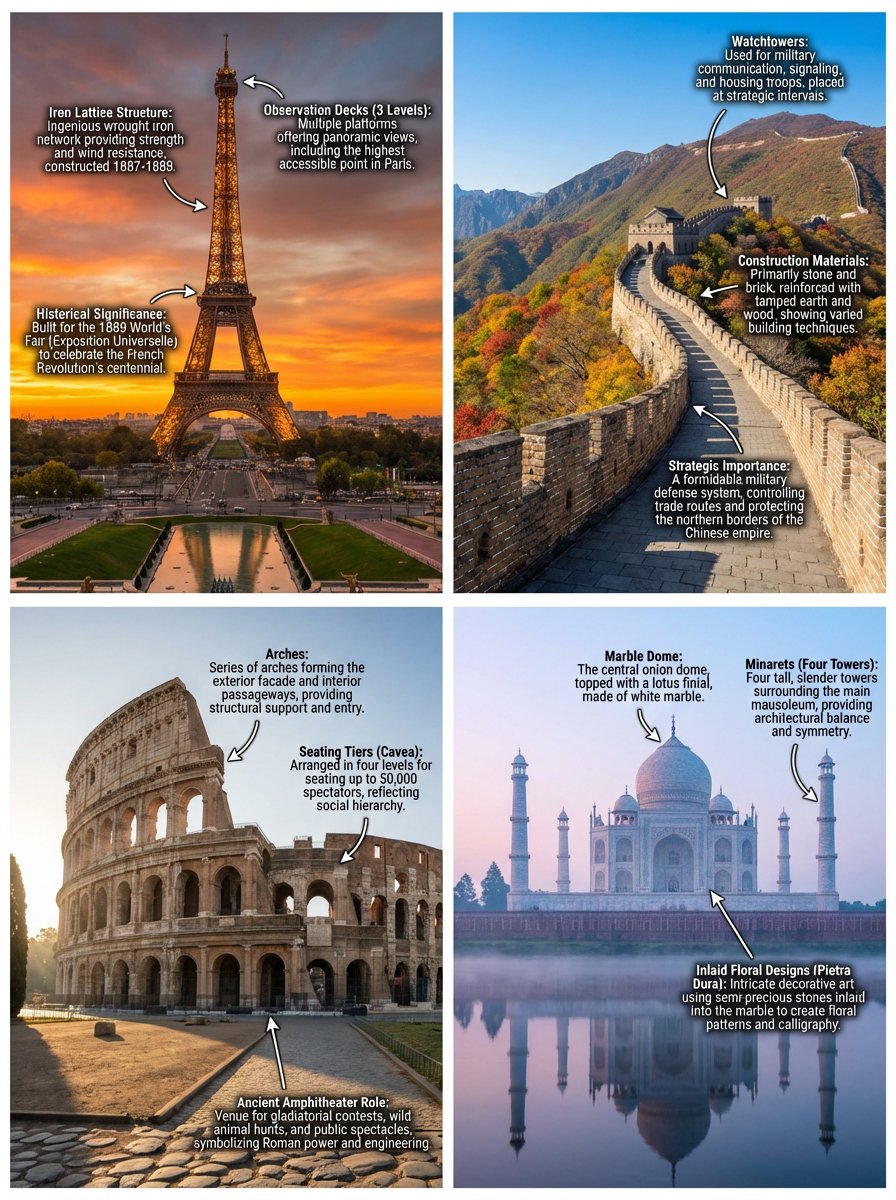
Four Seasons Portrait Collage 지정되지 않음 nano-banana-pro

API를 사용하여 이 프롬프트를 실행하세요.

아래 요청은 기본값이 채워진 이 프롬프트를 실행되는 첫 번째 모델로 보냅니다. 위에 나열된 다른 모델의 모델 이름을 바꾸십시오.

프롬프트 API 문서
/api/v1/gpt_image_2/text_to_image
curl -X POST https://runapi.ai/api/v1/gpt_image_2/text_to_image \
  -H "Authorization: Bearer $RUNAPI_API_KEY" \
  -H "Content-Type: application/json" \
  --data-binary @- <<'JSON'
{
  "model": "gpt-image-2",
  "prompt": "Goal: Create a friendly Japanese step-by-step instruction sheet for printing two reserved net-print documents at a 7-Eleven multifunction copier, designed so an elderly parent can understand it just by looking.\n\nCanvas: Square 1:1 infographic, white background with teal borders and rounded cards, bold teal section headers, red emphasis text, simple flat vector icons. Overall style is clean, high-contrast, large readable Japanese typography, like a laminated how-to guide.\n\nMain header: At the top, a dark teal banner with a circular 7-Eleven storefront icon on the left and a printer icon on the right. Center the large white headline セブンで印刷する手順. Under it place a pale yellow rounded pill subtitle この画像を見ながら操作すればOK!.\n\nSection 1, top left card, title ① まず覚えること: Include exactly 4 teal bullet points and 1 yellow warning box. The bullets say, in Japanese, that there are 2 things to print, enter reservation numbers one at a time, the size is A4 black-and-white one copy each, and the expiration deadline is 2026/05/16 23:59. Emphasize the numbers 2, 1, A4, black-and-white, one copy each, and the date in red. The warning box contains a teal exclamation icon and text warning that printing becomes unavailable after the expiration date, so print early.\n\nSection 2, top right card, title ② 予約番号: Show exactly 2 large reservation-number rows with teal circled numbers: row 1 is ABCD1234, row 2 is EFGH5678. Each row is inside a white rounded rectangle with teal outline. Add a red note below: print these two in order.\n\nSection 3, middle full-width card, title in Japanese meaning store workflow: Show exactly 6 numbered vertical steps separated by thin teal lines, each with a teal circle number at the top. Step 1: go to 7-Eleven, with storefront icon. Step 2: on the multifunction copier screen choose “Net Print,” with copier touchscreen icon and pointing hand. Step 3: enter the reservation number, with keypad screen showing ABCD1234 and a pointing hand pressing confirm. Step 4: confirm A4 black-and-white and print, with settings panel and printer output icon. Step 5: after the first one finishes, enter the second reservation number the same way, with circular repeat arrows and text indicating print 1 then 2 in order. Step 6: insert money and receive the printout, with banknote, coins, downward arrow, paper sheet, and sparkle icons.\n\nSection 4, lower card, title in Japanese meaning print contents: Show exactly 2 contents items. Item 1: teal circled 1, large text “A4 black-and-white 1 copy,” small paper icon. Item 2: teal circled 2, large text “A4 black-and-white 1 copy,” small paper icon. Separate the two items with a dotted teal divider.\n\nBottom help strip: Pale yellow rounded rectangle with two friendly elderly people icons on the left, faces intentionally blurred or simplified. Add a teal headline saying that if they are confused, they only need to look at these two numbers. Show exactly 2 large bordered boxes containing ABCD1234 and EFGH5678.\n\nConstraints: Use exactly 4 major numbered sections plus the bottom help strip, exactly 2 reservation numbers, exactly 6 workflow steps, exactly 2 print-content items, exactly 4 bullet points in Section 1, and no extra logos except the simplified 7-Eleven storefront motif. Keep all Japanese text large, readable, and neatly aligned."
}
JSON

메시지를 보내보세요

예상 금액: $0.04 / 이미지

RunAPI로 생성하려면 로그인하세요.

로그인 후 생성

로그인하여 사용 가능한 언어 모델로 생성을 시작하세요.