Editable Matcha Banner in PowerPoint
Editable Matcha Banner in PowerPoint

즉각적인

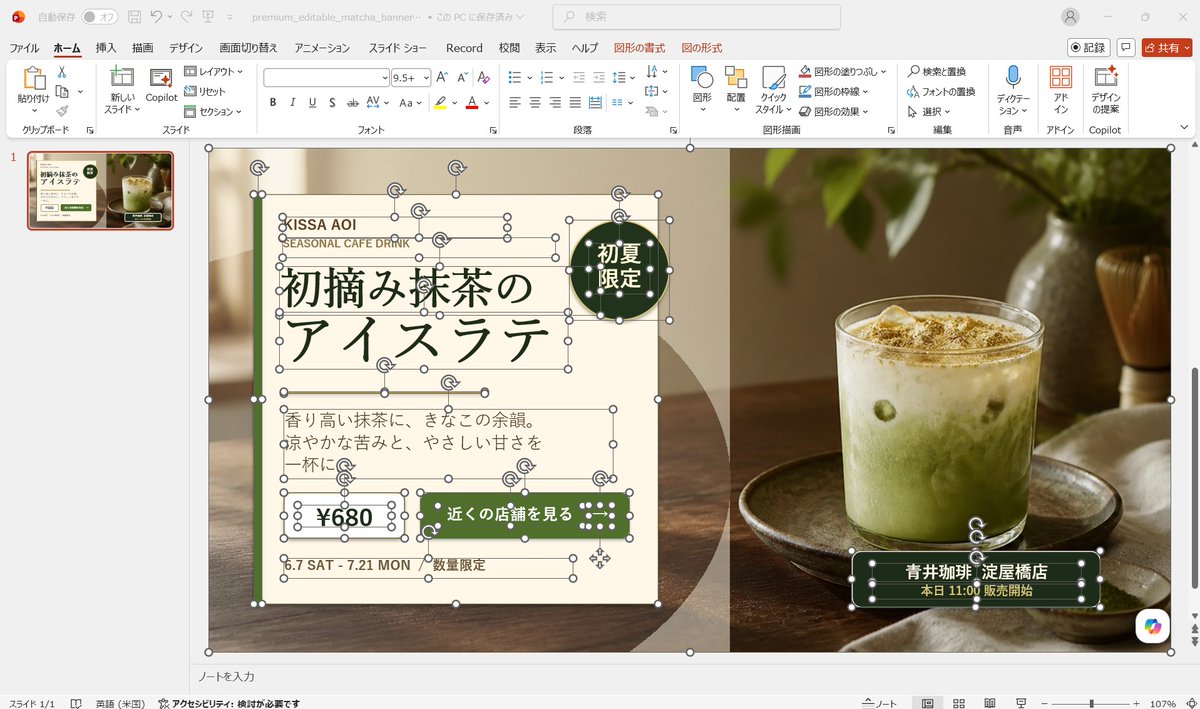
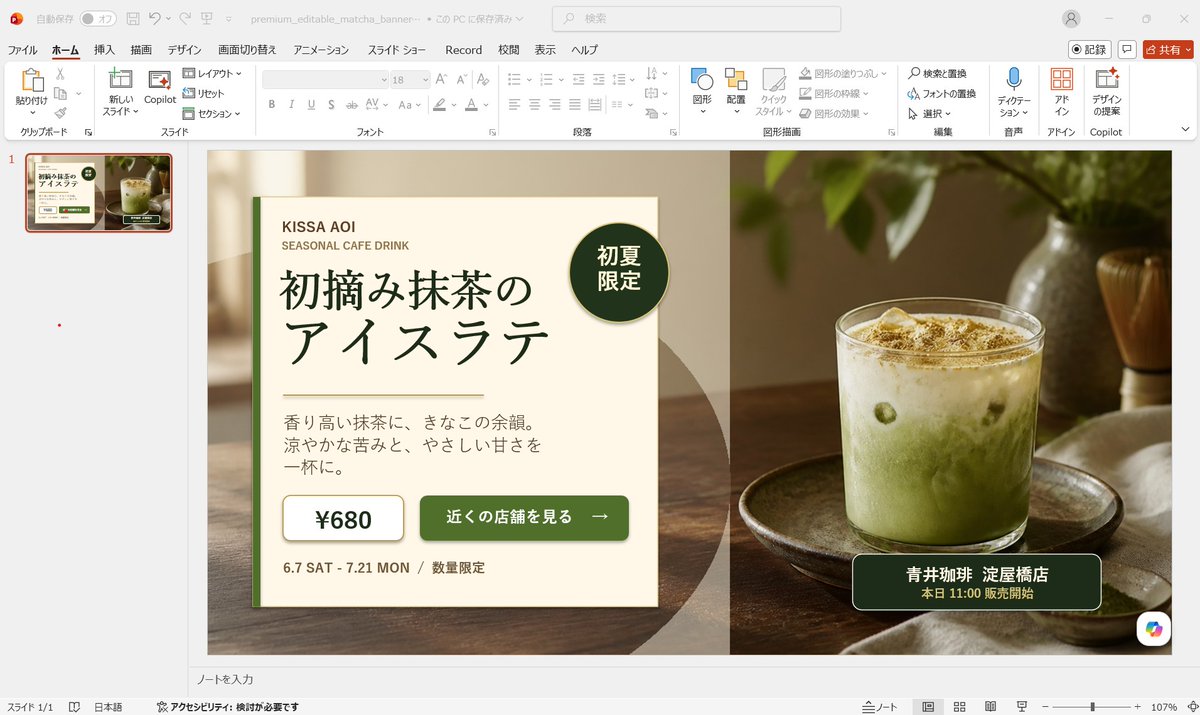
Goal: Create a realistic desktop screenshot of Microsoft PowerPoint in Japanese, showing an editable banner advertisement design for a matcha drink. The scene should look like the banner is being built from separate selectable PowerPoint objects, with many resize handles, rotation icons, and bounding boxes visible. Canvas: 16:9 widescreen screenshot, approximately 1200×675 px, with the full PowerPoint application window visible. Use a light gray Windows/Office interface, Japanese ribbon labels, one slide thumbnail on the left, the main slide centered, status bar at the bottom, and a zoom level around 107%. PowerPoint interface: Show the Home tab active with Japanese menu items across the top such as File, Home, Insert, Draw, Design, Transitions, Animations, Slide Show, Record, Review, View, Help, plus contextual Shape Format and Picture Format tabs. Include a search box near the top, a red Share button at top right, and a single slide thumbnail in the left navigation pane. The filename area should suggest a saved presentation named similar to “premium_editable_matcha_banner”. Main slide layout: The slide itself is a premium café banner split into two visual halves. The left half is a cream paper-like advertisement panel over a warm blurred café/table background, and the right half is a close-up photo of an iced matcha latte in a clear glass on a wooden tray, with soft natural window light, green leaves above, a bamboo whisk in the background, and warm brown tones. Add a subtle vertical division between the cream text panel and the photo. Use a dark green, cream, beige, and warm wood color palette. Visible editable objects: Show many individual PowerPoint selection boxes and handles on the banner, as if almost every text box, line, shape, icon, and photo is selected or editable. Include white circular resize handles, rotation arrows, thin gray bounding boxes, and overlapping object outlines. Count and show exactly 13 selected/editable object groups: 1 large slide background/image frame, 1 cream left panel, 1 small brand text group, 1 English subtitle text box, 1 large Japanese headline text group, 1 round dark-green badge, 1 description paragraph text box, 1 price box, 1 green call-to-action button, 1 date text box, 1 limited-quantity text box, 1 store information label on the photo, and 1 small dotted decorative icon group. Text content on the banner: Preserve Japanese text accurately where visible. Brand area: “KISSA AOI” and “SEASONAL CAFE DRINK”. Main headline: “初摘み抹茶の” on the first line and “アイスラテ” on the second line. Round badge: “初夏限定”. Description paragraph: “香り高い抹茶に、きなこの余韻。涼やかな苦みと、やさしい甘さを一杯に。” Price: “¥680”. CTA button: “近くの店舗を見る”. Date: “6.7 SAT - 7.21 MON”. Small note: “数量限定”. Store label over the photo: “青井珈琲 淀屋橋店” and below it “本日 11:00 販売開始”. Design details: Use elegant Japanese typography with a dark forest-green headline, thin decorative horizontal rules around the headline, cream rectangles with fine green borders, rounded dark-green buttons, and small dotted white decorations on green shapes. The badge should be a dark-green circle near the upper right of the cream panel. The store label should be a dark-green rounded rectangle near the bottom right of the drink photo. The overall ad should feel premium, calm, seasonal, and café-like. Customization slots: Use the drink concept as 初摘み抹茶のアイスラテ, brand as KISSA AOI, price as ¥680, CTA as 近くの店舗を見る, and store as 青井珈琲 淀屋橋店. Constraints: Make it a screenshot of PowerPoint, not a clean exported poster. Keep the editing handles and object outlines highly visible. Do not add extra slides, extra products, watermarks, or unrelated UI panels. Keep the photo realistic and the ad elements editable-looking rather than flattened.

21 모델에서 실행됩니다.

  • Flux
  • Flux 2
  • Flux Kontext
  • GPT-4o Image
  • GPT Image
  • GPT Image 2
  • GPT Image 2.5
  • GPT Image 2.6
  • Grok Imagine
  • Ideogram V3
  • Imagen 4
  • Kling
  • +9 이상

이 프롬프트의 출력

Hunyuan  prompt: wine 지정되지 않음 hunyuan-3
Hunyuan  prompt: can beer 지정되지 않음 hunyuan-3
Hunyuan  prompt: ربات 지정되지 않음 hunyuan-3
Hero prompt: recreate image 1 (close up indoor portrait of a wo... 지정되지 않음 1.0
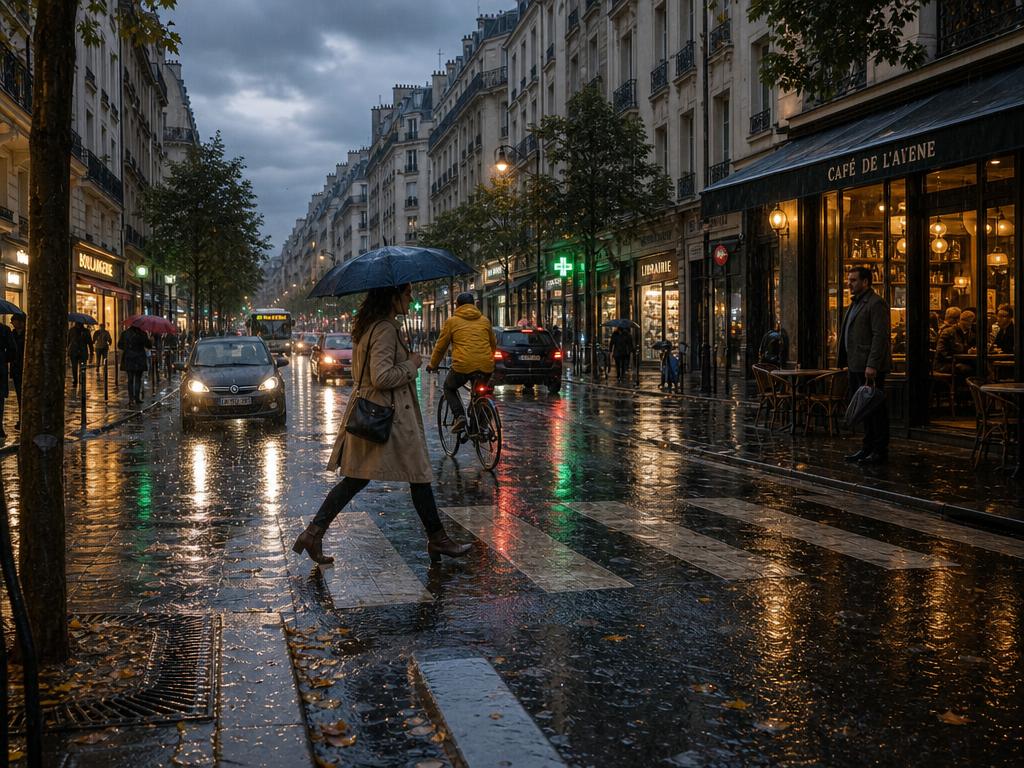
Rainy French Street at Night 지정되지 않음 gpt-image-2
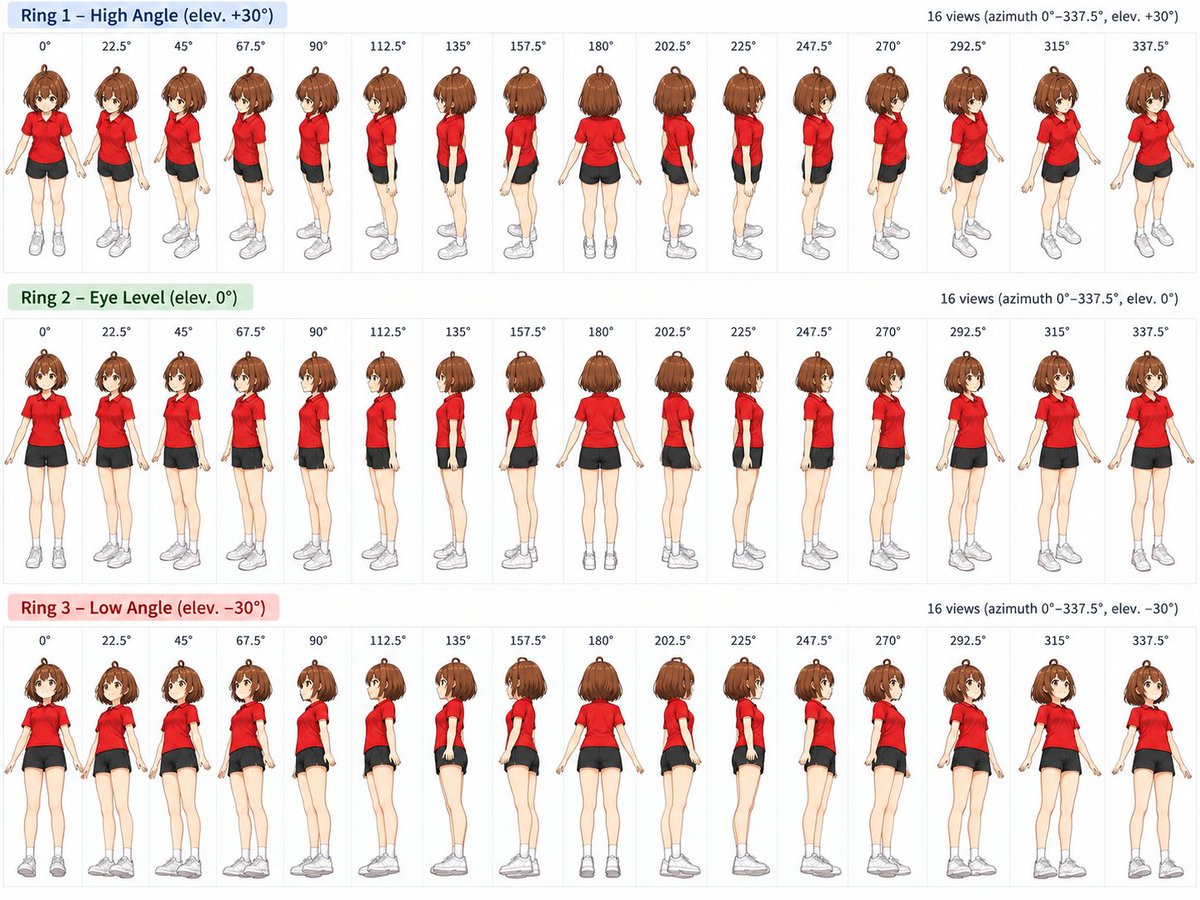
Camera Dome 48-Point View Setup 지정되지 않음 gpt-image-2

API를 사용하여 이 프롬프트를 실행하세요.

아래 요청은 기본값이 채워진 이 프롬프트를 실행되는 첫 번째 모델로 보냅니다. 위에 나열된 다른 모델의 모델 이름을 바꾸십시오.

프롬프트 API 문서
/api/v1/gpt_image_2/text_to_image
curl -X POST https://runapi.ai/api/v1/gpt_image_2/text_to_image \
  -H "Authorization: Bearer $RUNAPI_API_KEY" \
  -H "Content-Type: application/json" \
  --data-binary @- <<'JSON'
{
  "model": "gpt-image-2",
  "prompt": "Goal: Create a realistic desktop screenshot of Microsoft PowerPoint in Japanese, showing an editable banner advertisement design for a matcha drink. The scene should look like the banner is being built from separate selectable PowerPoint objects, with many resize handles, rotation icons, and bounding boxes visible.\n\nCanvas: 16:9 widescreen screenshot, approximately 1200×675 px, with the full PowerPoint application window visible. Use a light gray Windows/Office interface, Japanese ribbon labels, one slide thumbnail on the left, the main slide centered, status bar at the bottom, and a zoom level around 107%.\n\nPowerPoint interface: Show the Home tab active with Japanese menu items across the top such as File, Home, Insert, Draw, Design, Transitions, Animations, Slide Show, Record, Review, View, Help, plus contextual Shape Format and Picture Format tabs. Include a search box near the top, a red Share button at top right, and a single slide thumbnail in the left navigation pane. The filename area should suggest a saved presentation named similar to “premium_editable_matcha_banner”.\n\nMain slide layout: The slide itself is a premium café banner split into two visual halves. The left half is a cream paper-like advertisement panel over a warm blurred café/table background, and the right half is a close-up photo of an iced matcha latte in a clear glass on a wooden tray, with soft natural window light, green leaves above, a bamboo whisk in the background, and warm brown tones. Add a subtle vertical division between the cream text panel and the photo. Use a dark green, cream, beige, and warm wood color palette.\n\nVisible editable objects: Show many individual PowerPoint selection boxes and handles on the banner, as if almost every text box, line, shape, icon, and photo is selected or editable. Include white circular resize handles, rotation arrows, thin gray bounding boxes, and overlapping object outlines. Count and show exactly 13 selected/editable object groups: 1 large slide background/image frame, 1 cream left panel, 1 small brand text group, 1 English subtitle text box, 1 large Japanese headline text group, 1 round dark-green badge, 1 description paragraph text box, 1 price box, 1 green call-to-action button, 1 date text box, 1 limited-quantity text box, 1 store information label on the photo, and 1 small dotted decorative icon group.\n\nText content on the banner: Preserve Japanese text accurately where visible. Brand area: “KISSA AOI” and “SEASONAL CAFE DRINK”. Main headline: “初摘み抹茶の” on the first line and “アイスラテ” on the second line. Round badge: “初夏限定”. Description paragraph: “香り高い抹茶に、きなこの余韻。涼やかな苦みと、やさしい甘さを一杯に。” Price: “¥680”. CTA button: “近くの店舗を見る”. Date: “6.7 SAT - 7.21 MON”. Small note: “数量限定”. Store label over the photo: “青井珈琲 淀屋橋店” and below it “本日 11:00 販売開始”.\n\nDesign details: Use elegant Japanese typography with a dark forest-green headline, thin decorative horizontal rules around the headline, cream rectangles with fine green borders, rounded dark-green buttons, and small dotted white decorations on green shapes. The badge should be a dark-green circle near the upper right of the cream panel. The store label should be a dark-green rounded rectangle near the bottom right of the drink photo. The overall ad should feel premium, calm, seasonal, and café-like.\n\nCustomization slots: Use the drink concept as 初摘み抹茶のアイスラテ, brand as KISSA AOI, price as ¥680, CTA as 近くの店舗を見る, and store as 青井珈琲 淀屋橋店.\n\nConstraints: Make it a screenshot of PowerPoint, not a clean exported poster. Keep the editing handles and object outlines highly visible. Do not add extra slides, extra products, watermarks, or unrelated UI panels. Keep the photo realistic and the ad elements editable-looking rather than flattened."
}
JSON

메시지를 보내보세요