Dark Mode Dictionary Entry App
Dark Mode Dictionary Entry App

즉각적인

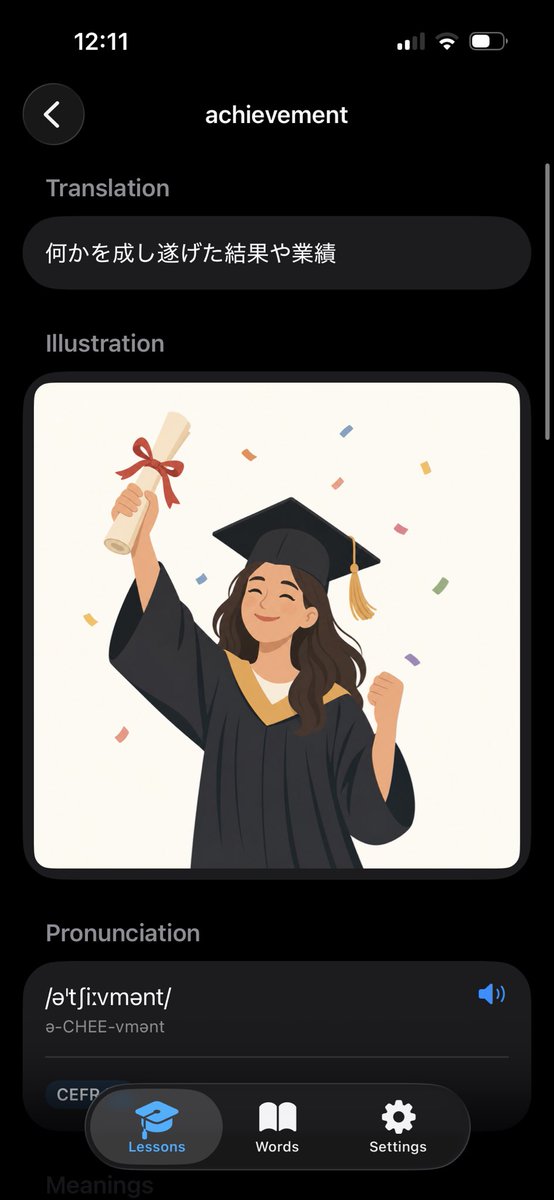
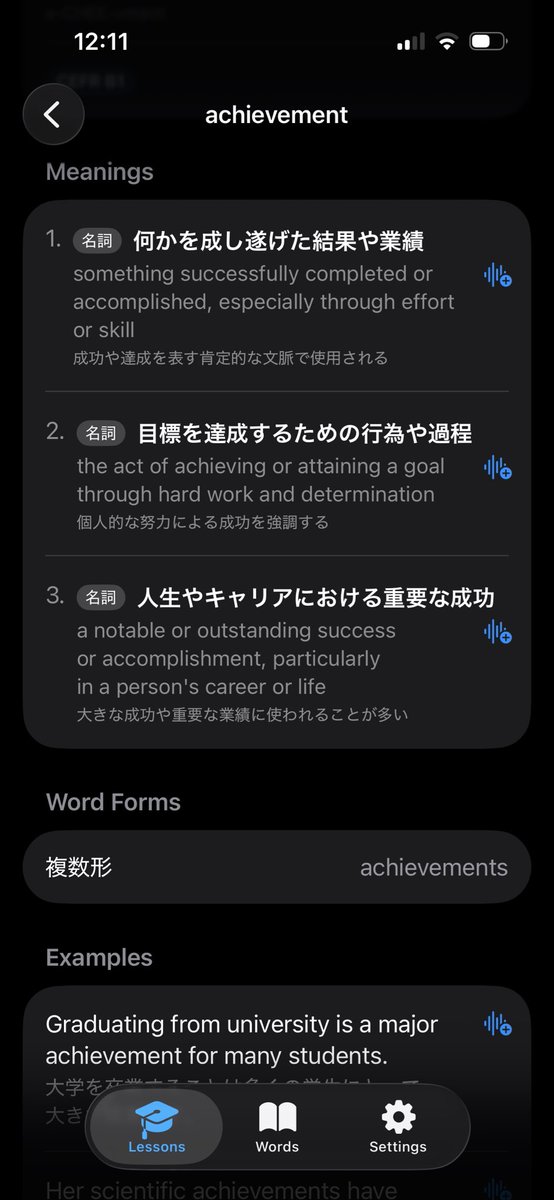
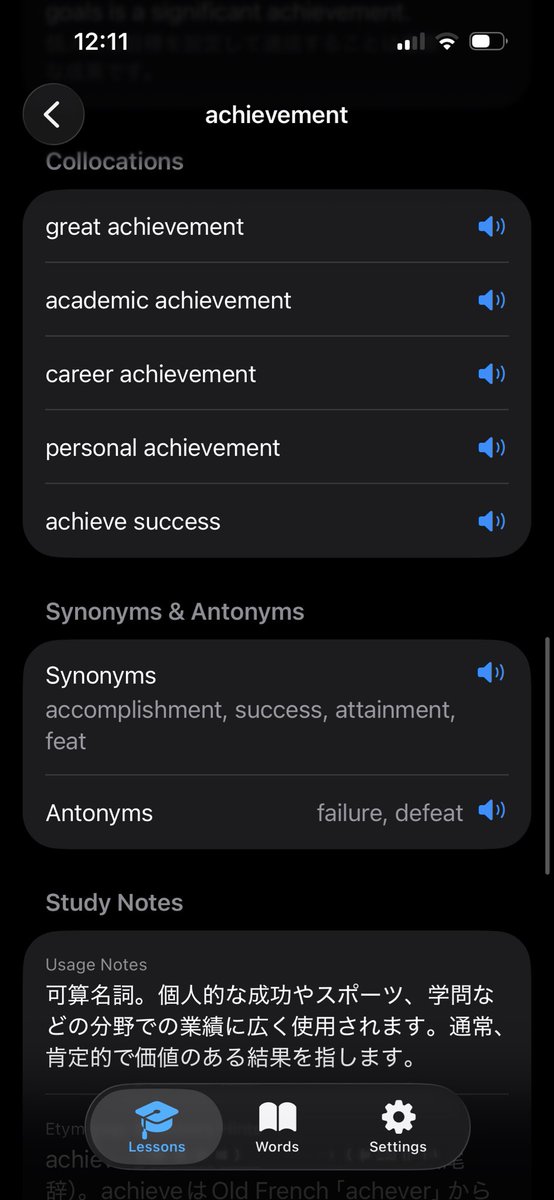
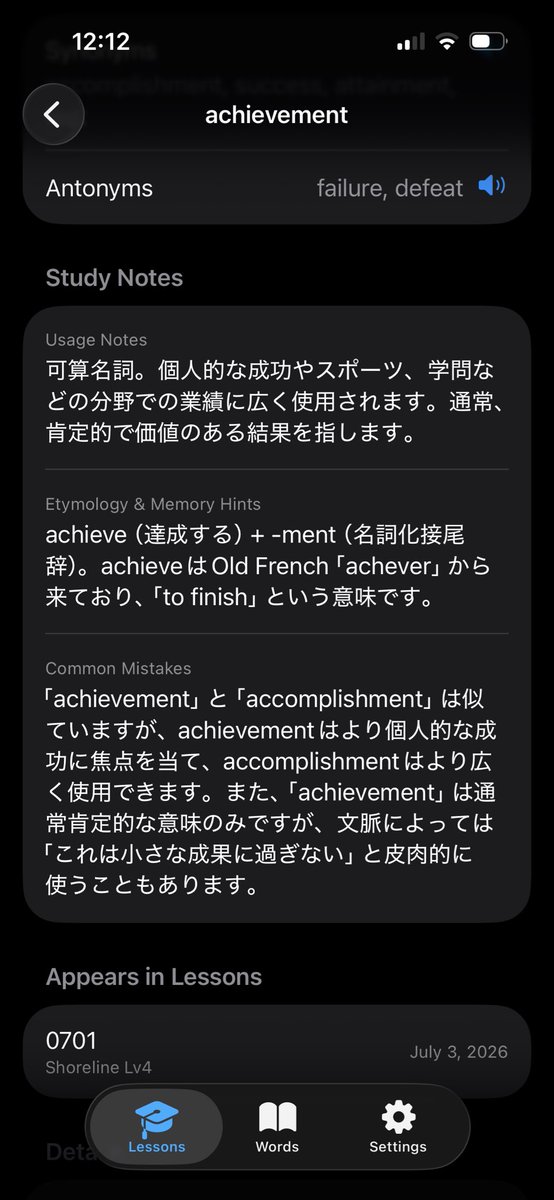
Goal: Create a realistic iPhone screenshot of a sleek dark-mode English dictionary/vocabulary learning app showing the entry for achievement. Canvas: Vertical smartphone screen, 9:16 aspect ratio, black background, iOS-style status bar at the top showing 12:11 on the left and cellular/Wi‑Fi/battery icons on the right. Use rounded cards, soft shadows, and a modern minimal UI. Layout: Top navigation has exactly 2 elements: a circular dark back button with a white left chevron on the upper left, and the centered page title “achievement” in white. A thin vertical scroll indicator appears along the right edge. Sections: Show exactly 4 visible content sections in this order: 1) Translation, 2) Illustration, 3) Pronunciation, 4) a partially visible Meanings header at the bottom. Section labels are muted gray, bold, and left aligned. Text content: Under “Translation,” place one rounded dark pill card containing the Japanese text 何かを成し遂げた結果や業績. Under “Pronunciation,” create one large rounded dark card with the phonetic spelling /əˈtʃiːvmənt/, the readable pronunciation “ə-CHEE-vmənt,” a blue speaker icon on the right, a thin divider line, and a small rounded “CEFR” tag near the lower left. Illustration: In the Illustration section, place one large rounded rectangle image card with an off-white background. Inside it, draw a cheerful young graduate woman in a black graduation gown and mortarboard with a gold tassel, smiling with eyes closed. She raises a rolled diploma tied with a red ribbon in her left hand and clenches her right fist in celebration. Add colorful rectangular confetti around her. Use a flat vector illustration style, warm colors, clean edges, and no text inside the illustration. Bottom navigation: Overlay a floating rounded black tab bar at the bottom with exactly 3 tabs: “Lessons” with a blue graduation-cap icon and highlighted gray pill background, “Words” with a white open-book icon, and “Settings” with a white gear icon. The tab bar partially covers the pronunciation card and the faint “Meanings” header. Visual style: High-fidelity mobile app mockup, dark theme, iOS proportions, rounded corners, subtle gradients, white and gray typography, blue accent color, polished product screenshot. Avoid extra words, extra icons, watermarks, or browser chrome.

21 모델에서 실행됩니다.

  • Flux
  • Flux 2
  • Flux Kontext
  • GPT-4o Image
  • GPT Image
  • GPT Image 2
  • GPT Image 2.5
  • GPT Image 2.6
  • Grok Imagine
  • Ideogram V3
  • Imagen 4
  • Kling
  • +9 이상

이 프롬프트의 출력

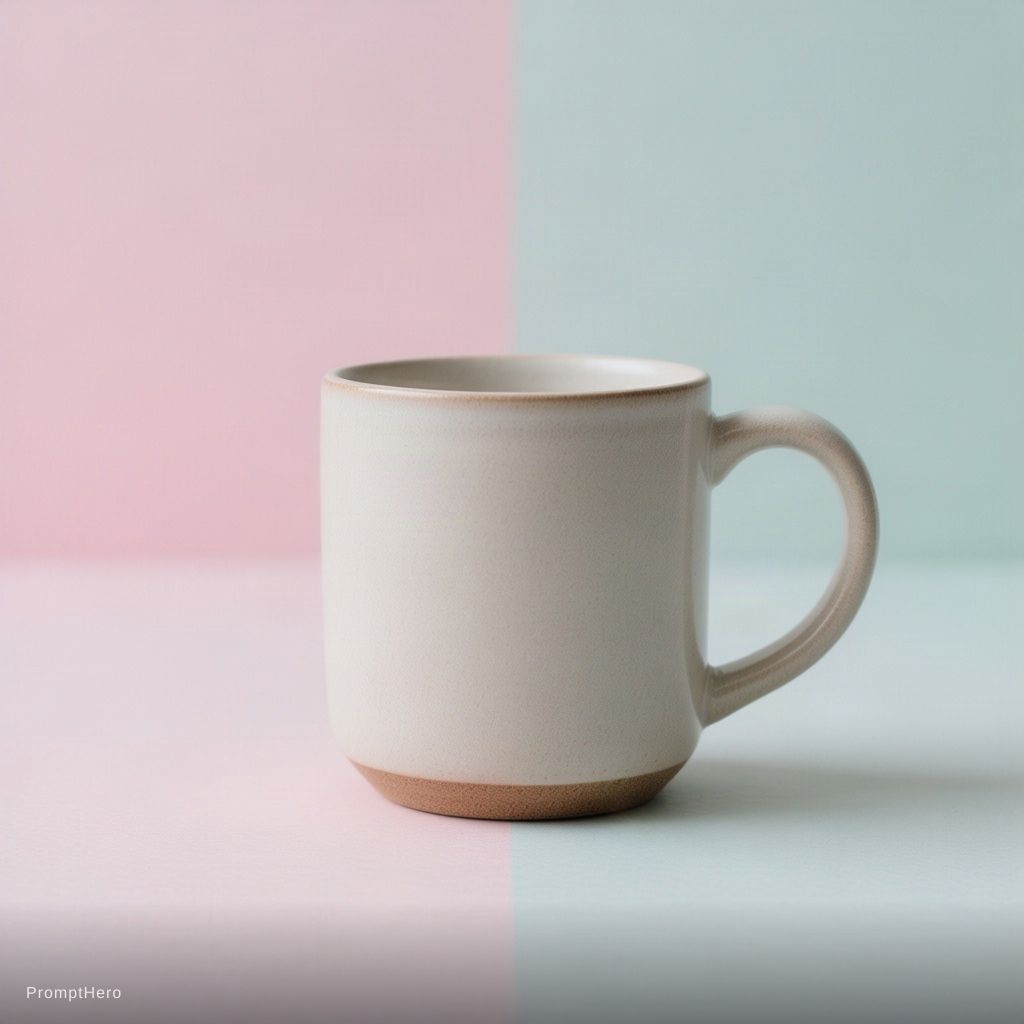
Hunyuan  prompt: Minimalist product photo of a ceramic mug on a pas... 지정되지 않음 hunyuan-3
Hunyuan  prompt: Aikido 지정되지 않음 hunyuan-3
Seedream 5 prompt: f smiling middle aged woman in nice home wrapped i... 지정되지 않음 v2
Create an extreme close-up underwater portrait, ca... 지정되지 않음 지정되지 않음
Using the face from the attached photograph, recre... 지정되지 않음 지정되지 않음
Using the face from the attached photo, recreate a... 지정되지 않음 지정되지 않음

API를 사용하여 이 프롬프트를 실행하세요.

아래 요청은 기본값이 채워진 이 프롬프트를 실행되는 첫 번째 모델로 보냅니다. 위에 나열된 다른 모델의 모델 이름을 바꾸십시오.

프롬프트 API 문서
/api/v1/gpt_image_2/text_to_image
curl -X POST https://runapi.ai/api/v1/gpt_image_2/text_to_image \
  -H "Authorization: Bearer $RUNAPI_API_KEY" \
  -H "Content-Type: application/json" \
  --data-binary @- <<'JSON'
{
  "model": "gpt-image-2",
  "prompt": "Goal: Create a realistic iPhone screenshot of a sleek dark-mode English dictionary/vocabulary learning app showing the entry for achievement.\n\nCanvas: Vertical smartphone screen, 9:16 aspect ratio, black background, iOS-style status bar at the top showing 12:11 on the left and cellular/Wi‑Fi/battery icons on the right. Use rounded cards, soft shadows, and a modern minimal UI.\n\nLayout: Top navigation has exactly 2 elements: a circular dark back button with a white left chevron on the upper left, and the centered page title “achievement” in white. A thin vertical scroll indicator appears along the right edge.\n\nSections: Show exactly 4 visible content sections in this order: 1) Translation, 2) Illustration, 3) Pronunciation, 4) a partially visible Meanings header at the bottom. Section labels are muted gray, bold, and left aligned.\n\nText content: Under “Translation,” place one rounded dark pill card containing the Japanese text 何かを成し遂げた結果や業績. Under “Pronunciation,” create one large rounded dark card with the phonetic spelling /əˈtʃiːvmənt/, the readable pronunciation “ə-CHEE-vmənt,” a blue speaker icon on the right, a thin divider line, and a small rounded “CEFR” tag near the lower left.\n\nIllustration: In the Illustration section, place one large rounded rectangle image card with an off-white background. Inside it, draw a cheerful young graduate woman in a black graduation gown and mortarboard with a gold tassel, smiling with eyes closed. She raises a rolled diploma tied with a red ribbon in her left hand and clenches her right fist in celebration. Add colorful rectangular confetti around her. Use a flat vector illustration style, warm colors, clean edges, and no text inside the illustration.\n\nBottom navigation: Overlay a floating rounded black tab bar at the bottom with exactly 3 tabs: “Lessons” with a blue graduation-cap icon and highlighted gray pill background, “Words” with a white open-book icon, and “Settings” with a white gear icon. The tab bar partially covers the pronunciation card and the faint “Meanings” header.\n\nVisual style: High-fidelity mobile app mockup, dark theme, iOS proportions, rounded corners, subtle gradients, white and gray typography, blue accent color, polished product screenshot. Avoid extra words, extra icons, watermarks, or browser chrome."
}
JSON

메시지를 보내보세요