Japanese PowerPoint Claude Opus 5 Screenshot
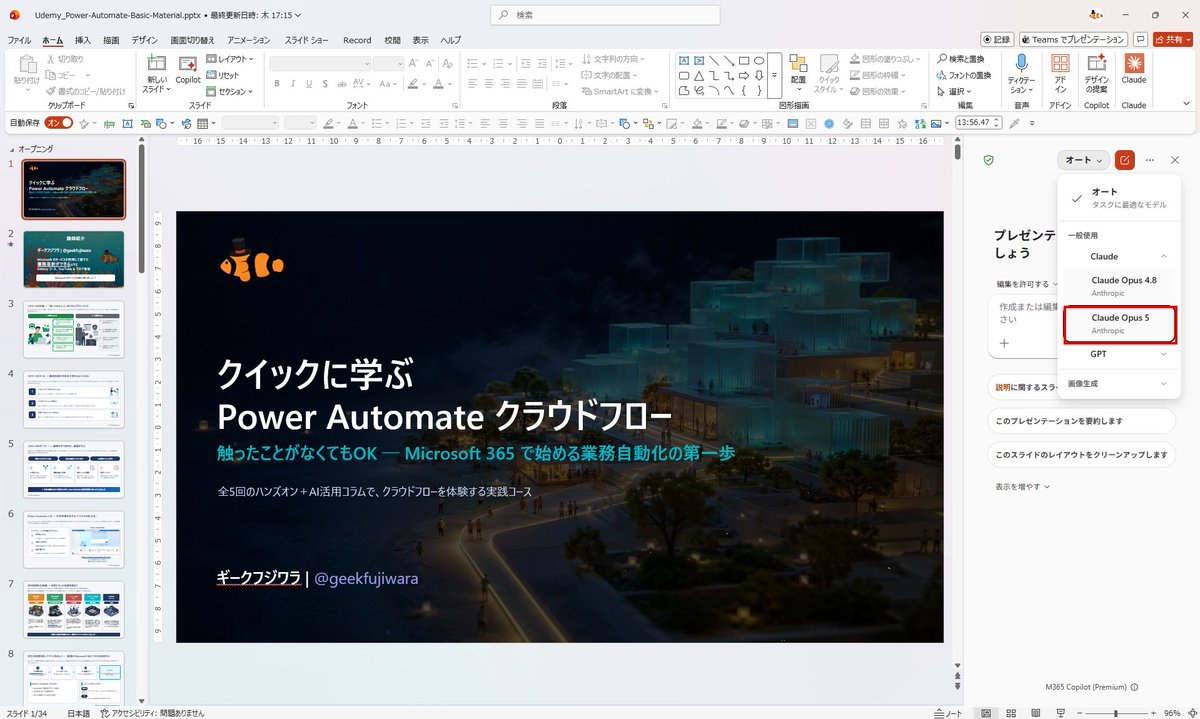
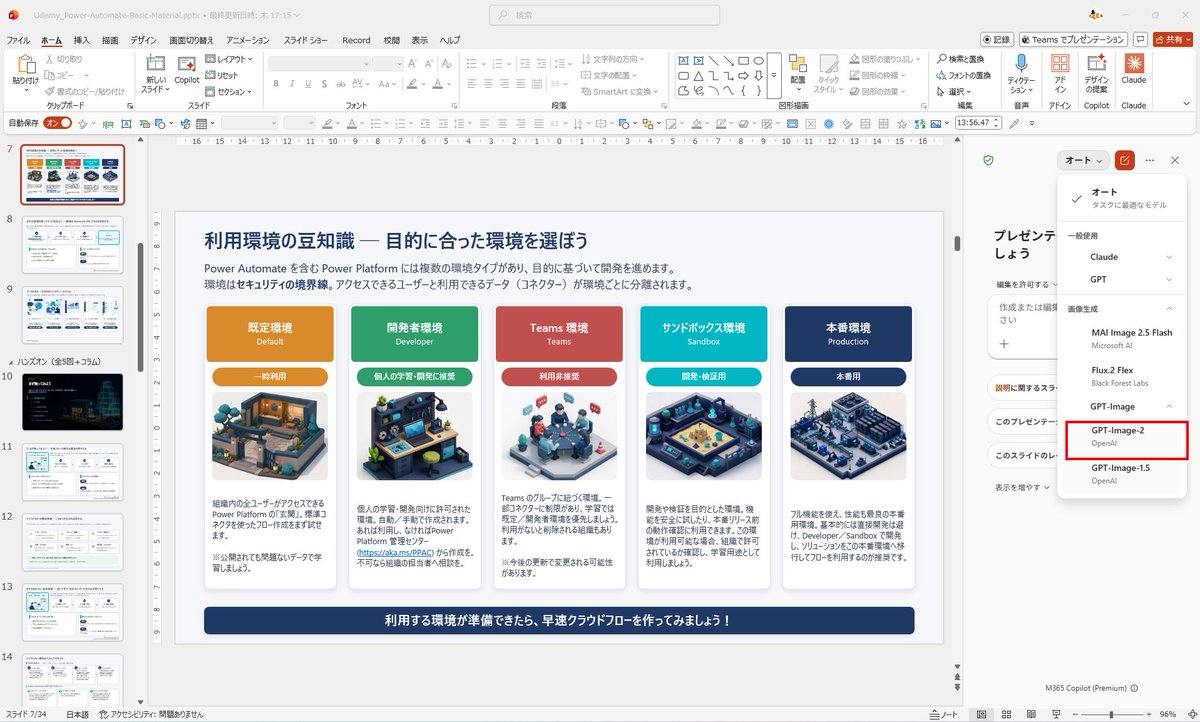
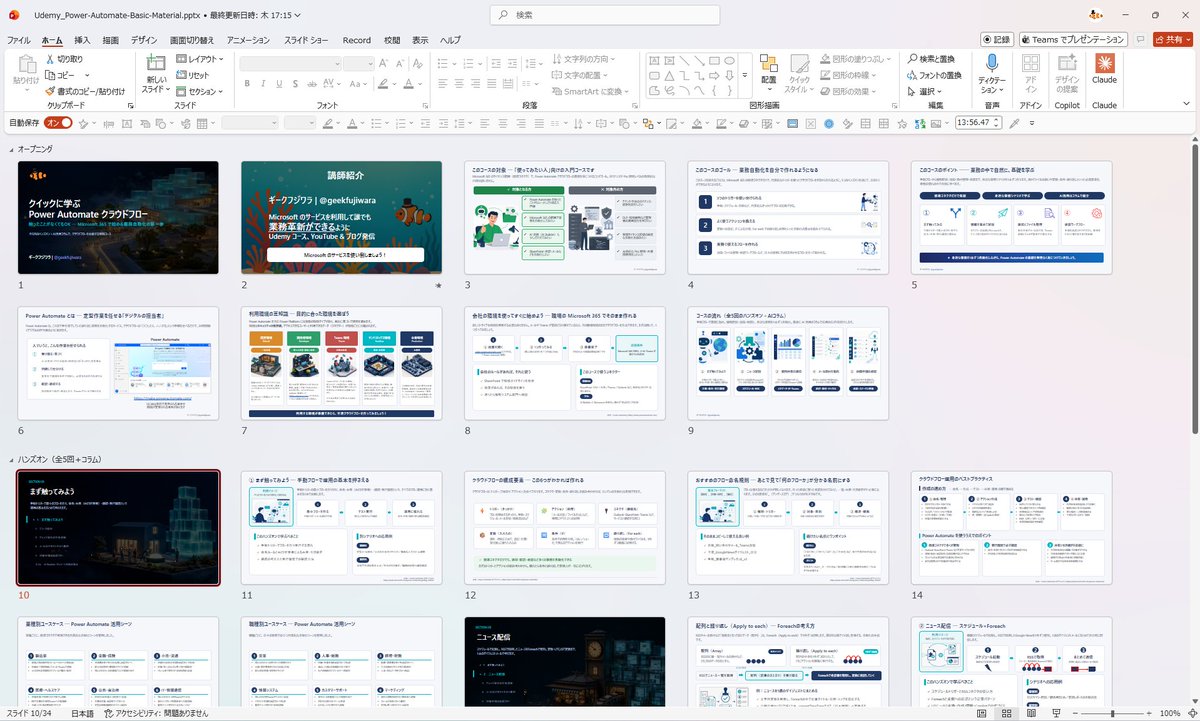
Japanese PowerPoint Claude Opus 5 Screenshot

prompt

Goal: Create a realistic 16:9 desktop screenshot of Microsoft PowerPoint in Japanese, showing a course slide deck being edited with a Copilot/Claude model selection panel open on the right. Canvas: Wide landscape screenshot, 1200×675 style, crisp UI capture, light gray PowerPoint chrome, no browser frame. The main focus is a PowerPoint editing workspace with a dark title slide centered. Layout: Show the full PowerPoint window with the ribbon across the top, slide thumbnail strip on the left, main slide canvas in the center, and an AI assistant side panel on the right. Use Japanese UI labels throughout the PowerPoint interface. The file name in the top title area should read Udemy_Power-Automate-Basic-Material.pptx, followed by a Japanese last-updated note and time. The top ribbon should include Japanese tabs such as File, Home, Insert, Draw, Design, Transitions, Animations, Slide Show, Record, Review, View, and Help, plus add-in buttons for Copilot, PowerPoint, Designer, Claude, Teams presentation, and Share. Left thumbnail strip: Show exactly 8 visible slide thumbnails, numbered 1 through 8. Slide 1 is selected with an orange border and is the same dark cover slide as the main canvas. Slide 2 is a teal agenda/overview slide. Slide 3 is a white process/workflow slide with green diagram elements and two illustrated people. Slide 4 is a white slide with three horizontal list rows. Slide 5 is a white slide with a blue interface screenshot and arrows. Slide 6 is a white slide with a software screenshot and callout box. Slide 7 is a white slide with a row of colorful cards and icon illustrations. Slide 8 is a white slide with a flowchart-like screenshot and a turquoise callout. Main slide: Create a dark cinematic cover slide with a black-to-navy overlay over an architectural night scene: glowing modern stacked glass buildings on the right, misty atmosphere, pathways and tiny walking people below, trees in the lower right, and a deep dark empty area on the left for text. In the upper left of the slide place a small orange clownfish mascot wearing a tiny black top hat. The main title text should be large, bold, white Japanese: クイックに学ぶ Power Automate クラウドフロー. Under it, add a cyan subtitle: 触ったことがなくてもOK — Microsoft 365 で始める業務自動化の第一歩. Beneath that, add a smaller white description line: 全5回のハンズオン+AI活用コラムで、クラウドフローを体験する実践コース. At the bottom left of the slide, add the author line in white: ギークフジワラ|@geekfujiwara. Keep the slide text aligned left with generous spacing. Right AI panel: Show a white assistant panel titled in Japanese as a presentation-related assistant. At the top right of this panel, show an open model dropdown. The dropdown must contain exactly 5 visible choices: Auto with a checkmark and a short Japanese description, Claude, Claude Opus 4.8, Claude Opus 5, and GPT. Emphasize the Claude Opus 5 row with a red rectangular outline. Under Claude Opus 5, show the provider label Anthropic in small gray text. Include additional Japanese panel buttons below such as opening the presentation, explaining the slide, and cleaning up the slide layout. Visual style: Make it look like an authentic Microsoft PowerPoint desktop screenshot, with accurate spacing, rulers, ribbon icons, scrollbars, status bar, zoom control, and tiny UI text. Use soft antialiasing, subtle shadows, and realistic Windows app proportions. The image should read as a social-media screenshot demonstrating PowerPoint Agent Mode and multi-model selection. Constraints: Do not add any extra slide thumbnails beyond the 8 visible thumbnails. Do not obscure the main slide title. Preserve the red highlight around Claude Opus 5. Avoid watermarks, browser tabs, or unrelated windows.

Funziona su 20 modelli

  • Flux
  • Flux 2
  • Flux Kontext
  • GPT-4o Image
  • GPT Image
  • GPT Image 2
  • GPT Image 2.5
  • GPT Image 2.6
  • Grok Imagine
  • Ideogram V3
  • Imagen 4
  • Kling
  • +8 Altri

Cosa produce questo prompt

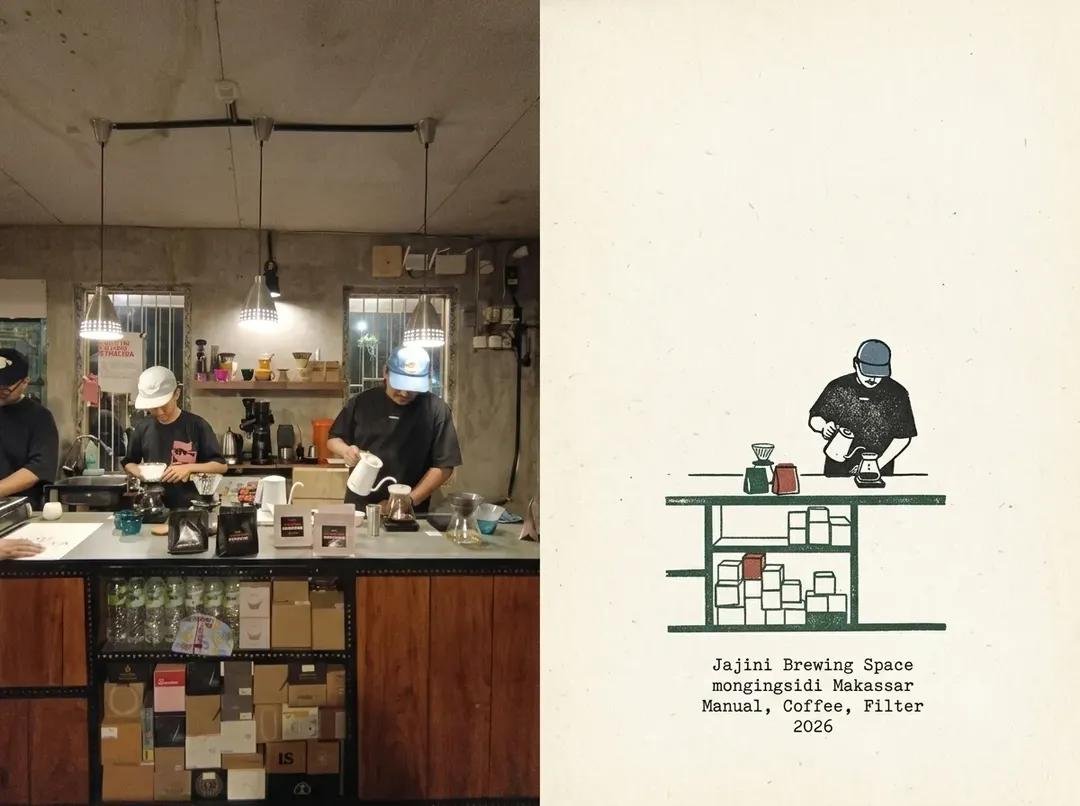
Split-Page Coffee Shop Travel Journal Non specificato gpt-image-2
Cute Chibi Characters in a Sweet Playful Moment Non specificato gpt-image-2
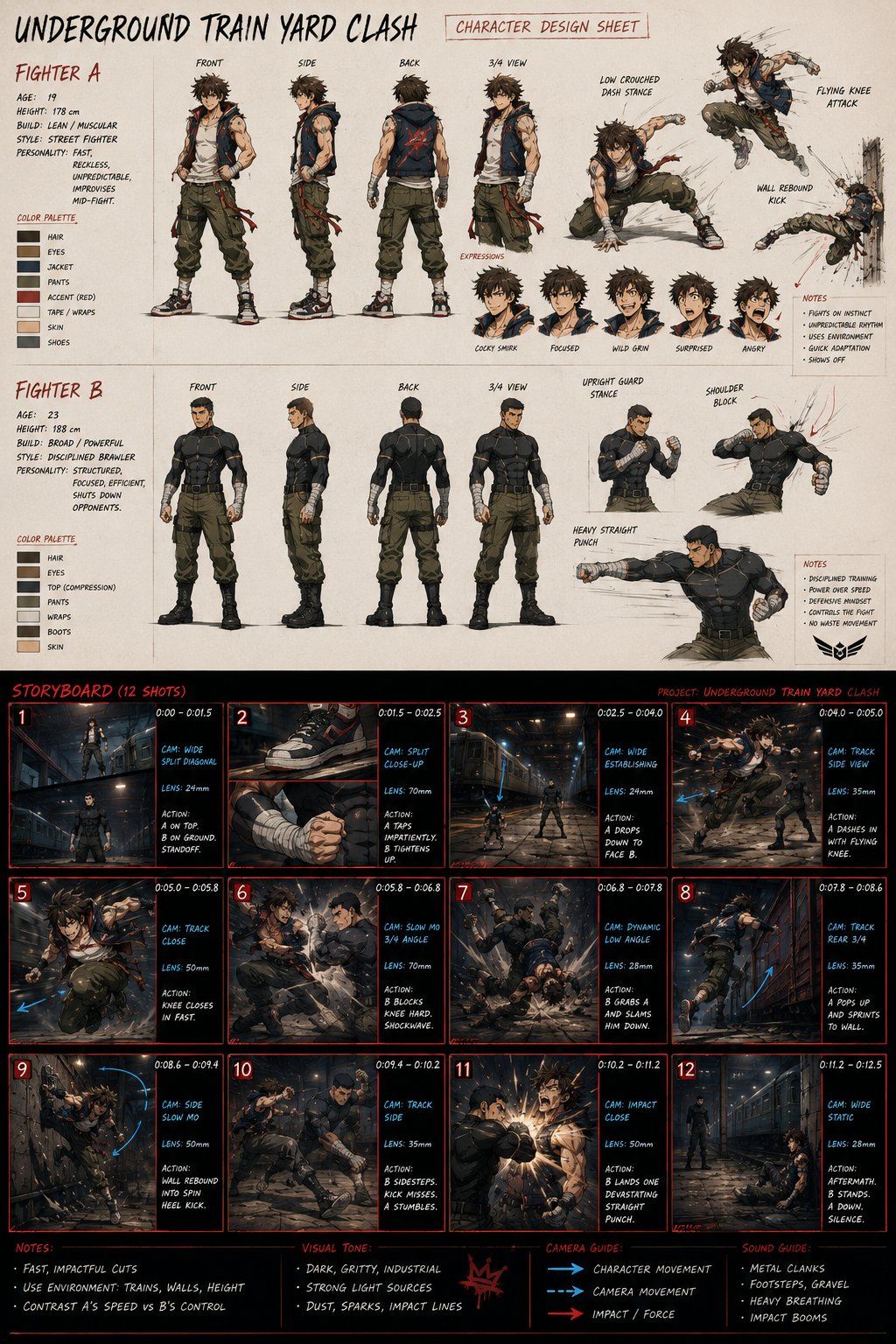
Underground Train Yard Clash Anime Development Board Non specificato gpt-image-2
Realistic Group Selfie with Smartphone Flash Effect Non specificato nano-banana-pro
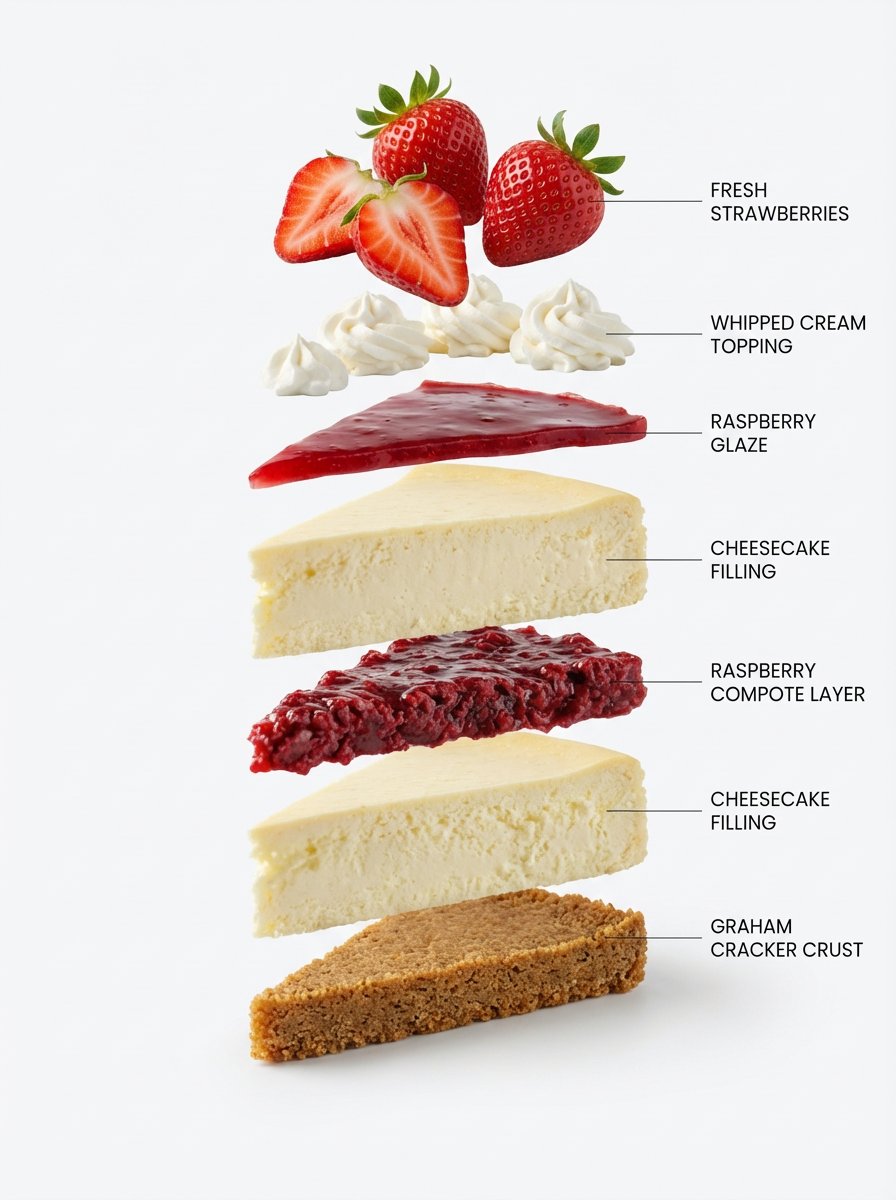
Exploded-View Structural Cutaway for Food Photography Non specificato nano-banana-pro
Four Seasons Portrait Collage Non specificato nano-banana-pro

Run questo prompt con il API

La richiesta seguente invia questo prompt, con i valori predefiniti compilati, al primo modello su cui viene eseguito. Scambia il nome del modello con qualsiasi altro modello elencato sopra.

Documentazione API prompt
/api/v1/gpt_image_2/text_to_image
curl -X POST https://runapi.ai/api/v1/gpt_image_2/text_to_image \
  -H "Authorization: Bearer $RUNAPI_API_KEY" \
  -H "Content-Type: application/json" \
  --data-binary @- <<'JSON'
{
  "model": "gpt-image-2",
  "prompt": "Goal: Create a realistic 16:9 desktop screenshot of Microsoft PowerPoint in Japanese, showing a course slide deck being edited with a Copilot/Claude model selection panel open on the right.\n\nCanvas: Wide landscape screenshot, 1200×675 style, crisp UI capture, light gray PowerPoint chrome, no browser frame. The main focus is a PowerPoint editing workspace with a dark title slide centered.\n\nLayout: Show the full PowerPoint window with the ribbon across the top, slide thumbnail strip on the left, main slide canvas in the center, and an AI assistant side panel on the right. Use Japanese UI labels throughout the PowerPoint interface. The file name in the top title area should read Udemy_Power-Automate-Basic-Material.pptx, followed by a Japanese last-updated note and time. The top ribbon should include Japanese tabs such as File, Home, Insert, Draw, Design, Transitions, Animations, Slide Show, Record, Review, View, and Help, plus add-in buttons for Copilot, PowerPoint, Designer, Claude, Teams presentation, and Share.\n\nLeft thumbnail strip: Show exactly 8 visible slide thumbnails, numbered 1 through 8. Slide 1 is selected with an orange border and is the same dark cover slide as the main canvas. Slide 2 is a teal agenda/overview slide. Slide 3 is a white process/workflow slide with green diagram elements and two illustrated people. Slide 4 is a white slide with three horizontal list rows. Slide 5 is a white slide with a blue interface screenshot and arrows. Slide 6 is a white slide with a software screenshot and callout box. Slide 7 is a white slide with a row of colorful cards and icon illustrations. Slide 8 is a white slide with a flowchart-like screenshot and a turquoise callout.\n\nMain slide: Create a dark cinematic cover slide with a black-to-navy overlay over an architectural night scene: glowing modern stacked glass buildings on the right, misty atmosphere, pathways and tiny walking people below, trees in the lower right, and a deep dark empty area on the left for text. In the upper left of the slide place a small orange clownfish mascot wearing a tiny black top hat. The main title text should be large, bold, white Japanese: クイックに学ぶ\nPower Automate クラウドフロー. Under it, add a cyan subtitle: 触ったことがなくてもOK — Microsoft 365 で始める業務自動化の第一歩. Beneath that, add a smaller white description line: 全5回のハンズオン+AI活用コラムで、クラウドフローを体験する実践コース. At the bottom left of the slide, add the author line in white: ギークフジワラ|@geekfujiwara. Keep the slide text aligned left with generous spacing.\n\nRight AI panel: Show a white assistant panel titled in Japanese as a presentation-related assistant. At the top right of this panel, show an open model dropdown. The dropdown must contain exactly 5 visible choices: Auto with a checkmark and a short Japanese description, Claude, Claude Opus 4.8, Claude Opus 5, and GPT. Emphasize the Claude Opus 5 row with a red rectangular outline. Under Claude Opus 5, show the provider label Anthropic in small gray text. Include additional Japanese panel buttons below such as opening the presentation, explaining the slide, and cleaning up the slide layout.\n\nVisual style: Make it look like an authentic Microsoft PowerPoint desktop screenshot, with accurate spacing, rulers, ribbon icons, scrollbars, status bar, zoom control, and tiny UI text. Use soft antialiasing, subtle shadows, and realistic Windows app proportions. The image should read as a social-media screenshot demonstrating PowerPoint Agent Mode and multi-model selection.\n\nConstraints: Do not add any extra slide thumbnails beyond the 8 visible thumbnails. Do not obscure the main slide title. Preserve the red highlight around Claude Opus 5. Avoid watermarks, browser tabs, or unrelated windows."
}
JSON

Prova a prompt

Stimato: $0.04 / immagine

Accedi per generare con RunAPI.

Accedi per generare

Accedi per iniziare a generare con i modelli linguistici disponibili.