Side-by-Side PPT Reconstruction Demo

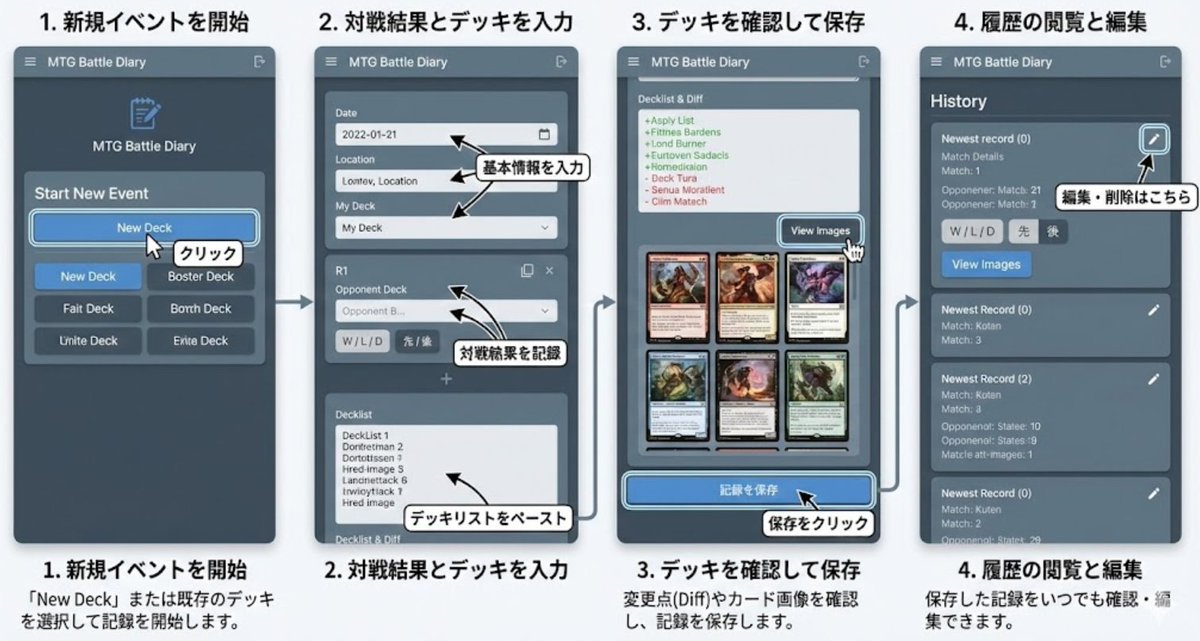
This prompt generates a realistic comparison screenshot showing a messy reference slide cleaned up into a faithful PowerPoint reconstruction, useful for slide-to-PPT conversion demos.
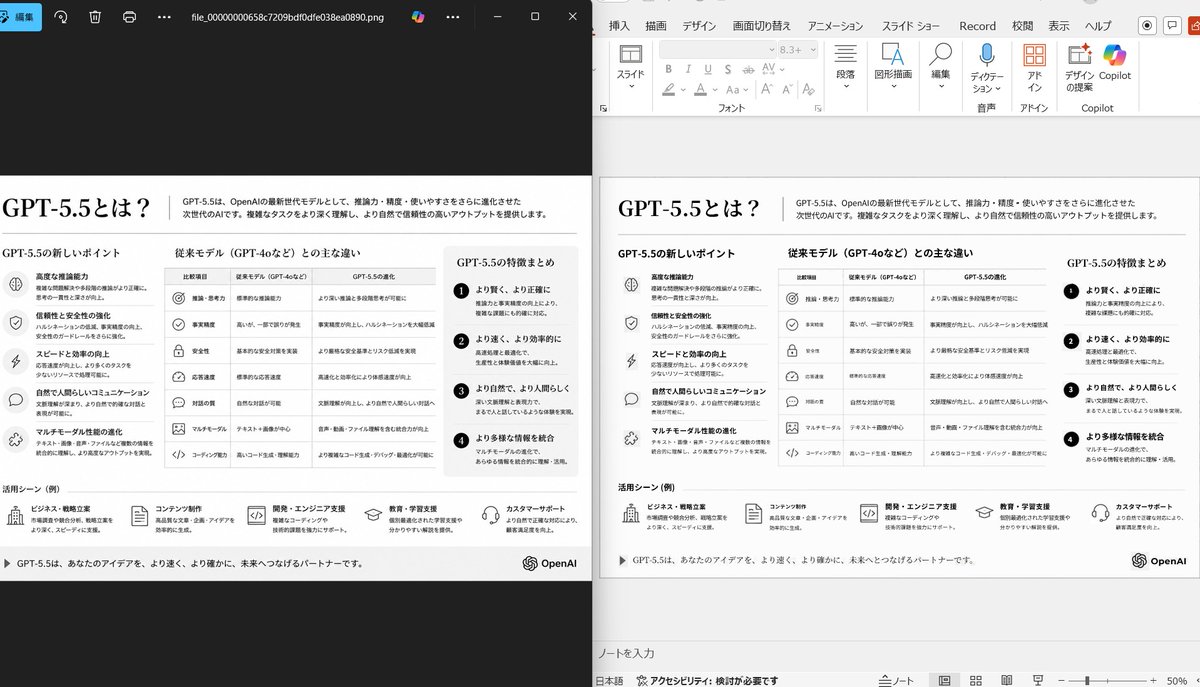
Side-by-Side PPT Reconstruction Demo

Prompt

Using the provided reference image of the PowerPoint slide screenshot, recreate it as a clean, polished slide conversion result inside a side-by-side desktop comparison. Keep the same Japanese slide topic and overall layout, but remove the dense selection handles, edit boxes, and malformed vector artifacts from the reference so the slide appears properly reconstructed. Show 2 panels: on the left, a dark image viewer window displaying the exported slide image; on the right, the same slide opened in PowerPoint editing view. Preserve the original monochrome infographic style and Japanese text structure, but make the typography legible and the icons, dividers, and columns cleanly aligned. Keep the slide as a single-page infographic with 5 main content areas: 1 top title/header row, 3 mid-page comparison columns, 1 bottom use-case row containing 5 icon-labeled items. Include a footer line and the OpenAI logo at bottom right. Emphasize that this is a faithful PPT reconstruction from the uploaded image, with a realistic Windows desktop app screenshot look.

Runs on 18 models

  • Flux
  • Flux 2
  • Flux Kontext
  • GPT-4o Image
  • GPT Image
  • GPT Image 2
  • GPT Image 2.5
  • Grok Imagine
  • Ideogram V3
  • Imagen 4
  • Midjourney
  • Nano Banana
  • +6 more

What this prompt produces

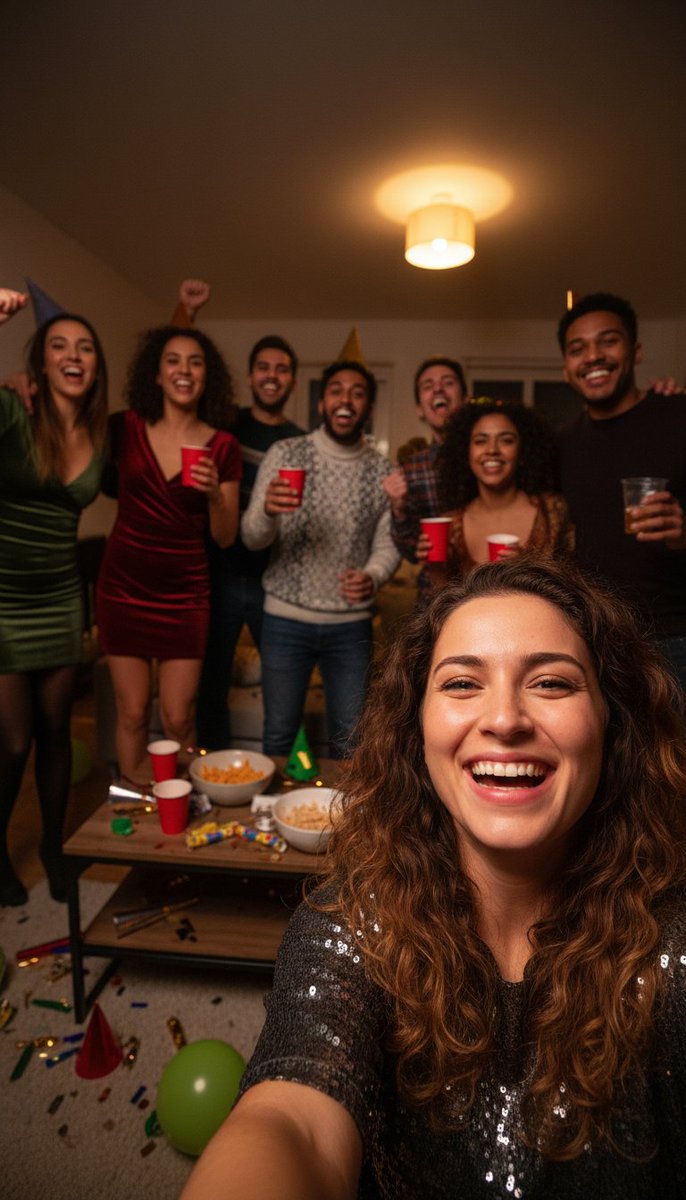
Realistic Group Selfie with Smartphone Flash Effect Not specified nano-banana-pro
Four Seasons Portrait Collage Not specified nano-banana-pro
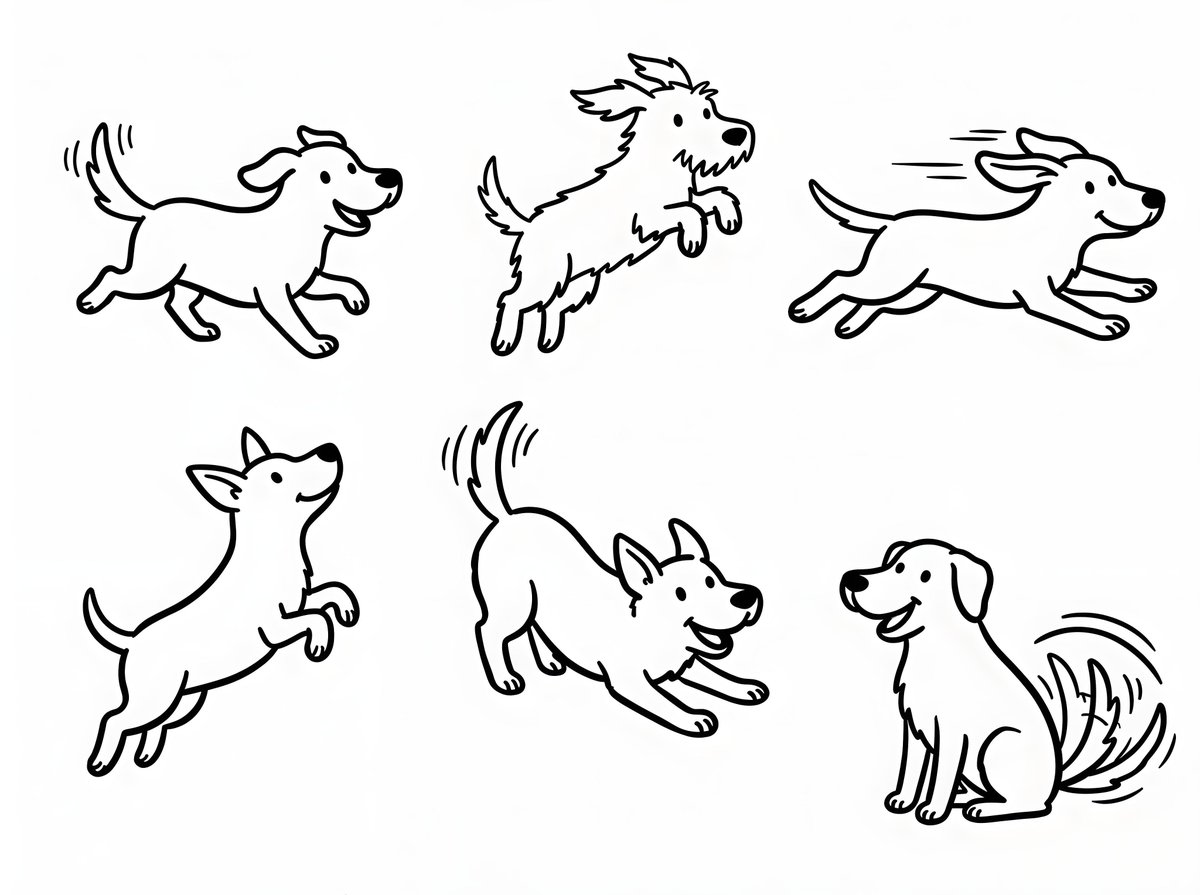
Minimalist Dog Sketch Clipart Not specified nano-banana-pro
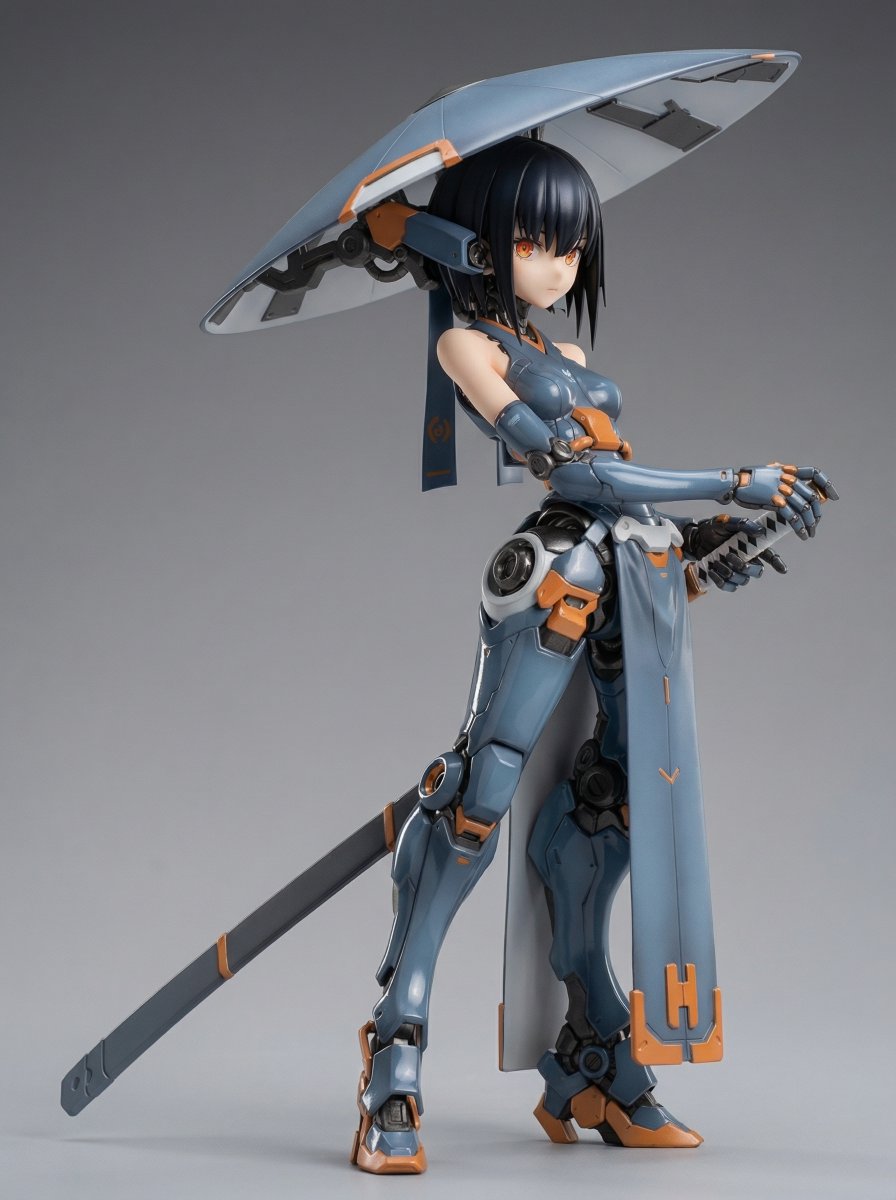
Mecha Girl figure concept generated by Nano Banana Pro Not specified nano-banana-pro
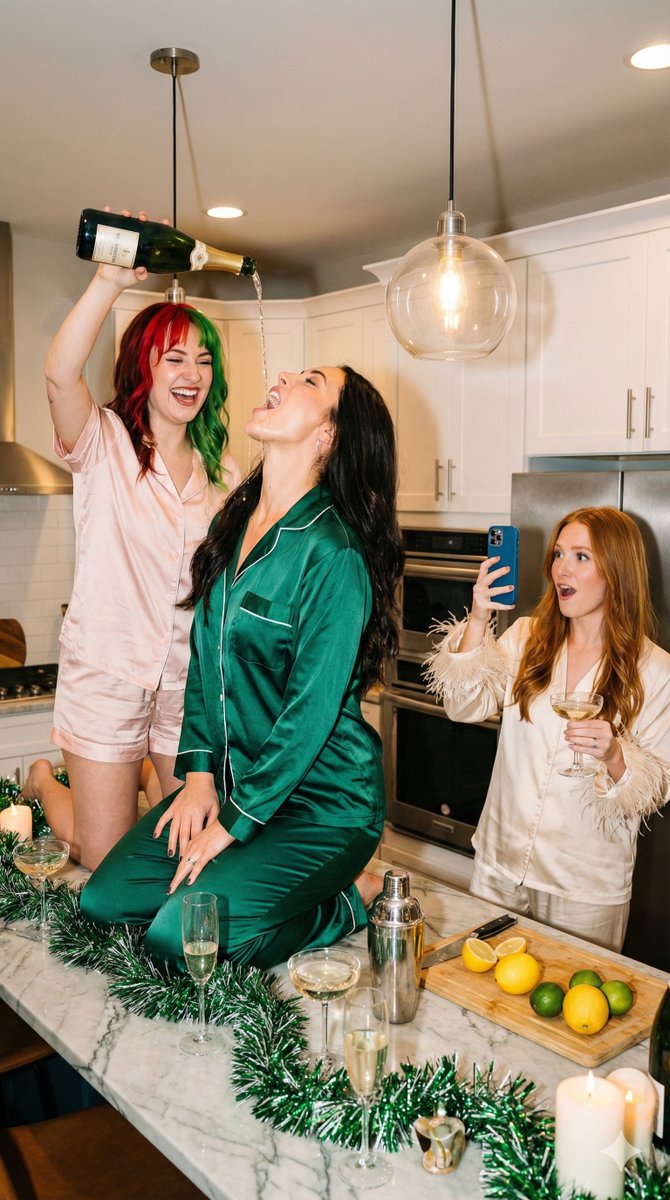
Candid Flash Photography: Chaotic Holiday Party (Duplicate) Not specified nano-banana-pro
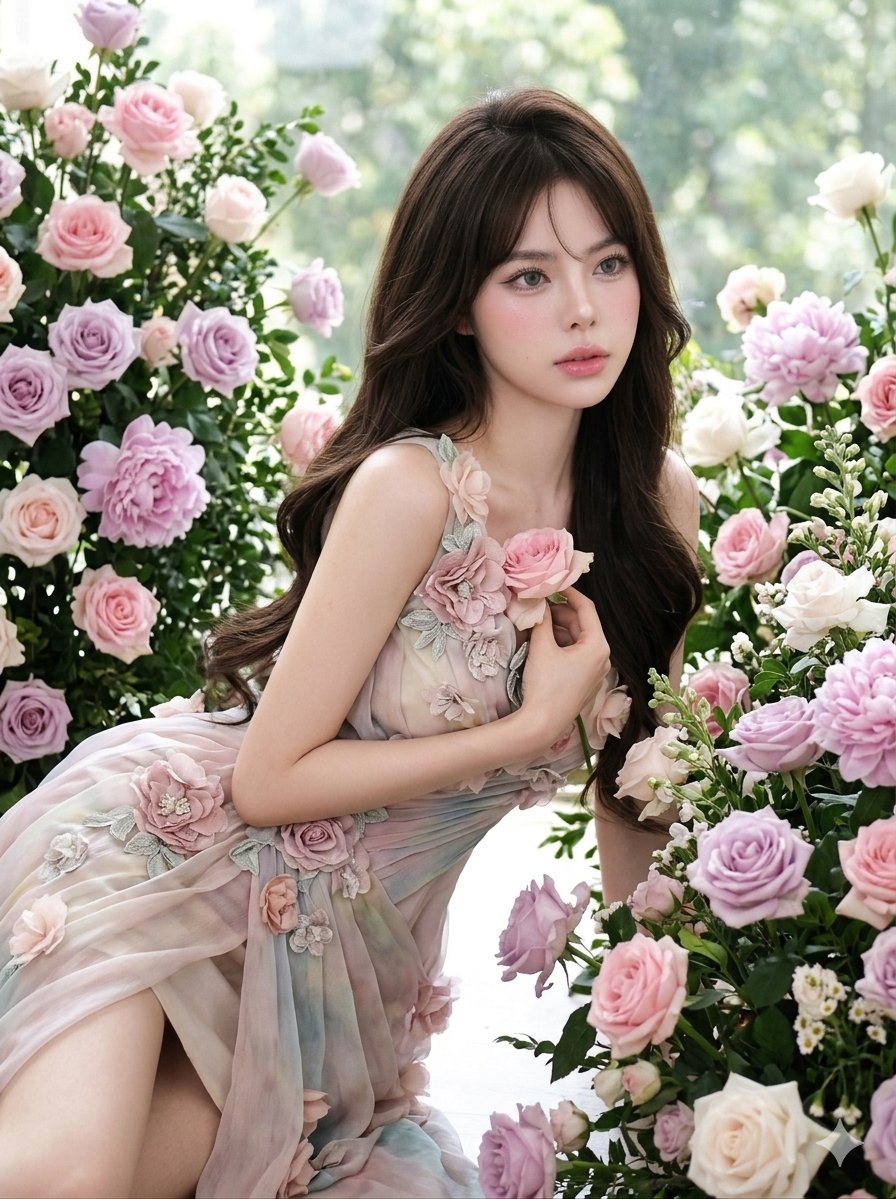
Ethereal Floral Studio Portrait Not specified nano-banana-pro

Run this prompt with the API

The request below sends this prompt, with its default values filled in, to the first model it runs on. Swap the model name for any other model listed above.

Prompt API docs
/api/v1/gpt_image_2/text_to_image
curl -X POST https://runapi.ai/api/v1/gpt_image_2/text_to_image \
  -H "Authorization: Bearer $RUNAPI_API_KEY" \
  -H "Content-Type: application/json" \
  --data-binary @- <<'JSON'
{
  "model": "gpt-image-2",
  "prompt": "Using the provided reference image of the PowerPoint slide screenshot, recreate it as a clean, polished slide conversion result inside a side-by-side desktop comparison. Keep the same Japanese slide topic and overall layout, but remove the dense selection handles, edit boxes, and malformed vector artifacts from the reference so the slide appears properly reconstructed. Show 2 panels: on the left, a dark image viewer window displaying the exported slide image; on the right, the same slide opened in PowerPoint editing view. Preserve the original monochrome infographic style and Japanese text structure, but make the typography legible and the icons, dividers, and columns cleanly aligned. Keep the slide as a single-page infographic with 5 main content areas: 1 top title/header row, 3 mid-page comparison columns, 1 bottom use-case row containing 5 icon-labeled items. Include a footer line and the OpenAI logo at bottom right. Emphasize that this is a faithful PPT reconstruction from the uploaded image, with a realistic Windows desktop app screenshot look."
}
JSON

Try a prompt

Estimated: $0.04 / image

Sign in to generate with RunAPI.

Sign in to generate

Sign in to start generating with your available language models.