Japanese PowerPoint Bunny Icon Editor
Japanese PowerPoint Bunny Icon Editor

الأمر

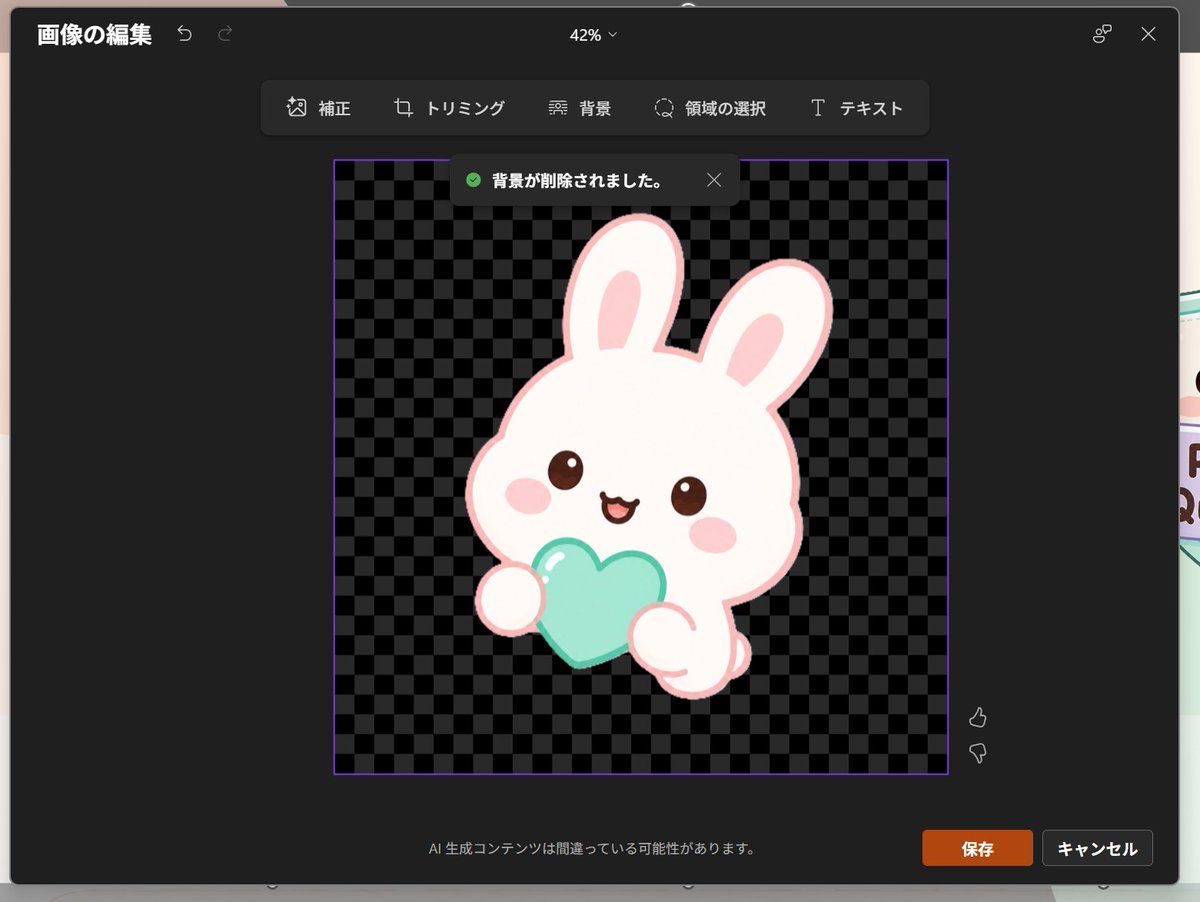
Goal: Create a realistic screenshot of a dark-themed PowerPoint-style image editing window in Japanese, showing a cute dreamy kawaii icon after background removal. Canvas: 1024×768 landscape screenshot with a dark charcoal modal editor centered on screen, rounded corners, subtle shadow, and a faint glimpse of the underlying slide behind the modal edges. The interface zoom indicator at the top center reads “42%”. Layout: At the top left, show the Japanese title “画像の編集” with two small undo/redo arrow icons. At the top right, show a small connected-dots icon and an X close icon. Below the top bar, center a floating toolbar with exactly 6 tools labeled: “補正”, “トリミング”, “背景”, “領域の選択”, “テキスト”, plus their small simple line icons, arranged horizontally in dark rounded rectangles. Main editing area: In the center, place a square image area outlined with a thin purple border. Inside it, use a black and dark-gray checkerboard transparency pattern. Near the top of this square, show a dark notification toast with a green check icon and the Japanese text “背景が削除されました。” plus a small X close icon. Subject details: Center the icon inside the checkerboard square: one pastel yume-kawaii white rabbit mascot with a thick pale pink outline, oversized rounded head, two long upright ears with pink inner ears, small brown glossy eyes, pink oval blush cheeks, and a happy open mouth. The bunny holds exactly 1 mint-aqua heart-shaped object in front of its body with two rounded paws visible. Add soft highlights on the heart and a clean sticker-like vector style with no harsh shadows. The character should feel like a cute app icon or sticker. Use a white kawaii rabbit, a mint-aqua heart, and pale pink. Footer and controls: At the bottom center of the modal, show the small Japanese warning text “AI 生成コンテンツは間違っている可能性があります。” At the bottom right, show exactly 2 buttons: an orange “保存” button and a dark gray “キャンセル” button. Near the right side of the image area, include exactly 2 small vertical feedback icons: thumbs up above thumbs down. Visual style: Realistic software screenshot, crisp UI text, dark Microsoft-style interface, clean Japanese typography, transparent-background checkerboard, cute pastel sticker art. Keep the composition faithful to a PowerPoint built-in image editor after background removal, not a standalone illustration.

يعمل على موديلات 20

  • Flux
  • Flux 2
  • Flux Kontext
  • GPT-4o Image
  • GPT Image
  • GPT Image 2
  • GPT Image 2.5
  • GPT Image 2.6
  • Grok Imagine
  • Ideogram V3
  • Imagen 4
  • Kling
  • +8 المزيد

ما الذي ينتجه هذا الـ prompt؟

Split-Page Coffee Shop Travel Journal غير محدد gpt-image-2
Cute Chibi Characters in a Sweet Playful Moment غير محدد gpt-image-2
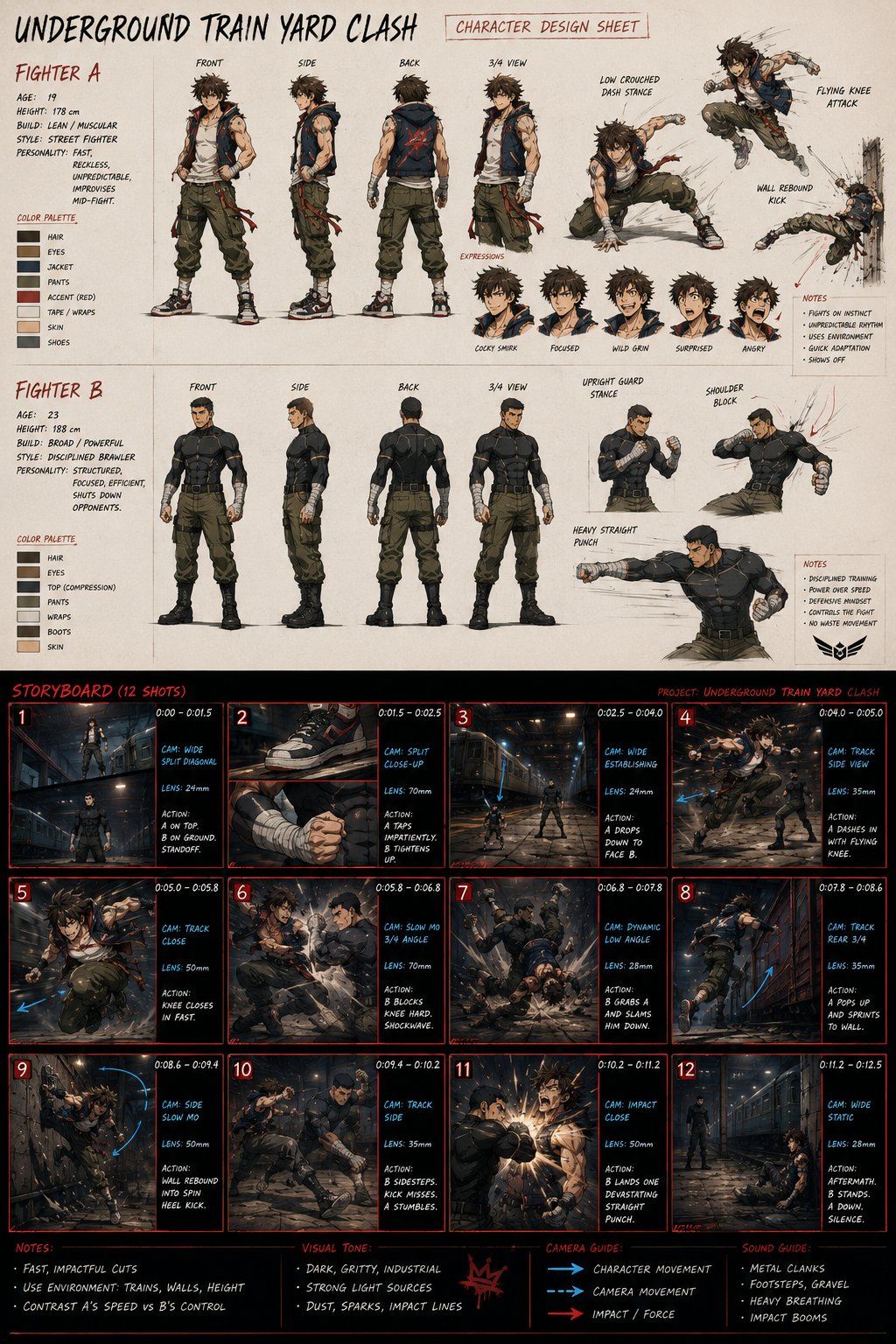
Underground Train Yard Clash Anime Development Board غير محدد gpt-image-2
Realistic Group Selfie with Smartphone Flash Effect غير محدد nano-banana-pro
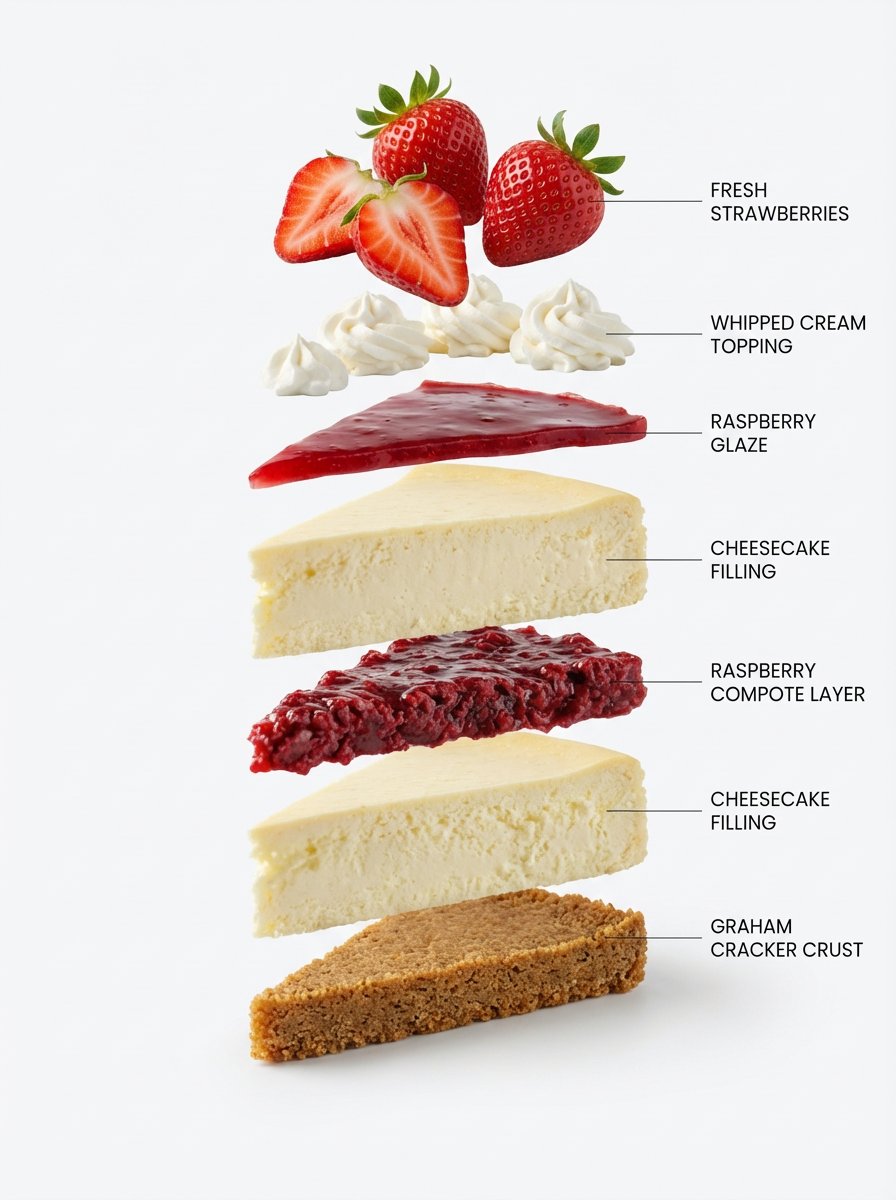
Exploded-View Structural Cutaway for Food Photography غير محدد nano-banana-pro
Four Seasons Portrait Collage غير محدد nano-banana-pro

قم بتشغيل هذه المطالبة باستخدام واجهة برمجة التطبيقات

يرسل الطلب أدناه هذه المطالبة، مع ملء قيمها الافتراضية، إلى النموذج الأول الذي تعمل عليه. استبدل اسم الطراز بأي طراز آخر مذكور أعلاه.

مستندات واجهة برمجة التطبيقات الفورية
/api/v1/gpt_image_2/text_to_image
curl -X POST https://runapi.ai/api/v1/gpt_image_2/text_to_image \
  -H "Authorization: Bearer $RUNAPI_API_KEY" \
  -H "Content-Type: application/json" \
  --data-binary @- <<'JSON'
{
  "model": "gpt-image-2",
  "prompt": "Goal: Create a realistic screenshot of a dark-themed PowerPoint-style image editing window in Japanese, showing a cute dreamy kawaii icon after background removal.\n\nCanvas: 1024×768 landscape screenshot with a dark charcoal modal editor centered on screen, rounded corners, subtle shadow, and a faint glimpse of the underlying slide behind the modal edges. The interface zoom indicator at the top center reads “42%”.\n\nLayout: At the top left, show the Japanese title “画像の編集” with two small undo/redo arrow icons. At the top right, show a small connected-dots icon and an X close icon. Below the top bar, center a floating toolbar with exactly 6 tools labeled: “補正”, “トリミング”, “背景”, “領域の選択”, “テキスト”, plus their small simple line icons, arranged horizontally in dark rounded rectangles.\n\nMain editing area: In the center, place a square image area outlined with a thin purple border. Inside it, use a black and dark-gray checkerboard transparency pattern. Near the top of this square, show a dark notification toast with a green check icon and the Japanese text “背景が削除されました。” plus a small X close icon.\n\nSubject details: Center the icon inside the checkerboard square: one pastel yume-kawaii white rabbit mascot with a thick pale pink outline, oversized rounded head, two long upright ears with pink inner ears, small brown glossy eyes, pink oval blush cheeks, and a happy open mouth. The bunny holds exactly 1 mint-aqua heart-shaped object in front of its body with two rounded paws visible. Add soft highlights on the heart and a clean sticker-like vector style with no harsh shadows. The character should feel like a cute app icon or sticker. Use a white kawaii rabbit, a mint-aqua heart, and pale pink.\n\nFooter and controls: At the bottom center of the modal, show the small Japanese warning text “AI 生成コンテンツは間違っている可能性があります。” At the bottom right, show exactly 2 buttons: an orange “保存” button and a dark gray “キャンセル” button. Near the right side of the image area, include exactly 2 small vertical feedback icons: thumbs up above thumbs down.\n\nVisual style: Realistic software screenshot, crisp UI text, dark Microsoft-style interface, clean Japanese typography, transparent-background checkerboard, cute pastel sticker art. Keep the composition faithful to a PowerPoint built-in image editor after background removal, not a standalone illustration."
}
JSON

جرب المطالبة

التقدير: $0.04 / صورة

سجّل دخولك للتوليد عبر RunAPI.

سجّل دخولك للتوليد

سجّل الدخول لبدء التوليد باستخدام النماذج اللغوية المتاحة لك.