---
title: Cute Google Fonts Tutorial Infographic — gpt-image-2 Prompt | RunAPI | RunAPI
description: Copy this RunAPI prompt, view agent setup steps, and use API code for gpt-image-2.
url: https://runapi.ai/prompts/prm_pexzREbkyNPQu9Em8dMo5lZn.md
canonical: https://runapi.ai/prompts/prm_pexzREbkyNPQu9Em8dMo5lZn
locale: en
site: RunAPI
image: https://runapi.ai/assets/opengraph-bfaaa0f0.png
prompt_id: 19181
model: gpt-image-2
modality: image
endpoint: "/api/v1/gpt_image_2/text_to_image"
---
> HTML version: https://runapi.ai/prompts/prm_pexzREbkyNPQu9Em8dMo5lZn
> Site index for agents: https://runapi.ai/llms.txt
# Cute Google Fonts Tutorial Infographic
Copy this RunAPI prompt, view agent setup steps, and use API code for gpt-image-2.
**Prompts** · Image
## Prompt
```text
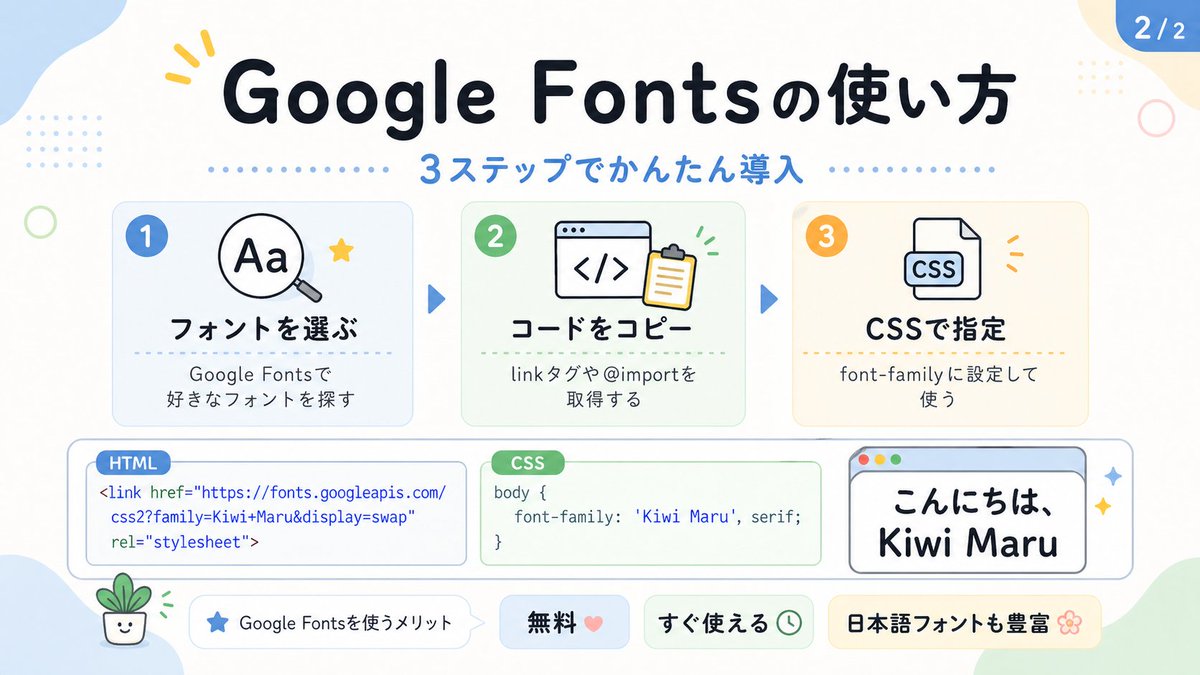
Create a cute pastel Japanese infographic slide with a clean white background and soft rounded abstract corner blobs in pale blue, cream, and light green. The design is friendly, educational, and modern, with thick rounded sans-serif Japanese typography, subtle drop shadows, thin gray outlines, dotted divider accents, and small decorative doodles. At the top center, place a large bold headline in dark navy that reads "Google Fontsの使い方". Directly below it, add a blue subheadline reading "3ステップでかんたん導入" with a horizontal row of small blue dots on both sides. In the top right corner, add a rounded blue page badge that reads "2/2".
Arrange 3 rounded rectangular step cards across the upper middle row, evenly spaced left to right, each with a pale tinted background, soft border, and a colored circular number badge in the upper left. Card 1 has a pale blue background and a blue badge with "1". Inside, show a simple magnifying glass icon over the letters "Aa" plus a small yellow star accent. The bold title reads "フォントを選ぶ" and the smaller text below reads "Google Fontsで
好きなフォントを探す". Card 2 has a pale green background and a green badge with "2". Inside, show a browser window icon with code brackets "" and a clipboard, plus tiny green motion marks. The bold title reads "コードをコピー" and the smaller text below reads "linkタグや@importを
取得する". Card 3 has a pale cream background and an orange badge with "3". Inside, show a document icon labeled "CSS" with small orange accent marks. The bold title reads "CSSで指定" and the smaller text below reads "font-family に設定して
使う". Place 2 medium blue triangular arrows between the 3 cards to show progression.
Across the lower middle, create 3 horizontally aligned demo boxes. The left box is a rounded white code panel with a small blue tab label reading "HTML". Inside, display this code in blue text exactly across 3 lines: "". The center box is a rounded white code panel with a green tab label reading "CSS". Inside, display dark text exactly as: "body {"
" font-family: 'Kiwi Maru', serif;"
"}". The right box is a rounded white mock browser window with a pale blue title bar and 3 tiny circular window buttons at top left in red, yellow, and green. Inside, show large Japanese sample text in black reading "こんにちは、
Kiwi Maru" in a cute rounded handwritten-style font. Add 2 small sparkle accents to the right of this browser window.
At the bottom, place 4 pill-shaped badges from left to right. Badge 1 is white with a small blue star icon and text "Google Fontsを使うメリット". Badge 2 is pale blue with bold text "無料" followed by a pink heart. Badge 3 is pale green with bold text "すぐ使える" followed by a small clock icon. Badge 4 is pale yellow with bold text "日本語フォントも豊富" followed by a flower icon.
Add 4 extra decorative elements around the canvas: a yellow 3-stroke sparkle near the top left of the headline, a pale blue dotted square grid in the upper left background, a thin light green ring on the left side, and a tiny smiling potted plant illustration in the lower left corner. Keep the whole composition flat vector-like, crisp, cute, and highly legible, in a social-media educational carousel style.
```
### Generate this prompt
| Model | GPT Image 2 2 |
|---|---|
| Estimated cost | $0.03 / call |
| Endpoint | `/api/v1/gpt_image_2/text_to_image` |
[Sign in to generate](https://runapi.ai/login)
Your generated image will appear here
## Prompt Breakdown
### Subject
Cute Google Fonts Tutorial Infographic
### Atmosphere
art / Image
### Technical
gpt-image-2 / Gpt Image 2 / Text To Image / /api/v1/gpt_image_2/text_to_image
### Style
carousel, doodles, infographic, japanese, pastel, rounded, typography
## Models That Support This Prompt
| Modality | Model | Price | Try |
|---|---|---|---|
| Image | Qwen 2/qwen-2-text-to-image | $0.04 / image | [Try](https://runapi.ai/models/qwen-2/text-to-image.md) |
| Image | Qwen 3/qwen-3-pro-text-to-image | $0.04-$0.08 / image | [Try](https://runapi.ai/models/qwen-3/pro-text-to-image.md) |
| Image | Qwen 3/qwen-3-text-to-image | $0.03 / image | [Try](https://runapi.ai/models/qwen-3/text-to-image.md) |
| Image | Qwen Image/qwen-image-text-to-image | $0.03 / image | [Try](https://runapi.ai/models/qwen-image/text-to-image.md) |
| Image | Wan/wan-2.7-image | $0.03 / image | [Try](https://runapi.ai/models/wan/2.7-image.md) |
## RUN DETAILS
| Field | Value |
|---|---|
| Model | `gpt-image-2` |
| Modality | Image |
| Category | art |
| Tags | carousel, doodles, infographic, japanese, pastel, rounded, typography |
## Use with an agent
### Claude Code
1. claude mcp add runapi -s user -- npx -y @runapi.ai/mcp
2. Restart Claude Code
3. Paste this prompt: Generate an image: "Create a cute pastel Japanese infographic slide with a clean white background and soft rounded abstract corner blobs in pale blue, cream, and light green. The design is friendly, educational, and modern, with thick rounded sans-serif Japanese typography, subtle drop shadows, thin gray outlines, dotted divider accents, and small decorative doodles. At the top center, place a large bold headline in dark navy that reads "Google Fontsの使い方". Directly below it, add a blue subheadline reading "3ステップでかんたん導入" with a horizontal row of small blue dots on both sides. In the top right corner, add a rounded blue page badge that reads "2/2".
Arrange 3 rounded rectangular step cards across the upper middle row, evenly spaced left to right, each with a pale tinted background, soft border, and a colored circular number badge in the upper left. Card 1 has a pale blue background and a blue badge with "1". Inside, show a simple magnifying glass icon over the letters "Aa" plus a small yellow star accent. The bold title reads "フォントを選ぶ" and the smaller text below reads "Google Fontsで
好きなフォントを探す". Card 2 has a pale green background and a green badge with "2". Inside, show a browser window icon with code brackets "" and a clipboard, plus tiny green motion marks. The bold title reads "コードをコピー" and the smaller text below reads "linkタグや@importを
取得する". Card 3 has a pale cream background and an orange badge with "3". Inside, show a document icon labeled "CSS" with small orange accent marks. The bold title reads "CSSで指定" and the smaller text below reads "font-family に設定して
使う". Place 2 medium blue triangular arrows between the 3 cards to show progression.
Across the lower middle, create 3 horizontally aligned demo boxes. The left box is a rounded white code panel with a small blue tab label reading "HTML". Inside, display this code in blue text exactly across 3 lines: "". The center box is a rounded white code panel with a green tab label reading "CSS". Inside, display dark text exactly as: "body {"
" font-family: 'Kiwi Maru', serif;"
"}". The right box is a rounded white mock browser window with a pale blue title bar and 3 tiny circular window buttons at top left in red, yellow, and green. Inside, show large Japanese sample text in black reading "こんにちは、
Kiwi Maru" in a cute rounded handwritten-style font. Add 2 small sparkle accents to the right of this browser window.
At the bottom, place 4 pill-shaped badges from left to right. Badge 1 is white with a small blue star icon and text "Google Fontsを使うメリット". Badge 2 is pale blue with bold text "無料" followed by a pink heart. Badge 3 is pale green with bold text "すぐ使える" followed by a small clock icon. Badge 4 is pale yellow with bold text "日本語フォントも豊富" followed by a flower icon.
Add 4 extra decorative elements around the canvas: a yellow 3-stroke sparkle near the top left of the headline, a pale blue dotted square grid in the upper left background, a thin light green ring on the left side, and a tiny smiling potted plant illustration in the lower left corner. Keep the whole composition flat vector-like, crisp, cute, and highly legible, in a social-media educational carousel style."
### Codex
1. codex plugin install runapi-mcp@agents
2. Restart Codex
3. Paste this prompt: Generate an image: "Create a cute pastel Japanese infographic slide with a clean white background and soft rounded abstract corner blobs in pale blue, cream, and light green. The design is friendly, educational, and modern, with thick rounded sans-serif Japanese typography, subtle drop shadows, thin gray outlines, dotted divider accents, and small decorative doodles. At the top center, place a large bold headline in dark navy that reads "Google Fontsの使い方". Directly below it, add a blue subheadline reading "3ステップでかんたん導入" with a horizontal row of small blue dots on both sides. In the top right corner, add a rounded blue page badge that reads "2/2".
Arrange 3 rounded rectangular step cards across the upper middle row, evenly spaced left to right, each with a pale tinted background, soft border, and a colored circular number badge in the upper left. Card 1 has a pale blue background and a blue badge with "1". Inside, show a simple magnifying glass icon over the letters "Aa" plus a small yellow star accent. The bold title reads "フォントを選ぶ" and the smaller text below reads "Google Fontsで
好きなフォントを探す". Card 2 has a pale green background and a green badge with "2". Inside, show a browser window icon with code brackets "" and a clipboard, plus tiny green motion marks. The bold title reads "コードをコピー" and the smaller text below reads "linkタグや@importを
取得する". Card 3 has a pale cream background and an orange badge with "3". Inside, show a document icon labeled "CSS" with small orange accent marks. The bold title reads "CSSで指定" and the smaller text below reads "font-family に設定して
使う". Place 2 medium blue triangular arrows between the 3 cards to show progression.
Across the lower middle, create 3 horizontally aligned demo boxes. The left box is a rounded white code panel with a small blue tab label reading "HTML". Inside, display this code in blue text exactly across 3 lines: "". The center box is a rounded white code panel with a green tab label reading "CSS". Inside, display dark text exactly as: "body {"
" font-family: 'Kiwi Maru', serif;"
"}". The right box is a rounded white mock browser window with a pale blue title bar and 3 tiny circular window buttons at top left in red, yellow, and green. Inside, show large Japanese sample text in black reading "こんにちは、
Kiwi Maru" in a cute rounded handwritten-style font. Add 2 small sparkle accents to the right of this browser window.
At the bottom, place 4 pill-shaped badges from left to right. Badge 1 is white with a small blue star icon and text "Google Fontsを使うメリット". Badge 2 is pale blue with bold text "無料" followed by a pink heart. Badge 3 is pale green with bold text "すぐ使える" followed by a small clock icon. Badge 4 is pale yellow with bold text "日本語フォントも豊富" followed by a flower icon.
Add 4 extra decorative elements around the canvas: a yellow 3-stroke sparkle near the top left of the headline, a pale blue dotted square grid in the upper left background, a thin light green ring on the left side, and a tiny smiling potted plant illustration in the lower left corner. Keep the whole composition flat vector-like, crisp, cute, and highly legible, in a social-media educational carousel style."
### Cursor
1. npx @runapi.ai/mcp init cursor
2. Restart Cursor
3. Paste this prompt: Generate an image: "Create a cute pastel Japanese infographic slide with a clean white background and soft rounded abstract corner blobs in pale blue, cream, and light green. The design is friendly, educational, and modern, with thick rounded sans-serif Japanese typography, subtle drop shadows, thin gray outlines, dotted divider accents, and small decorative doodles. At the top center, place a large bold headline in dark navy that reads "Google Fontsの使い方". Directly below it, add a blue subheadline reading "3ステップでかんたん導入" with a horizontal row of small blue dots on both sides. In the top right corner, add a rounded blue page badge that reads "2/2".
Arrange 3 rounded rectangular step cards across the upper middle row, evenly spaced left to right, each with a pale tinted background, soft border, and a colored circular number badge in the upper left. Card 1 has a pale blue background and a blue badge with "1". Inside, show a simple magnifying glass icon over the letters "Aa" plus a small yellow star accent. The bold title reads "フォントを選ぶ" and the smaller text below reads "Google Fontsで
好きなフォントを探す". Card 2 has a pale green background and a green badge with "2". Inside, show a browser window icon with code brackets "" and a clipboard, plus tiny green motion marks. The bold title reads "コードをコピー" and the smaller text below reads "linkタグや@importを
取得する". Card 3 has a pale cream background and an orange badge with "3". Inside, show a document icon labeled "CSS" with small orange accent marks. The bold title reads "CSSで指定" and the smaller text below reads "font-family に設定して
使う". Place 2 medium blue triangular arrows between the 3 cards to show progression.
Across the lower middle, create 3 horizontally aligned demo boxes. The left box is a rounded white code panel with a small blue tab label reading "HTML". Inside, display this code in blue text exactly across 3 lines: "". The center box is a rounded white code panel with a green tab label reading "CSS". Inside, display dark text exactly as: "body {"
" font-family: 'Kiwi Maru', serif;"
"}". The right box is a rounded white mock browser window with a pale blue title bar and 3 tiny circular window buttons at top left in red, yellow, and green. Inside, show large Japanese sample text in black reading "こんにちは、
Kiwi Maru" in a cute rounded handwritten-style font. Add 2 small sparkle accents to the right of this browser window.
At the bottom, place 4 pill-shaped badges from left to right. Badge 1 is white with a small blue star icon and text "Google Fontsを使うメリット". Badge 2 is pale blue with bold text "無料" followed by a pink heart. Badge 3 is pale green with bold text "すぐ使える" followed by a small clock icon. Badge 4 is pale yellow with bold text "日本語フォントも豊富" followed by a flower icon.
Add 4 extra decorative elements around the canvas: a yellow 3-stroke sparkle near the top left of the headline, a pale blue dotted square grid in the upper left background, a thin light green ring on the left side, and a tiny smiling potted plant illustration in the lower left corner. Keep the whole composition flat vector-like, crisp, cute, and highly legible, in a social-media educational carousel style."
### Windsurf
1. npx @runapi.ai/mcp init windsurf
2. Restart Windsurf
3. Paste this prompt: Generate an image: "Create a cute pastel Japanese infographic slide with a clean white background and soft rounded abstract corner blobs in pale blue, cream, and light green. The design is friendly, educational, and modern, with thick rounded sans-serif Japanese typography, subtle drop shadows, thin gray outlines, dotted divider accents, and small decorative doodles. At the top center, place a large bold headline in dark navy that reads "Google Fontsの使い方". Directly below it, add a blue subheadline reading "3ステップでかんたん導入" with a horizontal row of small blue dots on both sides. In the top right corner, add a rounded blue page badge that reads "2/2".
Arrange 3 rounded rectangular step cards across the upper middle row, evenly spaced left to right, each with a pale tinted background, soft border, and a colored circular number badge in the upper left. Card 1 has a pale blue background and a blue badge with "1". Inside, show a simple magnifying glass icon over the letters "Aa" plus a small yellow star accent. The bold title reads "フォントを選ぶ" and the smaller text below reads "Google Fontsで
好きなフォントを探す". Card 2 has a pale green background and a green badge with "2". Inside, show a browser window icon with code brackets "" and a clipboard, plus tiny green motion marks. The bold title reads "コードをコピー" and the smaller text below reads "linkタグや@importを
取得する". Card 3 has a pale cream background and an orange badge with "3". Inside, show a document icon labeled "CSS" with small orange accent marks. The bold title reads "CSSで指定" and the smaller text below reads "font-family に設定して
使う". Place 2 medium blue triangular arrows between the 3 cards to show progression.
Across the lower middle, create 3 horizontally aligned demo boxes. The left box is a rounded white code panel with a small blue tab label reading "HTML". Inside, display this code in blue text exactly across 3 lines: "". The center box is a rounded white code panel with a green tab label reading "CSS". Inside, display dark text exactly as: "body {"
" font-family: 'Kiwi Maru', serif;"
"}". The right box is a rounded white mock browser window with a pale blue title bar and 3 tiny circular window buttons at top left in red, yellow, and green. Inside, show large Japanese sample text in black reading "こんにちは、
Kiwi Maru" in a cute rounded handwritten-style font. Add 2 small sparkle accents to the right of this browser window.
At the bottom, place 4 pill-shaped badges from left to right. Badge 1 is white with a small blue star icon and text "Google Fontsを使うメリット". Badge 2 is pale blue with bold text "無料" followed by a pink heart. Badge 3 is pale green with bold text "すぐ使える" followed by a small clock icon. Badge 4 is pale yellow with bold text "日本語フォントも豊富" followed by a flower icon.
Add 4 extra decorative elements around the canvas: a yellow 3-stroke sparkle near the top left of the headline, a pale blue dotted square grid in the upper left background, a thin light green ring on the left side, and a tiny smiling potted plant illustration in the lower left corner. Keep the whole composition flat vector-like, crisp, cute, and highly legible, in a social-media educational carousel style."
## Generate via API
### curl
```curl
curl -X POST https://runapi.ai/api/v1/gpt_image_2/text_to_image \
-H "Authorization: Bearer $RUNAPI_API_KEY" \
-H "Content-Type: application/json" \
--data-binary @- <<'JSON'
{
"model": "gpt-image-2",
"prompt": "Create a cute pastel Japanese infographic slide with a clean white background and soft rounded abstract corner blobs in pale blue, cream, and light green. The design is friendly, educational, and modern, with thick rounded sans-serif Japanese typography, subtle drop shadows, thin gray outlines, dotted divider accents, and small decorative doodles. At the top center, place a large bold headline in dark navy that reads \"Google Fontsの使い方\". Directly below it, add a blue subheadline reading \"3ステップでかんたん導入\" with a horizontal row of small blue dots on both sides. In the top right corner, add a rounded blue page badge that reads \"2/2\".\n\nArrange 3 rounded rectangular step cards across the upper middle row, evenly spaced left to right, each with a pale tinted background, soft border, and a colored circular number badge in the upper left. Card 1 has a pale blue background and a blue badge with \"1\". Inside, show a simple magnifying glass icon over the letters \"Aa\" plus a small yellow star accent. The bold title reads \"フォントを選ぶ\" and the smaller text below reads \"Google Fontsで\n好きなフォントを探す\". Card 2 has a pale green background and a green badge with \"2\". Inside, show a browser window icon with code brackets \"\" and a clipboard, plus tiny green motion marks. The bold title reads \"コードをコピー\" and the smaller text below reads \"linkタグや@importを\n取得する\". Card 3 has a pale cream background and an orange badge with \"3\". Inside, show a document icon labeled \"CSS\" with small orange accent marks. The bold title reads \"CSSで指定\" and the smaller text below reads \"font-family に設定して\n使う\". Place 2 medium blue triangular arrows between the 3 cards to show progression.\n\nAcross the lower middle, create 3 horizontally aligned demo boxes. The left box is a rounded white code panel with a small blue tab label reading \"HTML\". Inside, display this code in blue text exactly across 3 lines: \"\". The center box is a rounded white code panel with a green tab label reading \"CSS\". Inside, display dark text exactly as: \"body {\"\n\" font-family: 'Kiwi Maru', serif;\"\n\"}\". The right box is a rounded white mock browser window with a pale blue title bar and 3 tiny circular window buttons at top left in red, yellow, and green. Inside, show large Japanese sample text in black reading \"こんにちは、\nKiwi Maru\" in a cute rounded handwritten-style font. Add 2 small sparkle accents to the right of this browser window.\n\nAt the bottom, place 4 pill-shaped badges from left to right. Badge 1 is white with a small blue star icon and text \"Google Fontsを使うメリット\". Badge 2 is pale blue with bold text \"無料\" followed by a pink heart. Badge 3 is pale green with bold text \"すぐ使える\" followed by a small clock icon. Badge 4 is pale yellow with bold text \"日本語フォントも豊富\" followed by a flower icon.\n\nAdd 4 extra decorative elements around the canvas: a yellow 3-stroke sparkle near the top left of the headline, a pale blue dotted square grid in the upper left background, a thin light green ring on the left side, and a tiny smiling potted plant illustration in the lower left corner. Keep the whole composition flat vector-like, crisp, cute, and highly legible, in a social-media educational carousel style."
}
JSON
```
### Node.js
```javascript
import { GptImage2Client } from "@runapi.ai/gpt-image-2";
const client = new GptImage2Client({
apiKey: process.env.RUNAPI_API_KEY,
});
const result = await client.textToImage.run({
"model": "gpt-image-2",
"prompt": "Create a cute pastel Japanese infographic slide with a clean white background and soft rounded abstract corner blobs in pale blue, cream, and light green. The design is friendly, educational, and modern, with thick rounded sans-serif Japanese typography, subtle drop shadows, thin gray outlines, dotted divider accents, and small decorative doodles. At the top center, place a large bold headline in dark navy that reads \"Google Fontsの使い方\". Directly below it, add a blue subheadline reading \"3ステップでかんたん導入\" with a horizontal row of small blue dots on both sides. In the top right corner, add a rounded blue page badge that reads \"2/2\".\n\nArrange 3 rounded rectangular step cards across the upper middle row, evenly spaced left to right, each with a pale tinted background, soft border, and a colored circular number badge in the upper left. Card 1 has a pale blue background and a blue badge with \"1\". Inside, show a simple magnifying glass icon over the letters \"Aa\" plus a small yellow star accent. The bold title reads \"フォントを選ぶ\" and the smaller text below reads \"Google Fontsで\n好きなフォントを探す\". Card 2 has a pale green background and a green badge with \"2\". Inside, show a browser window icon with code brackets \"\" and a clipboard, plus tiny green motion marks. The bold title reads \"コードをコピー\" and the smaller text below reads \"linkタグや@importを\n取得する\". Card 3 has a pale cream background and an orange badge with \"3\". Inside, show a document icon labeled \"CSS\" with small orange accent marks. The bold title reads \"CSSで指定\" and the smaller text below reads \"font-family に設定して\n使う\". Place 2 medium blue triangular arrows between the 3 cards to show progression.\n\nAcross the lower middle, create 3 horizontally aligned demo boxes. The left box is a rounded white code panel with a small blue tab label reading \"HTML\". Inside, display this code in blue text exactly across 3 lines: \"\". The center box is a rounded white code panel with a green tab label reading \"CSS\". Inside, display dark text exactly as: \"body {\"\n\" font-family: 'Kiwi Maru', serif;\"\n\"}\". The right box is a rounded white mock browser window with a pale blue title bar and 3 tiny circular window buttons at top left in red, yellow, and green. Inside, show large Japanese sample text in black reading \"こんにちは、\nKiwi Maru\" in a cute rounded handwritten-style font. Add 2 small sparkle accents to the right of this browser window.\n\nAt the bottom, place 4 pill-shaped badges from left to right. Badge 1 is white with a small blue star icon and text \"Google Fontsを使うメリット\". Badge 2 is pale blue with bold text \"無料\" followed by a pink heart. Badge 3 is pale green with bold text \"すぐ使える\" followed by a small clock icon. Badge 4 is pale yellow with bold text \"日本語フォントも豊富\" followed by a flower icon.\n\nAdd 4 extra decorative elements around the canvas: a yellow 3-stroke sparkle near the top left of the headline, a pale blue dotted square grid in the upper left background, a thin light green ring on the left side, and a tiny smiling potted plant illustration in the lower left corner. Keep the whole composition flat vector-like, crisp, cute, and highly legible, in a social-media educational carousel style."
});
console.log(result.id);
```
### Python
```python
import json
import os
import requests
response = requests.post(
"https://runapi.ai/api/v1/gpt_image_2/text_to_image",
headers={"Authorization": f"Bearer {os.environ['RUNAPI_API_KEY']}"},
json=json.loads("{\n \"model\": \"gpt-image-2\",\n \"prompt\": \"Create a cute pastel Japanese infographic slide with a clean white background and soft rounded abstract corner blobs in pale blue, cream, and light green. The design is friendly, educational, and modern, with thick rounded sans-serif Japanese typography, subtle drop shadows, thin gray outlines, dotted divider accents, and small decorative doodles. At the top center, place a large bold headline in dark navy that reads \\\"Google Fontsの使い方\\\". Directly below it, add a blue subheadline reading \\\"3ステップでかんたん導入\\\" with a horizontal row of small blue dots on both sides. In the top right corner, add a rounded blue page badge that reads \\\"2/2\\\".\\n\\nArrange 3 rounded rectangular step cards across the upper middle row, evenly spaced left to right, each with a pale tinted background, soft border, and a colored circular number badge in the upper left. Card 1 has a pale blue background and a blue badge with \\\"1\\\". Inside, show a simple magnifying glass icon over the letters \\\"Aa\\\" plus a small yellow star accent. The bold title reads \\\"フォントを選ぶ\\\" and the smaller text below reads \\\"Google Fontsで\\n好きなフォントを探す\\\". Card 2 has a pale green background and a green badge with \\\"2\\\". Inside, show a browser window icon with code brackets \\\"\u003c/\u003e\\\" and a clipboard, plus tiny green motion marks. The bold title reads \\\"コードをコピー\\\" and the smaller text below reads \\\"linkタグや@importを\\n取得する\\\". Card 3 has a pale cream background and an orange badge with \\\"3\\\". Inside, show a document icon labeled \\\"CSS\\\" with small orange accent marks. The bold title reads \\\"CSSで指定\\\" and the smaller text below reads \\\"font-family に設定して\\n使う\\\". Place 2 medium blue triangular arrows between the 3 cards to show progression.\\n\\nAcross the lower middle, create 3 horizontally aligned demo boxes. The left box is a rounded white code panel with a small blue tab label reading \\\"HTML\\\". Inside, display this code in blue text exactly across 3 lines: \\\"\u003clink href=\\\\\\\"https://fonts.googleapis.com/\\\"\\n\\\"css2?family=Kiwi+Maru\u0026display=swap\\\"\\n\\\"rel=\\\\\\\"stylesheet\\\\\\\"\u003e\\\". The center box is a rounded white code panel with a green tab label reading \\\"CSS\\\". Inside, display dark text exactly as: \\\"body {\\\"\\n\\\" font-family: 'Kiwi Maru', serif;\\\"\\n\\\"}\\\". The right box is a rounded white mock browser window with a pale blue title bar and 3 tiny circular window buttons at top left in red, yellow, and green. Inside, show large Japanese sample text in black reading \\\"こんにちは、\\nKiwi Maru\\\" in a cute rounded handwritten-style font. Add 2 small sparkle accents to the right of this browser window.\\n\\nAt the bottom, place 4 pill-shaped badges from left to right. Badge 1 is white with a small blue star icon and text \\\"Google Fontsを使うメリット\\\". Badge 2 is pale blue with bold text \\\"無料\\\" followed by a pink heart. Badge 3 is pale green with bold text \\\"すぐ使える\\\" followed by a small clock icon. Badge 4 is pale yellow with bold text \\\"日本語フォントも豊富\\\" followed by a flower icon.\\n\\nAdd 4 extra decorative elements around the canvas: a yellow 3-stroke sparkle near the top left of the headline, a pale blue dotted square grid in the upper left background, a thin light green ring on the left side, and a tiny smiling potted plant illustration in the lower left corner. Keep the whole composition flat vector-like, crisp, cute, and highly legible, in a social-media educational carousel style.\"\n}")
)
response.raise_for_status()
print(response.json()["id"])
```
### PHP
```php
true,
CURLOPT_HTTPHEADER => [
"Authorization: Bearer " . getenv("RUNAPI_API_KEY"),
"Content-Type: application/json",
],
CURLOPT_POSTFIELDS => "{\n \"model\": \"gpt-image-2\",\n \"prompt\": \"Create a cute pastel Japanese infographic slide with a clean white background and soft rounded abstract corner blobs in pale blue, cream, and light green. The design is friendly, educational, and modern, with thick rounded sans-serif Japanese typography, subtle drop shadows, thin gray outlines, dotted divider accents, and small decorative doodles. At the top center, place a large bold headline in dark navy that reads \\\"Google Fontsの使い方\\\". Directly below it, add a blue subheadline reading \\\"3ステップでかんたん導入\\\" with a horizontal row of small blue dots on both sides. In the top right corner, add a rounded blue page badge that reads \\\"2/2\\\".\\n\\nArrange 3 rounded rectangular step cards across the upper middle row, evenly spaced left to right, each with a pale tinted background, soft border, and a colored circular number badge in the upper left. Card 1 has a pale blue background and a blue badge with \\\"1\\\". Inside, show a simple magnifying glass icon over the letters \\\"Aa\\\" plus a small yellow star accent. The bold title reads \\\"フォントを選ぶ\\\" and the smaller text below reads \\\"Google Fontsで\\n好きなフォントを探す\\\". Card 2 has a pale green background and a green badge with \\\"2\\\". Inside, show a browser window icon with code brackets \\\"\u003c/\u003e\\\" and a clipboard, plus tiny green motion marks. The bold title reads \\\"コードをコピー\\\" and the smaller text below reads \\\"linkタグや@importを\\n取得する\\\". Card 3 has a pale cream background and an orange badge with \\\"3\\\". Inside, show a document icon labeled \\\"CSS\\\" with small orange accent marks. The bold title reads \\\"CSSで指定\\\" and the smaller text below reads \\\"font-family に設定して\\n使う\\\". Place 2 medium blue triangular arrows between the 3 cards to show progression.\\n\\nAcross the lower middle, create 3 horizontally aligned demo boxes. The left box is a rounded white code panel with a small blue tab label reading \\\"HTML\\\". Inside, display this code in blue text exactly across 3 lines: \\\"\u003clink href=\\\\\\\"https://fonts.googleapis.com/\\\"\\n\\\"css2?family=Kiwi+Maru\u0026display=swap\\\"\\n\\\"rel=\\\\\\\"stylesheet\\\\\\\"\u003e\\\". The center box is a rounded white code panel with a green tab label reading \\\"CSS\\\". Inside, display dark text exactly as: \\\"body {\\\"\\n\\\" font-family: 'Kiwi Maru', serif;\\\"\\n\\\"}\\\". The right box is a rounded white mock browser window with a pale blue title bar and 3 tiny circular window buttons at top left in red, yellow, and green. Inside, show large Japanese sample text in black reading \\\"こんにちは、\\nKiwi Maru\\\" in a cute rounded handwritten-style font. Add 2 small sparkle accents to the right of this browser window.\\n\\nAt the bottom, place 4 pill-shaped badges from left to right. Badge 1 is white with a small blue star icon and text \\\"Google Fontsを使うメリット\\\". Badge 2 is pale blue with bold text \\\"無料\\\" followed by a pink heart. Badge 3 is pale green with bold text \\\"すぐ使える\\\" followed by a small clock icon. Badge 4 is pale yellow with bold text \\\"日本語フォントも豊富\\\" followed by a flower icon.\\n\\nAdd 4 extra decorative elements around the canvas: a yellow 3-stroke sparkle near the top left of the headline, a pale blue dotted square grid in the upper left background, a thin light green ring on the left side, and a tiny smiling potted plant illustration in the lower left corner. Keep the whole composition flat vector-like, crisp, cute, and highly legible, in a social-media educational carousel style.\"\n}",
CURLOPT_RETURNTRANSFER => true,
]);
$response = json_decode(curl_exec($ch), true);
curl_close($ch);
echo $response["id"] . PHP_EOL;
```
### Java
```java
import java.net.URI;
import java.net.http.HttpClient;
import java.net.http.HttpRequest;
import java.net.http.HttpResponse;
var request = HttpRequest.newBuilder(URI.create("https://runapi.ai/api/v1/gpt_image_2/text_to_image"))
.header("Authorization", "Bearer " + System.getenv("RUNAPI_API_KEY"))
.header("Content-Type", "application/json")
.POST(HttpRequest.BodyPublishers.ofString("{\n \"model\": \"gpt-image-2\",\n \"prompt\": \"Create a cute pastel Japanese infographic slide with a clean white background and soft rounded abstract corner blobs in pale blue, cream, and light green. The design is friendly, educational, and modern, with thick rounded sans-serif Japanese typography, subtle drop shadows, thin gray outlines, dotted divider accents, and small decorative doodles. At the top center, place a large bold headline in dark navy that reads \\\"Google Fontsの使い方\\\". Directly below it, add a blue subheadline reading \\\"3ステップでかんたん導入\\\" with a horizontal row of small blue dots on both sides. In the top right corner, add a rounded blue page badge that reads \\\"2/2\\\".\\n\\nArrange 3 rounded rectangular step cards across the upper middle row, evenly spaced left to right, each with a pale tinted background, soft border, and a colored circular number badge in the upper left. Card 1 has a pale blue background and a blue badge with \\\"1\\\". Inside, show a simple magnifying glass icon over the letters \\\"Aa\\\" plus a small yellow star accent. The bold title reads \\\"フォントを選ぶ\\\" and the smaller text below reads \\\"Google Fontsで\\n好きなフォントを探す\\\". Card 2 has a pale green background and a green badge with \\\"2\\\". Inside, show a browser window icon with code brackets \\\"\u003c/\u003e\\\" and a clipboard, plus tiny green motion marks. The bold title reads \\\"コードをコピー\\\" and the smaller text below reads \\\"linkタグや@importを\\n取得する\\\". Card 3 has a pale cream background and an orange badge with \\\"3\\\". Inside, show a document icon labeled \\\"CSS\\\" with small orange accent marks. The bold title reads \\\"CSSで指定\\\" and the smaller text below reads \\\"font-family に設定して\\n使う\\\". Place 2 medium blue triangular arrows between the 3 cards to show progression.\\n\\nAcross the lower middle, create 3 horizontally aligned demo boxes. The left box is a rounded white code panel with a small blue tab label reading \\\"HTML\\\". Inside, display this code in blue text exactly across 3 lines: \\\"\u003clink href=\\\\\\\"https://fonts.googleapis.com/\\\"\\n\\\"css2?family=Kiwi+Maru\u0026display=swap\\\"\\n\\\"rel=\\\\\\\"stylesheet\\\\\\\"\u003e\\\". The center box is a rounded white code panel with a green tab label reading \\\"CSS\\\". Inside, display dark text exactly as: \\\"body {\\\"\\n\\\" font-family: 'Kiwi Maru', serif;\\\"\\n\\\"}\\\". The right box is a rounded white mock browser window with a pale blue title bar and 3 tiny circular window buttons at top left in red, yellow, and green. Inside, show large Japanese sample text in black reading \\\"こんにちは、\\nKiwi Maru\\\" in a cute rounded handwritten-style font. Add 2 small sparkle accents to the right of this browser window.\\n\\nAt the bottom, place 4 pill-shaped badges from left to right. Badge 1 is white with a small blue star icon and text \\\"Google Fontsを使うメリット\\\". Badge 2 is pale blue with bold text \\\"無料\\\" followed by a pink heart. Badge 3 is pale green with bold text \\\"すぐ使える\\\" followed by a small clock icon. Badge 4 is pale yellow with bold text \\\"日本語フォントも豊富\\\" followed by a flower icon.\\n\\nAdd 4 extra decorative elements around the canvas: a yellow 3-stroke sparkle near the top left of the headline, a pale blue dotted square grid in the upper left background, a thin light green ring on the left side, and a tiny smiling potted plant illustration in the lower left corner. Keep the whole composition flat vector-like, crisp, cute, and highly legible, in a social-media educational carousel style.\"\n}"))
.build();
var response = HttpClient.newHttpClient().send(request, HttpResponse.BodyHandlers.ofString());
System.out.println(response.body());
```
### Ruby
```ruby
require "json"
require "net/http"
uri = URI("https://runapi.ai/api/v1/gpt_image_2/text_to_image")
request = Net::HTTP::Post.new(uri)
request["Authorization"] = "Bearer " + ENV.fetch("RUNAPI_API_KEY")
request["Content-Type"] = "application/json"
request.body = "{\n \"model\": \"gpt-image-2\",\n \"prompt\": \"Create a cute pastel Japanese infographic slide with a clean white background and soft rounded abstract corner blobs in pale blue, cream, and light green. The design is friendly, educational, and modern, with thick rounded sans-serif Japanese typography, subtle drop shadows, thin gray outlines, dotted divider accents, and small decorative doodles. At the top center, place a large bold headline in dark navy that reads \\\"Google Fontsの使い方\\\". Directly below it, add a blue subheadline reading \\\"3ステップでかんたん導入\\\" with a horizontal row of small blue dots on both sides. In the top right corner, add a rounded blue page badge that reads \\\"2/2\\\".\\n\\nArrange 3 rounded rectangular step cards across the upper middle row, evenly spaced left to right, each with a pale tinted background, soft border, and a colored circular number badge in the upper left. Card 1 has a pale blue background and a blue badge with \\\"1\\\". Inside, show a simple magnifying glass icon over the letters \\\"Aa\\\" plus a small yellow star accent. The bold title reads \\\"フォントを選ぶ\\\" and the smaller text below reads \\\"Google Fontsで\\n好きなフォントを探す\\\". Card 2 has a pale green background and a green badge with \\\"2\\\". Inside, show a browser window icon with code brackets \\\"\u003c/\u003e\\\" and a clipboard, plus tiny green motion marks. The bold title reads \\\"コードをコピー\\\" and the smaller text below reads \\\"linkタグや@importを\\n取得する\\\". Card 3 has a pale cream background and an orange badge with \\\"3\\\". Inside, show a document icon labeled \\\"CSS\\\" with small orange accent marks. The bold title reads \\\"CSSで指定\\\" and the smaller text below reads \\\"font-family に設定して\\n使う\\\". Place 2 medium blue triangular arrows between the 3 cards to show progression.\\n\\nAcross the lower middle, create 3 horizontally aligned demo boxes. The left box is a rounded white code panel with a small blue tab label reading \\\"HTML\\\". Inside, display this code in blue text exactly across 3 lines: \\\"\u003clink href=\\\\\\\"https://fonts.googleapis.com/\\\"\\n\\\"css2?family=Kiwi+Maru\u0026display=swap\\\"\\n\\\"rel=\\\\\\\"stylesheet\\\\\\\"\u003e\\\". The center box is a rounded white code panel with a green tab label reading \\\"CSS\\\". Inside, display dark text exactly as: \\\"body {\\\"\\n\\\" font-family: 'Kiwi Maru', serif;\\\"\\n\\\"}\\\". The right box is a rounded white mock browser window with a pale blue title bar and 3 tiny circular window buttons at top left in red, yellow, and green. Inside, show large Japanese sample text in black reading \\\"こんにちは、\\nKiwi Maru\\\" in a cute rounded handwritten-style font. Add 2 small sparkle accents to the right of this browser window.\\n\\nAt the bottom, place 4 pill-shaped badges from left to right. Badge 1 is white with a small blue star icon and text \\\"Google Fontsを使うメリット\\\". Badge 2 is pale blue with bold text \\\"無料\\\" followed by a pink heart. Badge 3 is pale green with bold text \\\"すぐ使える\\\" followed by a small clock icon. Badge 4 is pale yellow with bold text \\\"日本語フォントも豊富\\\" followed by a flower icon.\\n\\nAdd 4 extra decorative elements around the canvas: a yellow 3-stroke sparkle near the top left of the headline, a pale blue dotted square grid in the upper left background, a thin light green ring on the left side, and a tiny smiling potted plant illustration in the lower left corner. Keep the whole composition flat vector-like, crisp, cute, and highly legible, in a social-media educational carousel style.\"\n}"
response = Net::HTTP.start(uri.hostname, uri.port, use_ssl: true) { |http| http.request(request) }
puts JSON.parse(response.body).fetch("id")
```
### Go
```go
package main
import (
"context"
"fmt"
"log"
"net/http"
"os"
"strings"
)
func main() {
body := strings.NewReader("{\"model\":\"gpt-image-2\",\"prompt\":\"Create a cute pastel Japanese infographic slide with a clean white background and soft rounded abstract corner blobs in pale blue, cream, and light green. The design is friendly, educational, and modern, with thick rounded sans-serif Japanese typography, subtle drop shadows, thin gray outlines, dotted divider accents, and small decorative doodles. At the top center, place a large bold headline in dark navy that reads \\\"Google Fontsの使い方\\\". Directly below it, add a blue subheadline reading \\\"3ステップでかんたん導入\\\" with a horizontal row of small blue dots on both sides. In the top right corner, add a rounded blue page badge that reads \\\"2/2\\\".\\n\\nArrange 3 rounded rectangular step cards across the upper middle row, evenly spaced left to right, each with a pale tinted background, soft border, and a colored circular number badge in the upper left. Card 1 has a pale blue background and a blue badge with \\\"1\\\". Inside, show a simple magnifying glass icon over the letters \\\"Aa\\\" plus a small yellow star accent. The bold title reads \\\"フォントを選ぶ\\\" and the smaller text below reads \\\"Google Fontsで\\n好きなフォントを探す\\\". Card 2 has a pale green background and a green badge with \\\"2\\\". Inside, show a browser window icon with code brackets \\\"\\\" and a clipboard, plus tiny green motion marks. The bold title reads \\\"コードをコピー\\\" and the smaller text below reads \\\"linkタグや@importを\\n取得する\\\". Card 3 has a pale cream background and an orange badge with \\\"3\\\". Inside, show a document icon labeled \\\"CSS\\\" with small orange accent marks. The bold title reads \\\"CSSで指定\\\" and the smaller text below reads \\\"font-family に設定して\\n使う\\\". Place 2 medium blue triangular arrows between the 3 cards to show progression.\\n\\nAcross the lower middle, create 3 horizontally aligned demo boxes. The left box is a rounded white code panel with a small blue tab label reading \\\"HTML\\\". Inside, display this code in blue text exactly across 3 lines: \\\"\\\". The center box is a rounded white code panel with a green tab label reading \\\"CSS\\\". Inside, display dark text exactly as: \\\"body {\\\"\\n\\\" font-family: 'Kiwi Maru', serif;\\\"\\n\\\"}\\\". The right box is a rounded white mock browser window with a pale blue title bar and 3 tiny circular window buttons at top left in red, yellow, and green. Inside, show large Japanese sample text in black reading \\\"こんにちは、\\nKiwi Maru\\\" in a cute rounded handwritten-style font. Add 2 small sparkle accents to the right of this browser window.\\n\\nAt the bottom, place 4 pill-shaped badges from left to right. Badge 1 is white with a small blue star icon and text \\\"Google Fontsを使うメリット\\\". Badge 2 is pale blue with bold text \\\"無料\\\" followed by a pink heart. Badge 3 is pale green with bold text \\\"すぐ使える\\\" followed by a small clock icon. Badge 4 is pale yellow with bold text \\\"日本語フォントも豊富\\\" followed by a flower icon.\\n\\nAdd 4 extra decorative elements around the canvas: a yellow 3-stroke sparkle near the top left of the headline, a pale blue dotted square grid in the upper left background, a thin light green ring on the left side, and a tiny smiling potted plant illustration in the lower left corner. Keep the whole composition flat vector-like, crisp, cute, and highly legible, in a social-media educational carousel style.\"}")
req, err := http.NewRequestWithContext(context.Background(), http.MethodPost, "https://runapi.ai/api/v1/gpt_image_2/text_to_image", body)
if err != nil {
log.Fatal(err)
}
req.Header.Set("Authorization", "Bearer "+os.Getenv("RUNAPI_API_KEY"))
req.Header.Set("Content-Type", "application/json")
resp, err := http.DefaultClient.Do(req)
if err != nil {
log.Fatal(err)
}
defer resp.Body.Close()
fmt.Println(resp.Status)
}
```
### CLI
```cli
$ runapi generate \
--model gpt-image-2 \
--prompt "Create a cute pastel Japanese infographic slide with a clean white background and soft rounded abstract corner blobs in pale blue, cream, and light green. The design is friendly, educational, and modern, with thick rounded sans-serif Japanese typography, subtle drop shadows, thin gray outlines, dotted divider accents, and small decorative doodles. At the top center, place a large bold headline in dark navy that reads \"Google Fontsの使い方\". Directly below it, add a blue subheadline reading \"3ステップでかんたん導入\" with a horizontal row of small blue dots on both sides. In the top right corner, add a rounded blue page badge that reads \"2/2\".\n\nArrange 3 rounded rectangular step cards across the upper middle row, evenly spaced left to right, each with a pale tinted background, soft border, and a colored circular number badge in the upper left. Card 1 has a pale blue background and a blue badge with \"1\". Inside, show a simple magnifying glass icon over the letters \"Aa\" plus a small yellow star accent. The bold title reads \"フォントを選ぶ\" and the smaller text below reads \"Google Fontsで\n好きなフォントを探す\". Card 2 has a pale green background and a green badge with \"2\". Inside, show a browser window icon with code brackets \"\" and a clipboard, plus tiny green motion marks. The bold title reads \"コードをコピー\" and the smaller text below reads \"linkタグや@importを\n取得する\". Card 3 has a pale cream background and an orange badge with \"3\". Inside, show a document icon labeled \"CSS\" with small orange accent marks. The bold title reads \"CSSで指定\" and the smaller text below reads \"font-family に設定して\n使う\". Place 2 medium blue triangular arrows between the 3 cards to show progression.\n\nAcross the lower middle, create 3 horizontally aligned demo boxes. The left box is a rounded white code panel with a small blue tab label reading \"HTML\". Inside, display this code in blue text exactly across 3 lines: \"\". The center box is a rounded white code panel with a green tab label reading \"CSS\". Inside, display dark text exactly as: \"body {\"\n\" font-family: 'Kiwi Maru', serif;\"\n\"}\". The right box is a rounded white mock browser window with a pale blue title bar and 3 tiny circular window buttons at top left in red, yellow, and green. Inside, show large Japanese sample text in black reading \"こんにちは、\nKiwi Maru\" in a cute rounded handwritten-style font. Add 2 small sparkle accents to the right of this browser window.\n\nAt the bottom, place 4 pill-shaped badges from left to right. Badge 1 is white with a small blue star icon and text \"Google Fontsを使うメリット\". Badge 2 is pale blue with bold text \"無料\" followed by a pink heart. Badge 3 is pale green with bold text \"すぐ使える\" followed by a small clock icon. Badge 4 is pale yellow with bold text \"日本語フォントも豊富\" followed by a flower icon.\n\nAdd 4 extra decorative elements around the canvas: a yellow 3-stroke sparkle near the top left of the headline, a pale blue dotted square grid in the upper left background, a thin light green ring on the left side, and a tiny smiling potted plant illustration in the lower left corner. Keep the whole composition flat vector-like, crisp, cute, and highly legible, in a social-media educational carousel style." \
--wait
```
## More prompts like this
- [咖啡馆旅行手账分栏页](https://runapi.ai/prompts/prm_A7ZP1eWx4gRMiJaB8l5VEQ6N.md) — `gpt-image-2`
- [日系 Chibi 互动小插画](https://runapi.ai/prompts/prm_kmRYo59JDRL7H9pM4Xd72QnB.md) — `gpt-image-2`
- [动漫动作短片设定分镜板](https://runapi.ai/prompts/prm_W0Z7vkad4vKWcgBayqKpJrxg.md) — `gpt-image-2`
## Prompt questions
### Can I modify this prompt?
Yes. Use it as a starting point and adjust parameters, add details, or combine it with your own ideas.
### Which model should I choose?
Each model has different strengths. Compare the available models and choose the one that best matches the output you need.
### How much does it cost?
Pricing varies by model. See the estimated cost above the Generate button.
## Building with a team?
We're here to help with enterprise setup, integrations, and technical questions.
[Contact Us](https://runapi.ai/contact.md)
---
## More from RunAPI
- [Home](https://runapi.ai/.md)
### Product
- [Model Catalog](https://runapi.ai/models.md)
- [Pricing](https://runapi.ai/pricing.md)
- [Providers](https://runapi.ai/models#all-models)
- [Prompt Gallery](https://runapi.ai/prompts.md)
### Developers
- [Documentation](https://runapi.ai/docs/guides)
- [SDKs](https://runapi.ai/sdk.md)
- [CLI](https://runapi.ai/cli.md)
- [MCP Server](https://runapi.ai/mcp.md)
- [x402](https://runapi.ai/x402.md)
### Guides
- [Claude Code vs Cursor](https://runapi.ai/claude-code-vs-cursor.md)
- [Cursor API Setup](https://runapi.ai/cursor-api-setup.md)
- [RunAPI vs OpenRouter](https://runapi.ai/openrouter-alternative.md)
### Company
- [Enterprise](https://runapi.ai/contact.md)
- [Contact](https://runapi.ai/contact.md)
### Legal
- [Terms](https://runapi.ai/terms.md)
- [Privacy](https://runapi.ai/privacy.md)
- [Site index for agents](https://runapi.ai/llms.txt)
Contact: contact@runapi.ai
## Structured data
```json
[
{
"@context": "https://schema.org",
"inLanguage": "en",
"@type": "WebSite",
"name": "RunAPI",
"url": "https://runapi.ai/",
"potentialAction": {
"@type": "SearchAction",
"target": {
"@type": "EntryPoint",
"urlTemplate": "https://runapi.ai/models?q={search_term_string}"
},
"query-input": "required name=search_term_string"
}
},
{
"@context": "https://schema.org",
"inLanguage": "en",
"@type": "Organization",
"name": "RunAPI",
"url": "https://runapi.ai/",
"logo": {
"@type": "ImageObject",
"url": "https://runapi.ai/icon.svg"
},
"sameAs": [
"https://github.com/runapi-ai"
]
},
{
"@context": "https://schema.org",
"inLanguage": "en",
"@type": "BreadcrumbList",
"itemListElement": [
{
"@type": "ListItem",
"position": 1,
"name": "Home",
"item": "https://runapi.ai/"
},
{
"@type": "ListItem",
"position": 2,
"name": "Prompts",
"item": "https://runapi.ai/prompts"
},
{
"@type": "ListItem",
"position": 3,
"name": "Image",
"item": "https://runapi.ai/prompts/image"
},
{
"@type": "ListItem",
"position": 4,
"name": "Cute Google Fonts Tutorial Infographic",
"item": "https://runapi.ai/prompts/prm_pexzREbkyNPQu9Em8dMo5lZn"
}
]
},
{
"@context": "https://schema.org",
"inLanguage": "en",
"@type": "FAQPage",
"mainEntity": [
{
"@type": "Question",
"name": "Can I modify this prompt?",
"acceptedAnswer": {
"@type": "Answer",
"text": "Yes. Use it as a starting point and adjust parameters, add details, or combine it with your own ideas."
}
},
{
"@type": "Question",
"name": "Which model should I choose?",
"acceptedAnswer": {
"@type": "Answer",
"text": "Each model has different strengths. Compare the available models and choose the one that best matches the output you need."
}
},
{
"@type": "Question",
"name": "How much does it cost?",
"acceptedAnswer": {
"@type": "Answer",
"text": "Pricing varies by model. See the estimated cost above the Generate button."
}
}
]
},
{
"@context": "https://schema.org",
"inLanguage": "en",
"@type": "CreativeWork",
"name": "Cute Google Fonts Tutorial Infographic",
"text": "Create a cute pastel Japanese infographic slide with a clean white background and soft rounded abstract corner blobs in pale blue, cream, and light green. The design is friendly, educational, and modern, with thick rounded sans-serif Japanese typography, subtle drop shadows, thin gray outlines, dotted divider accents, and small decorative doodles. At the top center, place a large bold headline in dark navy that reads \"Google Fontsの使い方\". Directly below it, add a blue subheadline reading \"3ステップでかんたん導入\" with a horizontal row of small blue dots on both sides. In the top right corner, add a rounded blue page badge that reads \"2/2\".\n\nArrange 3 rounded rectangular step cards across the upper middle row, evenly spaced left to right, each with a pale tinted background, soft border, and a colored circular number badge in the upper left. Card 1 has a pale blue background and a blue badge with \"1\". Inside, show a simple magnifying glass icon over the letters \"Aa\" plus a small yellow star accent. The bold title reads \"フォントを選ぶ\" and the smaller text below reads \"Google Fontsで\n好きなフォントを探す\". Card 2 has a pale green background and a green badge with \"2\". Inside, show a browser window icon with code brackets \"\" and a clipboard, plus tiny green motion marks. The bold title reads \"コードをコピー\" and the smaller text below reads \"linkタグや@importを\n取得する\". Card 3 has a pale cream background and an orange badge with \"3\". Inside, show a document icon labeled \"CSS\" with small orange accent marks. The bold title reads \"CSSで指定\" and the smaller text below reads \"font-family に設定して\n使う\". Place 2 medium blue triangular arrows between the 3 cards to show progression.\n\nAcross the lower middle, create 3 horizontally aligned demo boxes. The left box is a rounded white code panel with a small blue tab label reading \"HTML\". Inside, display this code in blue text exactly across 3 lines: \"\". The center box is a rounded white code panel with a green tab label reading \"CSS\". Inside, display dark text exactly as: \"body {\"\n\" font-family: 'Kiwi Maru', serif;\"\n\"}\". The right box is a rounded white mock browser window with a pale blue title bar and 3 tiny circular window buttons at top left in red, yellow, and green. Inside, show large Japanese sample text in black reading \"こんにちは、\nKiwi Maru\" in a cute rounded handwritten-style font. Add 2 small sparkle accents to the right of this browser window.\n\nAt the bottom, place 4 pill-shaped badges from left to right. Badge 1 is white with a small blue star icon and text \"Google Fontsを使うメリット\". Badge 2 is pale blue with bold text \"無料\" followed by a pink heart. Badge 3 is pale green with bold text \"すぐ使える\" followed by a small clock icon. Badge 4 is pale yellow with bold text \"日本語フォントも豊富\" followed by a flower icon.\n\nAdd 4 extra decorative elements around the canvas: a yellow 3-stroke sparkle near the top left of the headline, a pale blue dotted square grid in the upper left background, a thin light green ring on the left side, and a tiny smiling potted plant illustration in the lower left corner. Keep the whole composition flat vector-like, crisp, cute, and highly legible, in a social-media educational carousel style.",
"image": "https://cdn.runapi.ai/public/prompts/previews/b060577b9c25ce30a21e8682075edced66af1ac1bc0a4675c8b9fea596343911-runapi-ai.jpg",
"about": [
"image",
"gpt-image-2",
"art"
]
}
]
```